Keep your reference beside your drawing
Use Drawing Grid in your phone or tablet browser to frame a photo, add a grid and study one cell at a time. The same tools are available in a compact layout: some actions move into More actions, and panels open over the photo. You can edit and generate a PDF without an account. Saving artworks, projects and tags requires an account and sign-in.
Start a reference on a small screen
- Choose a photo
Tap the empty upload area and select a photo from the device's file or photo chooser. Available chooser options depend on your browser. Use JPG, PNG or WebP up to 20 MB. If your photo is HEIC, first export a supported format. See photo formats and upload options.
- Open the controls and set your grid
Tap Show controls panel at the right of the toolbar. Open Crop Canvas to frame the photo, then Grid Overlay to set the grid. Scroll inside the panel to reach lower settings. Close it with the same toolbar toggle when you need the canvas again.
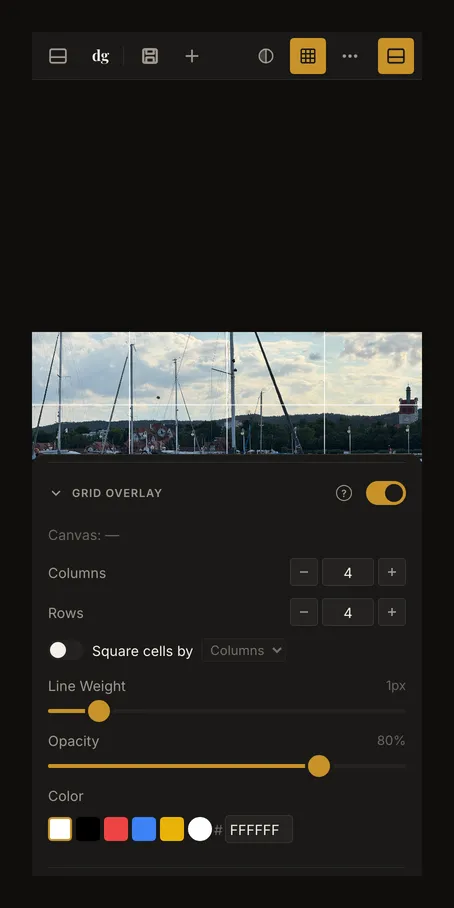
On a narrow screen, controls open from the bottom. Scroll the panel itself, then close it to see more of the reference. - Draw from a clear reference
With the grid and focus mode on, tap one cell to dim the surrounding photo. Tap that cell again to clear the focus. Drag to move the view and pinch with two fingers to zoom. Match the grid on your drawing surface; see grid setup for the full procedure.
Find the actions behind the three dots
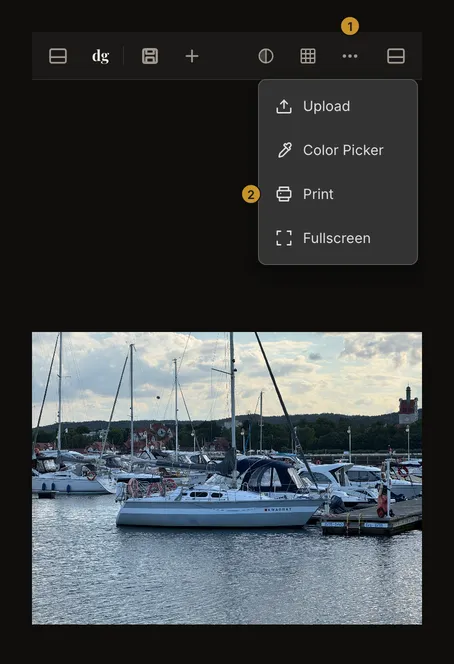
Open More actions (⋯) for Upload or Replace image, Color picker, Print and Fullscreen. This menu also appears in narrower tablet layouts. Save and New artwork remain separate toolbar actions. After saving an artwork, a phone shows its name, version controls and Save in an extra row below the toolbar.
The left toolbar toggle opens the account menu, including My Artworks when signed in. The right toggle opens editing controls. Phones show these panels from the bottom; tablets may show them over the side of the photo. Opening one can close the other. Use the visible toggle to close a panel; you do not need a swipe gesture.
Tap a cell, drag the view, pinch to zoom
A tap without moving your finger selects a grid cell when focus mode is enabled. A drag moves the reference instead. During crop adjustment, dragging a crop handle or inside the crop box changes the crop; drag outside it to pan. A second finger ends the one-finger crop or pan interaction so a pinch can zoom the view. Finish one gesture before starting another.
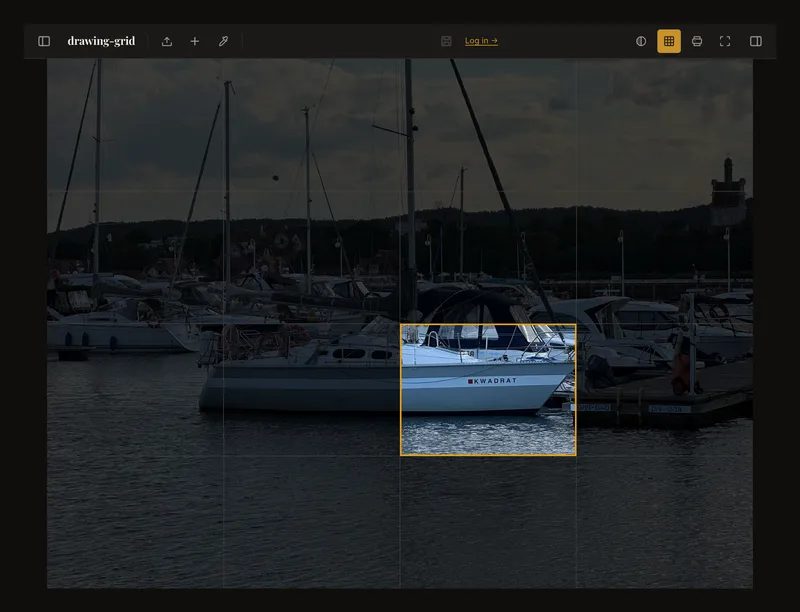
Apply the crop or switch Crop Canvas off before selecting a focus cell. The Color picker samples a colour instead of focusing; choose Color Picker in More actions again to turn it off before choosing cells. Use the Position controls for a predictable zoom value or Fit to recenter the view. Do not rely on double-tapping as a zoom shortcut. See selecting a cell for more detail.
Turn the device or work full screen
Try landscape for a wide reference or portrait when you want more vertical space. Turning the device changes the available room and can move controls between the toolbar and menus; it does not rotate the photo itself. Close panels and choose Fit again if the view feels cramped. Change image orientation with the rotation controls when that is your intention.
Choose Fullscreen from More actions for a clearer reference. The app hides its toolbar and panels. Tap to reveal the exit control, then use it to return. When the browser supports native fullscreen the app requests it; otherwise it uses an app-only view, so browser bars may remain. Fullscreen does not lock device orientation. If you are judging physical dimensions in Actual size, recheck with a real ruler after changing screen conditions.
Save and organise your studies
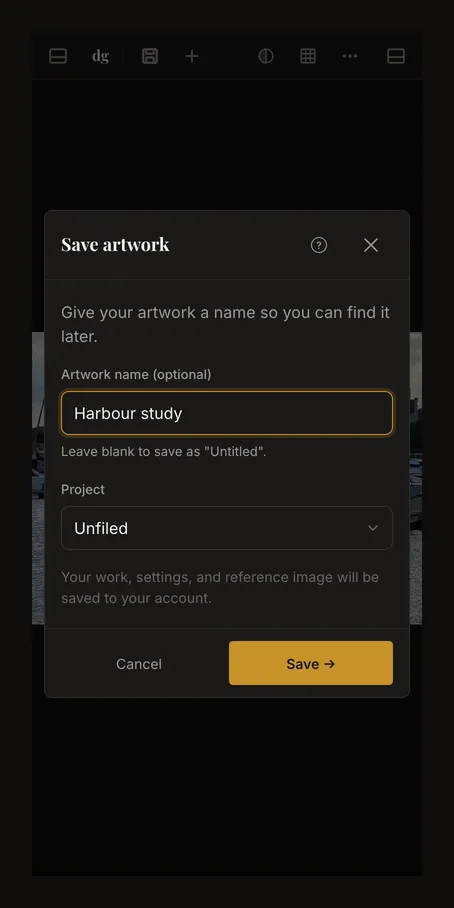
Sign in and tap Save. For a new artwork, optionally give it a name, then confirm in the save dialog. Wait for saving to finish before leaving the page. An anonymous edit is not an account save, and keeping a browser tab open is not a backup of the original photo.
Open the account menu, then My Artworks. Search by name or choose Date or Name sorting. On a phone, open the Project control to reach projects and tag filters. Choose a project to view its artworks. Tag choices can remain open for multiple selections; close the drawer when you are ready to browse the results. Clear unwanted filters if an artwork seems to be missing.
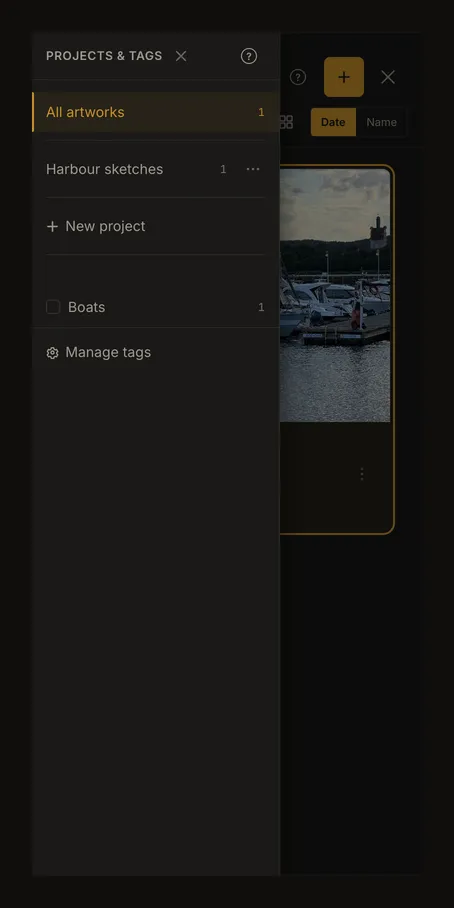
Use an artwork's action menu to organise it into a project or manage its tags. Opening a saved artwork can replace the current working reference; read any unsaved-changes prompt before continuing. Version navigation moves between saved versions, not every touch or adjustment.
Download a reference PDF
Open More actions, then Print. If the crop box is not applied yet, the tool first asks Apply crop first? Choose Apply Crop to print only the area inside the box. Set the target dimensions and paper size. On narrow screens, margin and overlap are under More options (margin, overlap), and the page layout under Show preview. Check the page count, then choose Generate PDF. The layout preview is a paper plan, not a preview of the finished photo rendering. The PDF guide explains every setting.
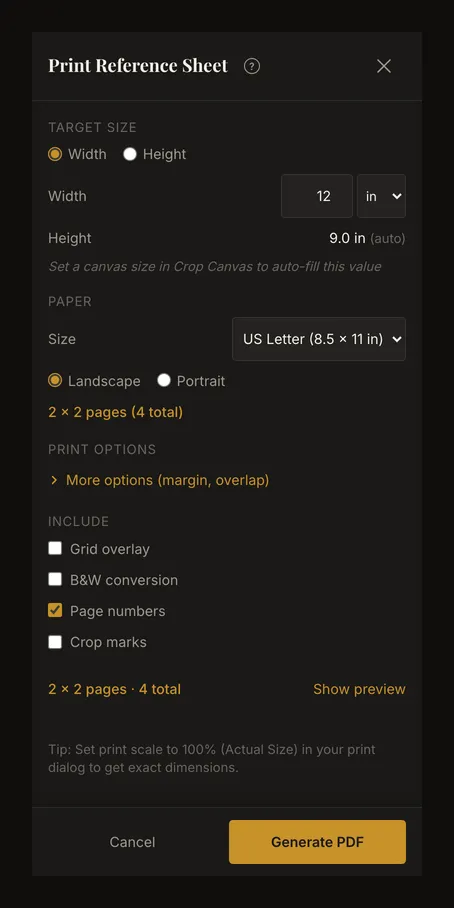
Generating a PDF does not send it directly to a printer. The browser decides whether to download or open the file and which sharing or printing actions are available. Check the completed PDF before printing, and use 100% or Actual Size in the printer settings when you need the specified physical dimensions. Screen zoom does not set PDF dimensions.
Frequently asked questions
Why does my tablet look different from these screenshots?
The layout follows the available browser width, not the device name. Rotation, split-screen use and browser zoom can change which controls fit. Check More actions and the two panel toggles.
Why does a tap move or sample instead of focusing?
Tap without moving your finger, enable the grid and focus mode, and leave crop adjustment or the Color picker. A drag pans the view; a tap in the Color picker samples colour.
Why can’t I choose or paste a photo?
Use the file chooser with a supported format. Clipboard access and chooser options vary by browser and permissions. If paste is unavailable, save a local copy and choose that file. Keep your original photo separately.
Do I need an account on a phone?
Not for loading a photo, editing, using the grid or generating a PDF. Sign in to save artworks and use the account's projects and tags. Local browser recovery and account saves are different things.