What cropping changes
Crop Canvas trims the reference to the proportions of your real canvas or paper. It removes the area outside the box without stretching the subject. Enter physical measurements, not pixels: 40 × 50 cm describes your painting surface, not a new image resolution.
Choose what belongs in the painting
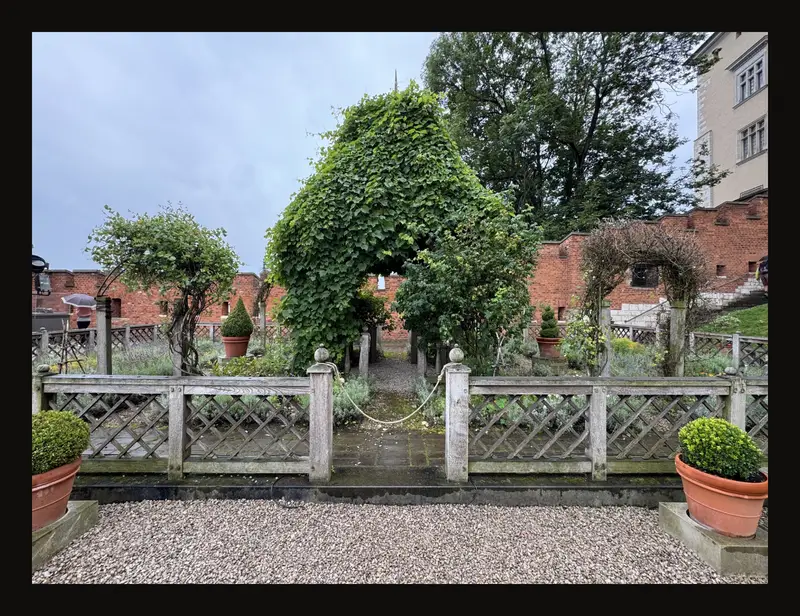
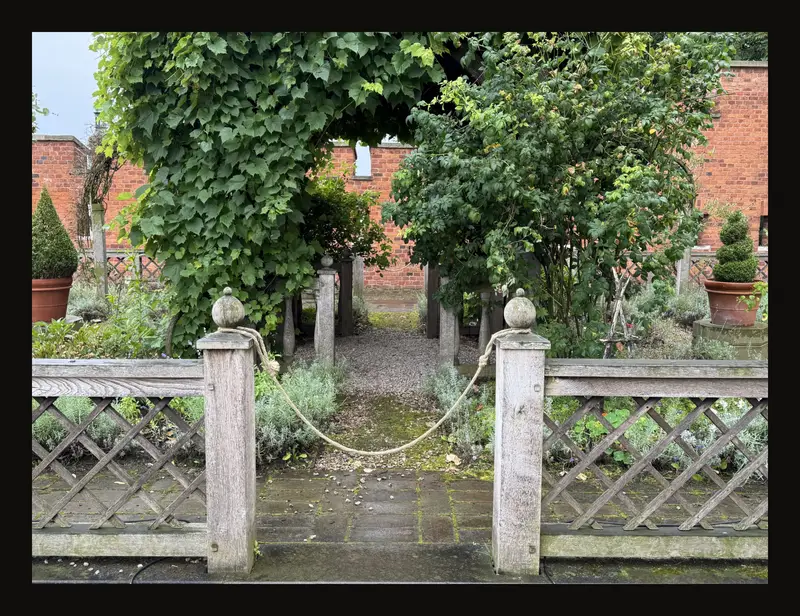
Decide what the picture is about before tightening the frame. In these two separate photographs of the same garden, the wider view includes the setting; the closer view gives the gate and vine more weight. They are different photographs, not a before-and-after crop.
From photo to canvas in six steps
- Load your reference
Open the tool and upload your photo. Keep the original file so you can return to a wider composition later.
- Turn on cropping
Open Crop Canvas in the right panel and turn on its switch. The switch starts off on a new artwork. The initial box is the largest centered rectangle with your chosen proportions; opening the header alone does not turn cropping on.
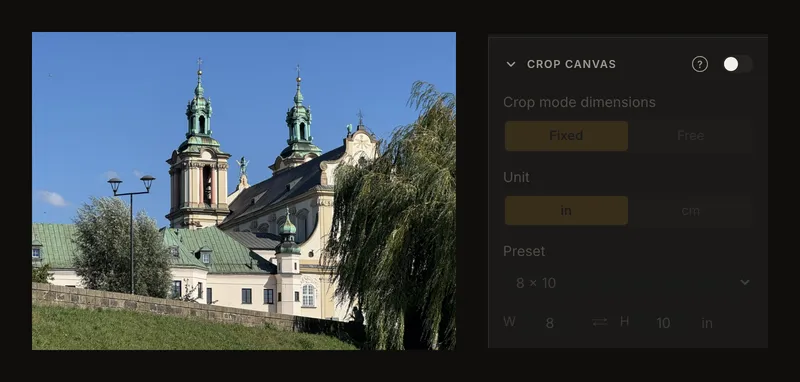
Opening the section shows the settings; turn on the switch to use them. - Set the real dimensions
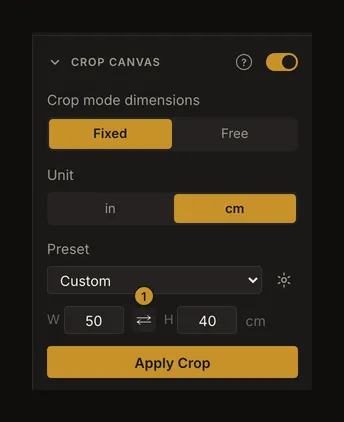
Choose Unit, then a size under Preset, or type W and H. For this example use 40 × 50 cm. Keep Fixed when the canvas already exists.
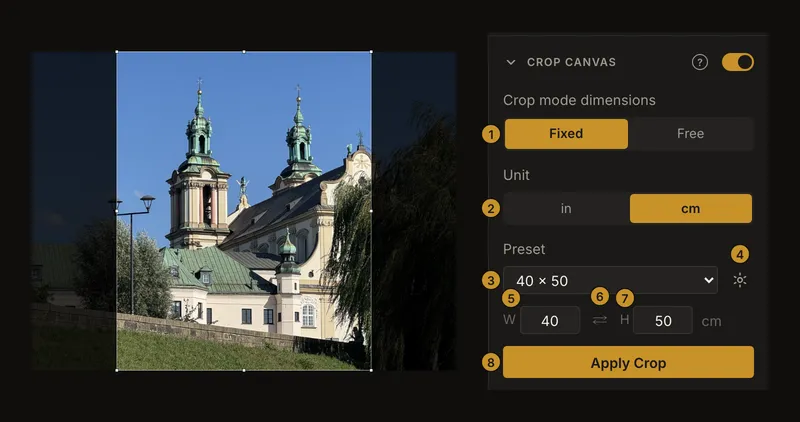
① Fixed / Free. ② Unit. ③ Preset. ④ Manage favourite presets. ⑤ W. ⑥ Swap width and height. ⑦ H. ⑧ Apply Crop. The panel sets the physical size; the box on the photograph chooses which part will fill it. The numbered markers identify these controls:
- Crop mode dimensions.
- Unit.
- Preset (saved favourites for the selected unit appear above built-in sizes, when available).
- Manage favourite presets (requires an account and sign-in).
- W (width).
- ⇄ · Swap width and height.
- H (height).
- Apply Crop.
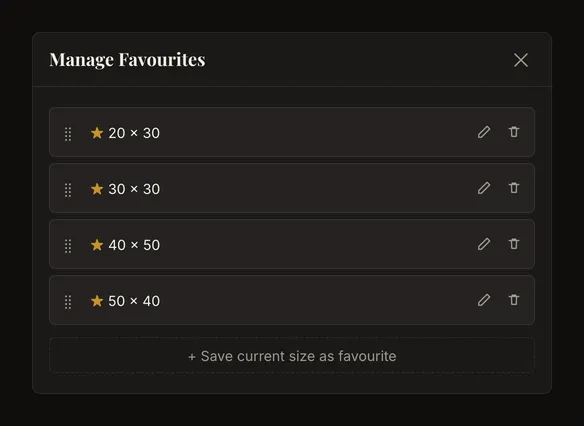
When signed in, use the gear beside the preset list to add favourite sizes, rename or remove them, and change their order. The preset list chooses a size; the gear manages your favourites.
- Frame the subject
Move the box by dragging inside it. Drag a corner or an edge handle to resize it. Leave space around the church spires and check every edge before applying.
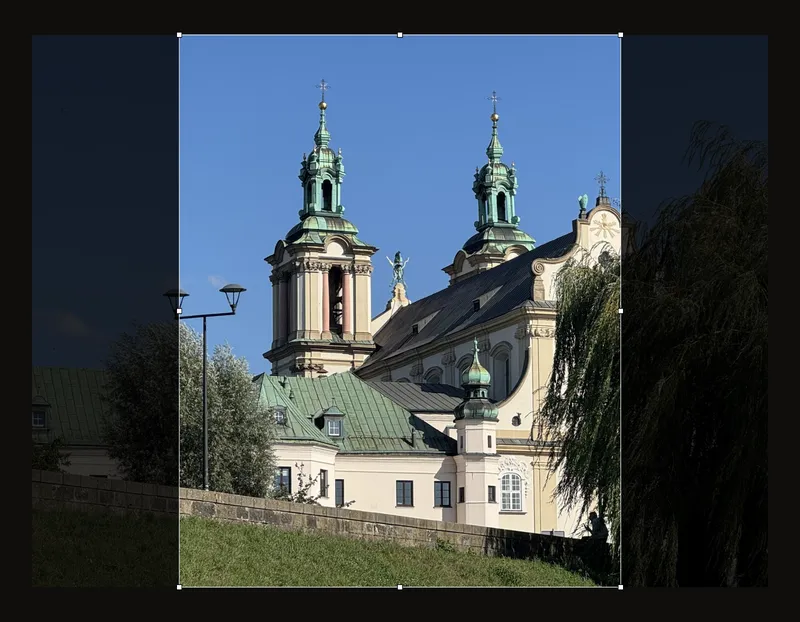
The bright rectangle is the part to keep. The darkened area will be removed. - Apply the crop
Click Apply Crop. The outside pixels are removed from the working image, the crop switch turns off and zoom and pan reset. The canvas size remains known. The physical dimensions also support Actual size and pre-fill the print size.
- Check the grid measurements
Turn on Grid Overlay. With a 40 × 50 cm canvas, 4 columns and 5 rows give 10 × 10 cm cells. Measure those cells on your real canvas. Read the grid settings guide for other counts and square cells.
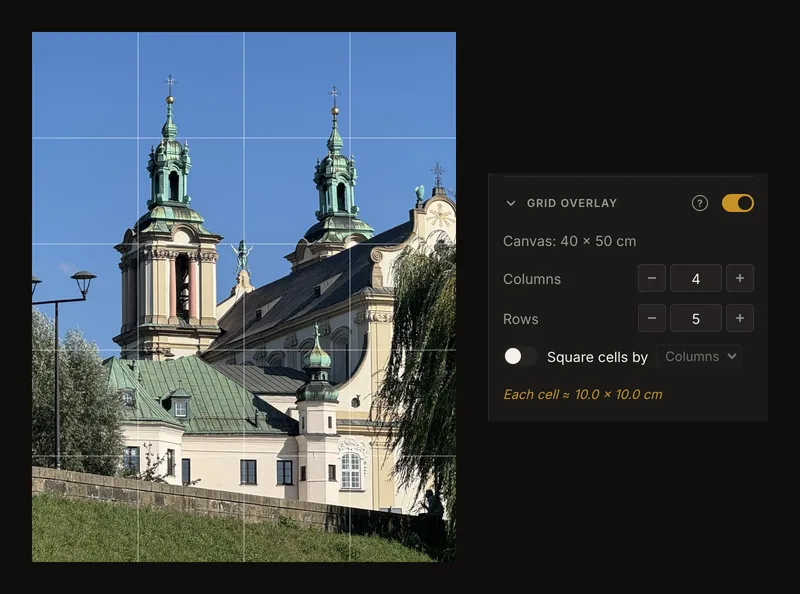
After applying: the whole reference has the canvas proportions, and each grid cell represents 10 × 10 cm.
Fixed or free: choose the right mode
Fixed keeps the width-to-height ratio while you resize the box. Free allows any shape and updates the physical width and height as you drag, to one decimal place, with a minimum of 0.1. Moving the box does not change those dimensions. Choosing a concrete preset returns to fixed mode. Use free mode to explore a composition before choosing a canvas, not to keep an existing canvas size unchanged.
Centimeters or inches
Unit switches between cm and in. Changing it converts both values using 1 inch = 2.54 cm, rounded to two decimals, and sets the preset to Custom. Check the displayed values before applying.
Canvas and paper presets
Preset lists physical sizes, not abstract aspect ratios. Centimeters offer canvas sizes and A5–A1 paper; inches offer canvas, traditional portrait sizes and paper including US Letter and US Legal. A preset supplies the dimensions; Custom lets you enter your own.
When signed in, any saved favourites for the selected unit are grouped above the standard canvas and paper sizes.
Managing favourite sizes
To save and manage favourite sizes, create an account if you do not have one, then sign in.
Open the gear Manage favourite presets beside the preset list. Add the current size or enter different dimensions, optionally give it a name, then save it. You can rename, delete and reorder your favourites. You can keep up to 20 favourites for each unit.
Favourites for the current unit appear above the standard groups when you have any.
Built-in presets and manually entered Custom dimensions remain available without an account; only saving and managing favourites requires sign-in.
Width and height
W is the horizontal side and H the vertical side. Use the Up and Down arrow keys to adjust the value, or type a positive decimal value. If you clear a field or enter zero, the previous value is kept. Editing either field changes the preset to Custom.
Portrait or landscape
In the right panel, open Crop Canvas and find the ⇄ button between the Width and Height fields. Click ⇄ to swap the dimensions: 40 × 50 cm becomes 50 × 40 cm. This changes the canvas orientation without rotating the photograph. The preset name stays the same, so check both numbers.
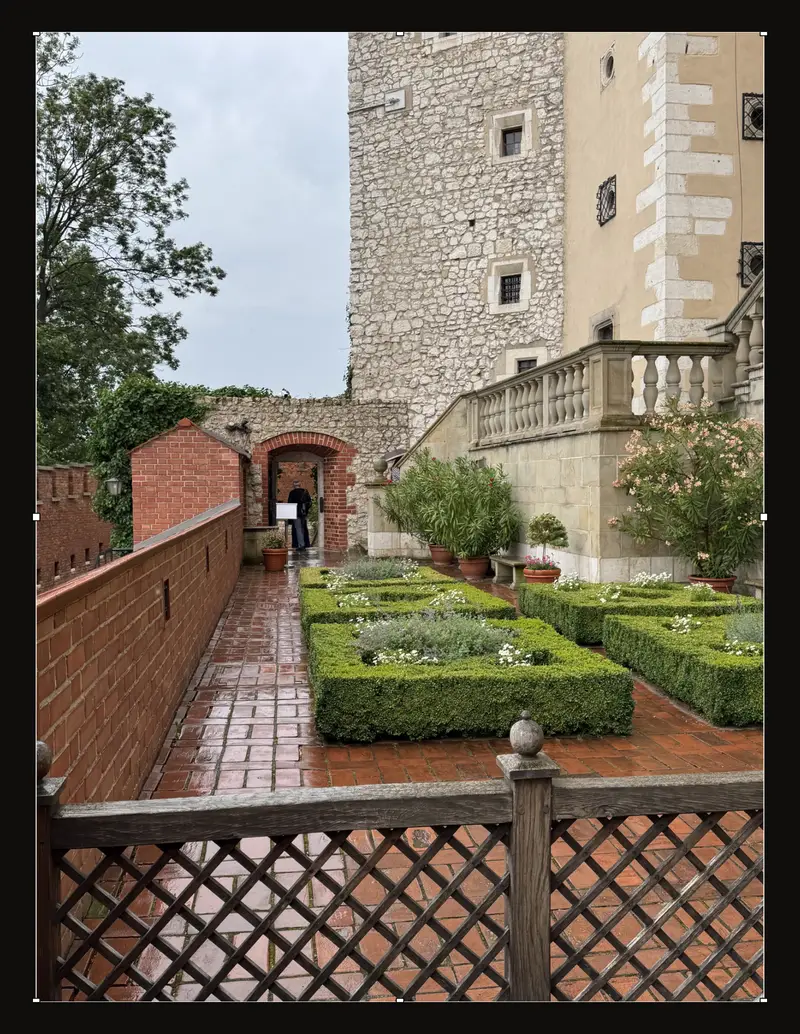
This upright terrace reference suits a tall painting: a wide crop would lose much of the path and tower.
Before you apply
There is no dedicated crop undo. Keep the original photo file. To keep an uncropped version in saved history, save the artwork before applying a crop. You can return to that version while it remains in history. Each artwork keeps up to 50 saved versions; older versions, including the first, can be removed as more versions are saved.
Turning the switch off before applying only dismisses the box. If you click the print button while the crop box is not applied, the tool first asks you to apply it; Cancel returns you to editing.
If applying fails, the tool shows an error. Check that the crop box is still there and try again; keep the original file if you need to reload it.
Moving the crop box
There are eight handles: four corners and four edge midpoints. Drag inside to move the box; drag outside to pan the view. The box stays within the image. A second finger cancels the current crop drag. Rotating or flipping the photo resets the box, so do that before final framing. While cropping, the grid covers the box only.
What is remembered?
The browser autosaves the canvas settings; saving an artwork to your account includes them too. Settings can supply your starting unit and preset. Without a preference, US English browsers start in inches and other browsers in centimeters. Loading a different image clears the previous size confirmation: crop the new reference before relying on its physical measurements.
A final composition check
Look for a spire, branch or railing nearly touching the edge. Move the box deliberately to include it or cut it cleanly. Cropping cannot recover detail outside the source photograph or add resolution. Once applied, check the grid measurements and print at 100% if you need physical scale.
See how to browse saved versions before returning to an earlier reference.
Frequently asked questions
Can I undo a crop?
There is no crop undo button. Restore a version saved before cropping while it remains in history, or reload the original photo file. If you cropped before the first save, that first saved version is already cropped. History holds up to 50 versions; even the first can be removed as new versions are saved.
Why is the box locked to a shape?
Fixed preserves your canvas proportions. Choose Free only if you also want the width and height to change as you resize.
Which unit is used?
Read Unit in the panel. It uses your starting preference, or inches for US English browsers and centimeters otherwise. You can switch units; the dimensions are converted.