What a drawing grid is
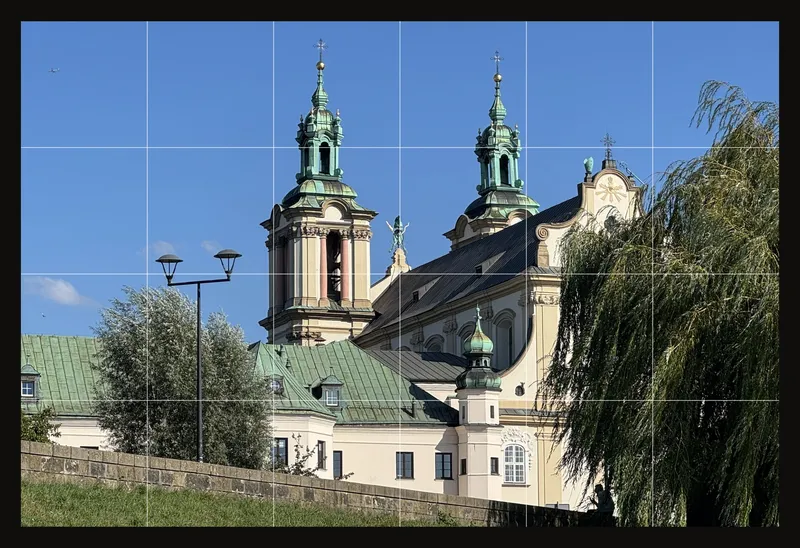
A drawing grid is a set of evenly spaced lines that divides your reference photo into equal cells. You draw the same grid lightly on your canvas, then copy the photo one cell at a time. The tool draws the grid over the photo on screen. It never changes the photo itself.
All grid settings are in the Grid Overlay section, the last section of the right-hand panel. The section stays disabled until you load a photo. It starts collapsed: click its header to open it.
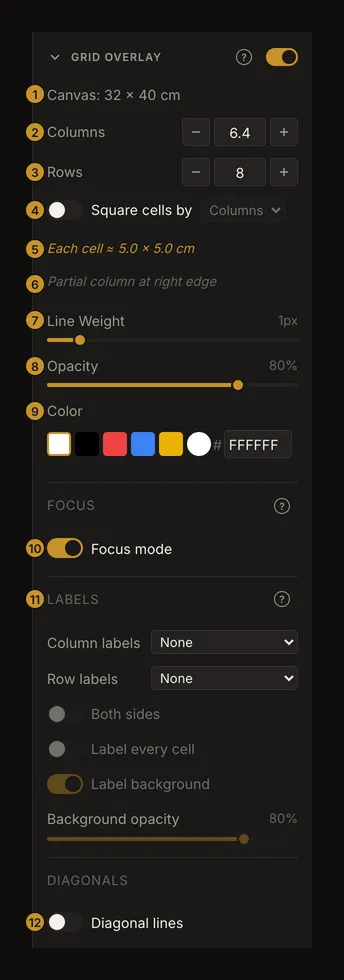
- The canvas line shows the real canvas size that the cell sizes are measured against. See The canvas line.
- Columns sets how many cells the grid has across. See Columns and rows.
- Rows sets how many cells it has down. See Columns and rows.
- Square cells by makes every cell square and lets one axis set the size of both. See Square cells.
- The cell size line shows how big each cell is on your canvas, in centimeters or inches. See Cell size.
- The partial-cell note appears when a columns or rows value you typed has a decimal part, or when square cells do not divide the other side evenly, so the last column or row is narrower. See Partial cells.
- Line Weight sets how thick the lines are drawn on screen. See Line weight.
- Opacity sets how strongly the lines cover the photo. See Opacity.
- Color picks the line color, from a preset or a hex value. See Grid color.
- Focus mode lets you click one cell and dim the rest of the photo. See Focus mode.
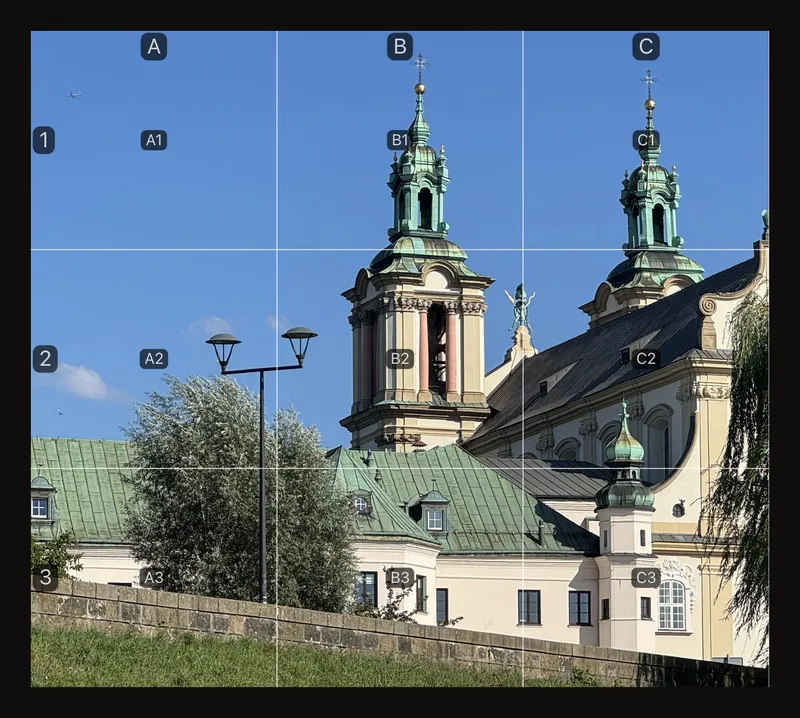
- Labels names the columns and rows with letters or numbers. See Grid labels.
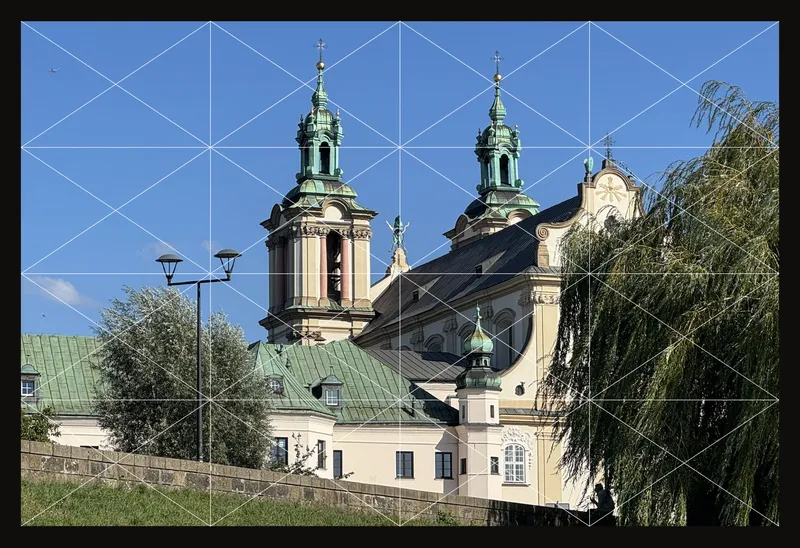
- Diagonal lines draws both diagonals in every cell. See Diagonal lines.
Why draw with a grid, and when to skip it
A grid turns one hard judgment into many small ones. Instead of placing a whole face or landscape by eye, you only place what falls inside one cell. That keeps proportions and placement accurate when you transfer a reference to a canvas of a different size.
Cells measured in centimeters or inches go one step further. If you tell the tool your canvas size, it gives you the exact size of each cell. You can then rule the same grid on the canvas and every cell matches.
Skip the grid for quick gesture studies, or when you are judging values across the whole picture. The lines break the image into pieces, so turn the grid off now and then to see the whole again.
How to set up a drawing grid, step by step
- Load your reference photo
Drop a photo onto the drop zone in the middle of the empty tool, or click the drop zone to choose a file. You can also paste a photo you have copied, as the drop zone's paste line says. The panel sections become active once the photo is on screen.
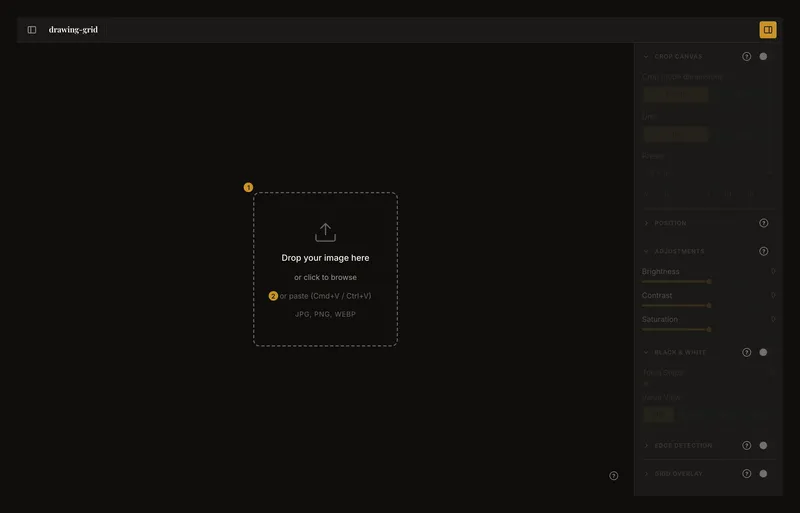
① The drop zone; click it to choose a file. ② The paste hint. Note:On a phone, tap the drop zone, where it says Tap to add your photo. The toolbar has no upload button until a photo is loaded. After that, the upload button swaps in a different photo. On very wide windows it reads Upload. On most screens it is an arrow icon with the tooltip Upload image. On phones and small tablets it is in the More actions (⋯) menu.
- Enter your canvas size
Turn on Crop Canvas, choose cm or in, and type the width ① and height ② of your real canvas. A crop box in that shape appears on the photo. Frame the part of the photo you want to paint, then click Apply Crop ③. This is what lets the tool show cell sizes in real units. Skip this step if you only need a grid by count.
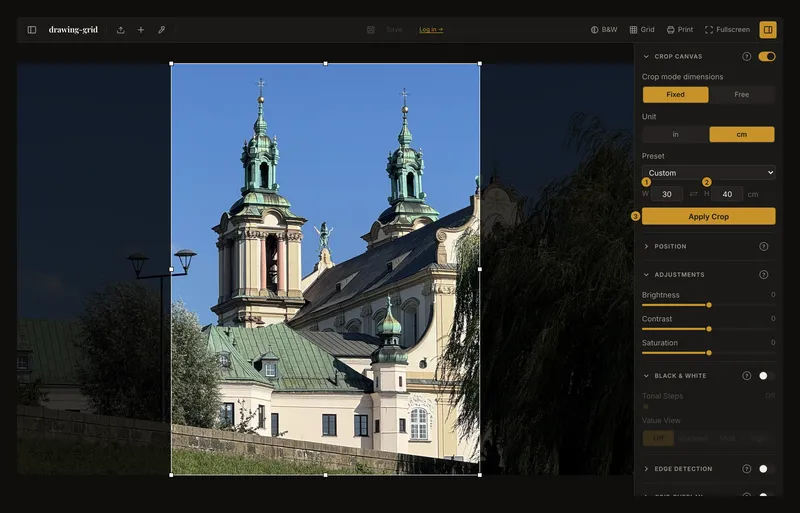
① Width. ② Height. ③ The button that applies the crop. - Turn on the grid
Click the Grid button in the toolbar ①, or turn on the switch next to Grid Overlay ②. Then click the Grid Overlay header to open its settings.
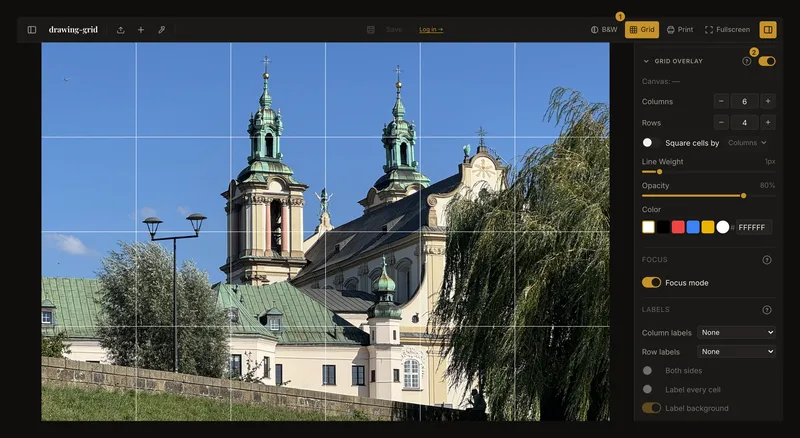
① The Grid button in the toolbar. ② The switch next to the section title. Shown on an uncropped photo with 6 columns and 4 rows. - Set the number of columns and rows
Type a number in Columns and in Rows. For square cells, turn on Square cells by and type only the columns. With a canvas size set, the cell size appears under the steppers.
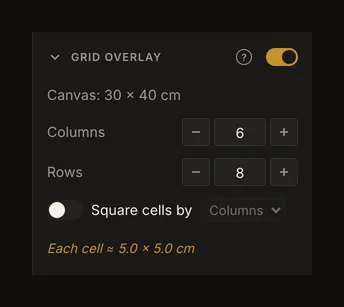
A 30 × 40 cm canvas with 6 columns and 8 rows: each cell is 5 cm square. - Check the cell size
Read the cell size line under the steppers. Change the count until the cells are a size you can measure easily on the canvas. To keep a round cell size on a canvas it does not divide evenly, type a decimal count instead: the full cells keep that size, and one narrower column or row fills the edge.
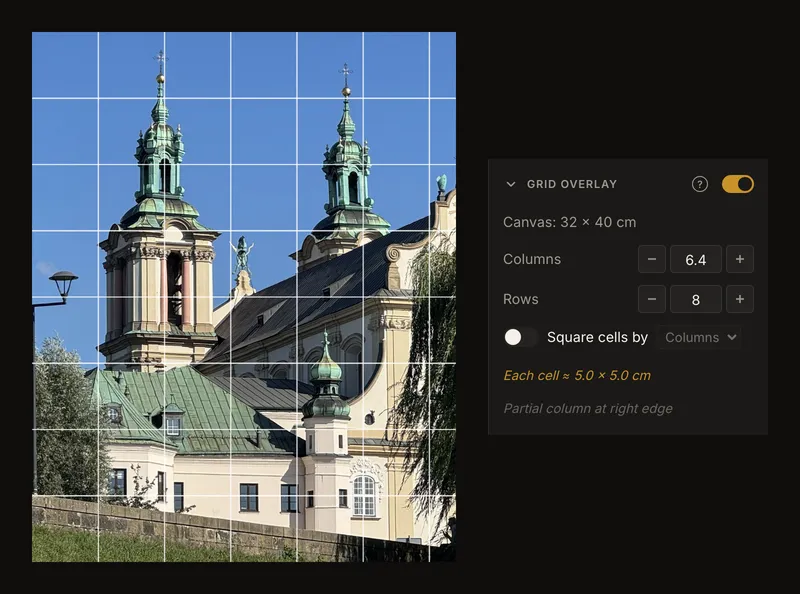
Left, the photo on a 32 cm canvas with 6.4 columns: six full 5 cm columns, then one 2 cm column. Right, the settings, with the partial-column note at the bottom. - Make the lines easy to see
Set Line Weight, Opacity and Color so the lines read clearly against this photo without hiding it.
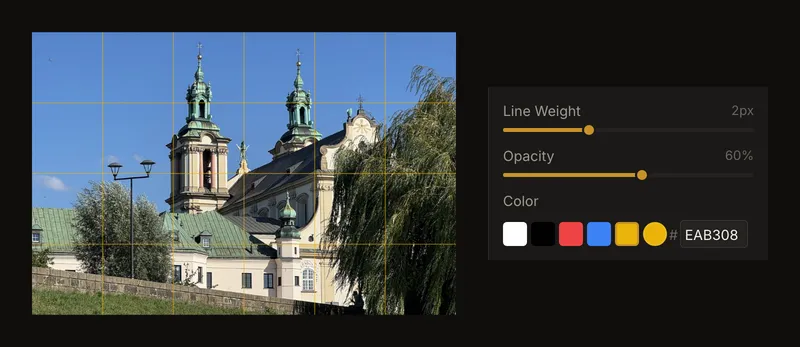
Line weight 2 px, opacity 60% and the yellow swatch. - Add labels
Under Labels, set Column labels and Row labels. Write the same labels on your canvas so you always know which cell you are in.
- Work on one cell at a time
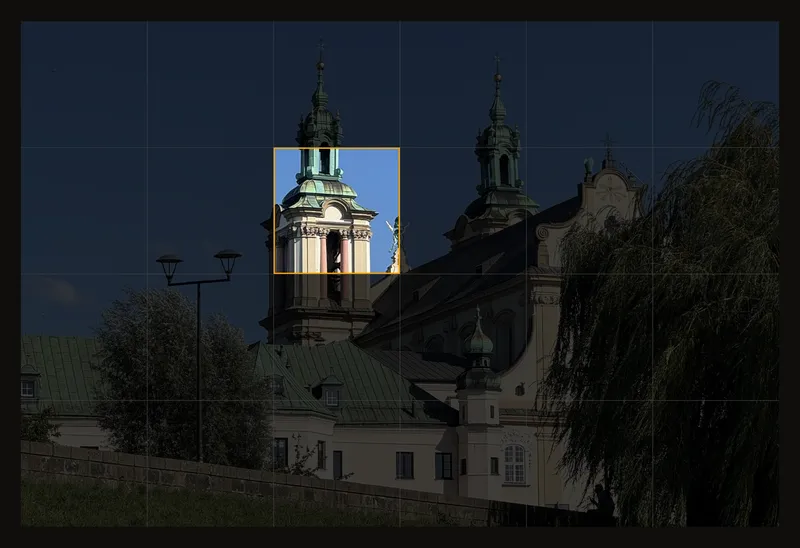
Click a cell on the photo. The rest of the photo dims, so you can copy that cell alone. Click the same cell again, or press Esc, to see the whole photo.
- Add diagonals if you need them
Turn on Diagonal lines to draw an X through every cell. This step is optional.
- Print the reference with the grid
Click the print button in the toolbar. The dialog makes a PDF of the photo with its grid, at the size you choose (your canvas size, if you set one in Crop Canvas), spread over as many sheets as it needs. Keep Grid overlay checked ④, then click Generate PDF and print the PDF. Printing with the grid explains every option.
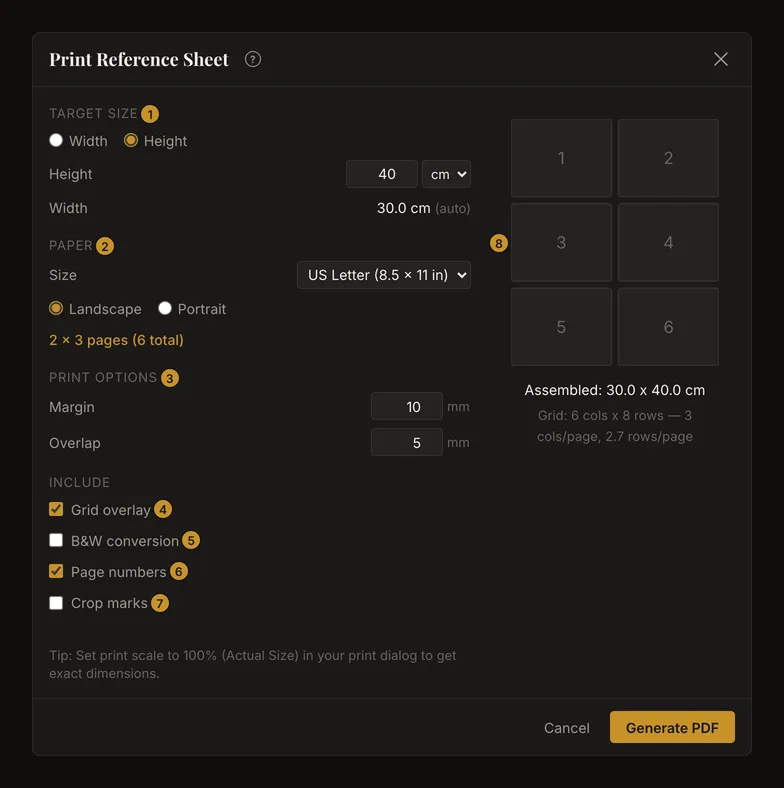
① The target size. ② The paper. ③ Margin and overlap. ④–⑦ What the PDF includes. ⑧ How the sheets are laid out. Note:On wide windows the print button reads Print. On narrower ones it is a printer icon with the tooltip Print reference sheet. On phones and small tablets it is in the More actions (⋯) menu.
- Show it full screen at the easel
Click the full-screen button in the toolbar. The photo and its grid fill the screen, and you can still click a cell to focus it. Press Esc to come back. Full screen at the easel says more.
 Note:
Note:On wide windows the full-screen button reads Fullscreen. On narrower ones it is an icon of four corners with the tooltip Toggle full-screen reference mode. On phones and small tablets it is in the More actions (⋯) menu.
Turning the grid on and off
There are two switches for the same grid, shown in step 3. One is the Grid button in the toolbar. On narrower windows it shows only a grid icon. The other is the switch next to the Grid Overlay title. Either one turns the grid on or off, and the other follows.
The grid is off every time you start a new artwork. The toolbar button appears once a photo is loaded.
The switch and the header are separate controls. The switch turns the grid on or off. The header only opens or closes the settings. This browser remembers whether you left the section open.
While the grid is off, every setting in the section is dimmed and cannot be changed. There is no keyboard shortcut for the grid.
The canvas line: which size the cells are measured against
The first line of the section tells you whether the tool knows your real canvas size.
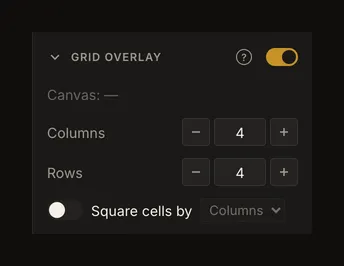
It shows the width, height and unit from Crop Canvas while that section is on, or after you have applied a crop. Otherwise it shows a dash, and the tool can only divide the photo by count. Step 4 shows it for a 30 × 40 cm canvas.
Columns and rows: how many cells
Columns sets how many cells run across the photo. Rows sets how many run down it. Both start at 4.
Type any value from 0.1 to 1000, decimals included, such as 6.4. A value above 1000 becomes 1000.
The − and + buttons change the value by 1, so one click takes you from 4 to 5. The mouse wheel also changes it by 1, but only while the field has focus. For finer adjustments, use the up and down arrow keys to change it by 0.1, or type an exact value. Buttons and the wheel preserve decimals: 4.5 becomes 5.5.
Partial cells: why the last column can be narrower
A decimal count leaves one narrower cell at the edge. The grid always starts at the top-left corner, so the partial column is on the right and the partial row is at the bottom.
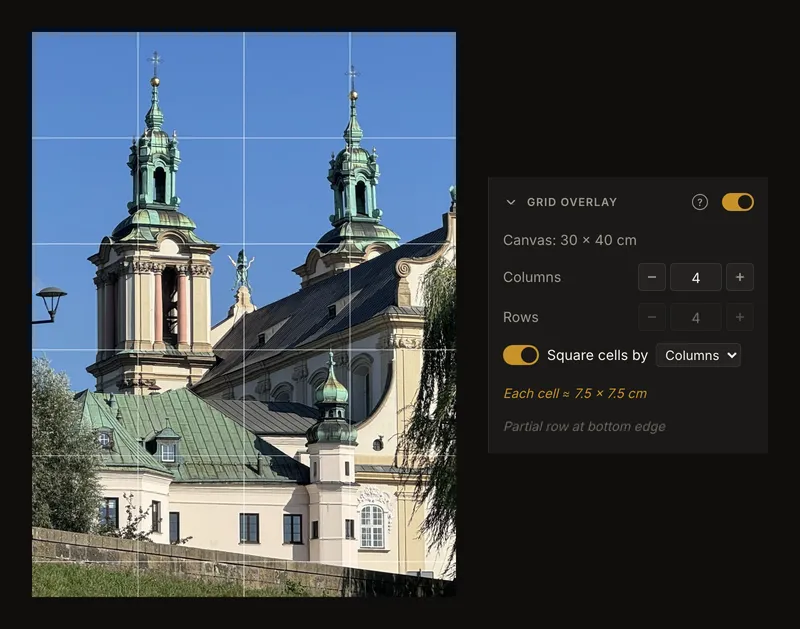
This is how you get cells of an exact size. On a canvas 30 cm wide, 6 columns give 5 cm cells. On a canvas 32 cm wide, you need 6.4 columns for 5 cm cells, and the last column is 2 cm wide. The figure in step 5 shows this case.
When a value you typed has a decimal part, or square cells do not divide the other side evenly, a note under the cell size says where the partial cells are: at the right edge, at the bottom edge, or both. Like the cell size, the note only appears once the tool knows your canvas size.
Square cells: which side sets the size
Turn on Square cells by when you want every cell to be square. Then choose which side sets the size: Columns or Rows. It is off by default, set to columns.
You type the count for the side you chose. The tool works out how many cells fit along the other side, and grays out that stepper. The number in the grayed-out stepper is left over from before. It is not the number of cells drawn.
The other side rarely comes out even, so its last row or column is usually partial. The partial-cell note tells you which edge it is on.
Cell size in cm or inches
The cell size line shows how big each cell is on your real canvas, to one decimal place, in the unit you chose in Crop Canvas. It never shows pixels.
It only appears while the grid is on and the tool knows your canvas size. The width is the canvas width divided by the columns. The height is the canvas height divided by the rows. With square cells, both come from the side you chose.
Measure and rule your canvas with these numbers. If the cells come out at an awkward size such as 4.7 cm, change the count until you get a size your ruler handles easily.
Line weight: how thick the lines are
Line Weight sets the thickness of the lines, from 0.5 to 5 px in steps of 0.5. It starts at 1 px.
These are screen pixels. The lines stay the same thickness however far you zoom in or out.
In print, the same number means print pixels at 150 dots per inch, so 1 px is about 0.17 mm on paper.
Opacity: see the photo through the lines
Opacity sets how solid the grid is, from 10% to 100% in steps of 5%. It starts at 80%. It applies to the lines, the diagonals and the labels together. Lower it when the grid hides detail you need to see.
Grid color: pick one that shows on your photo
Color sets the color of the lines and labels. It starts at white.
There are three ways to set it:
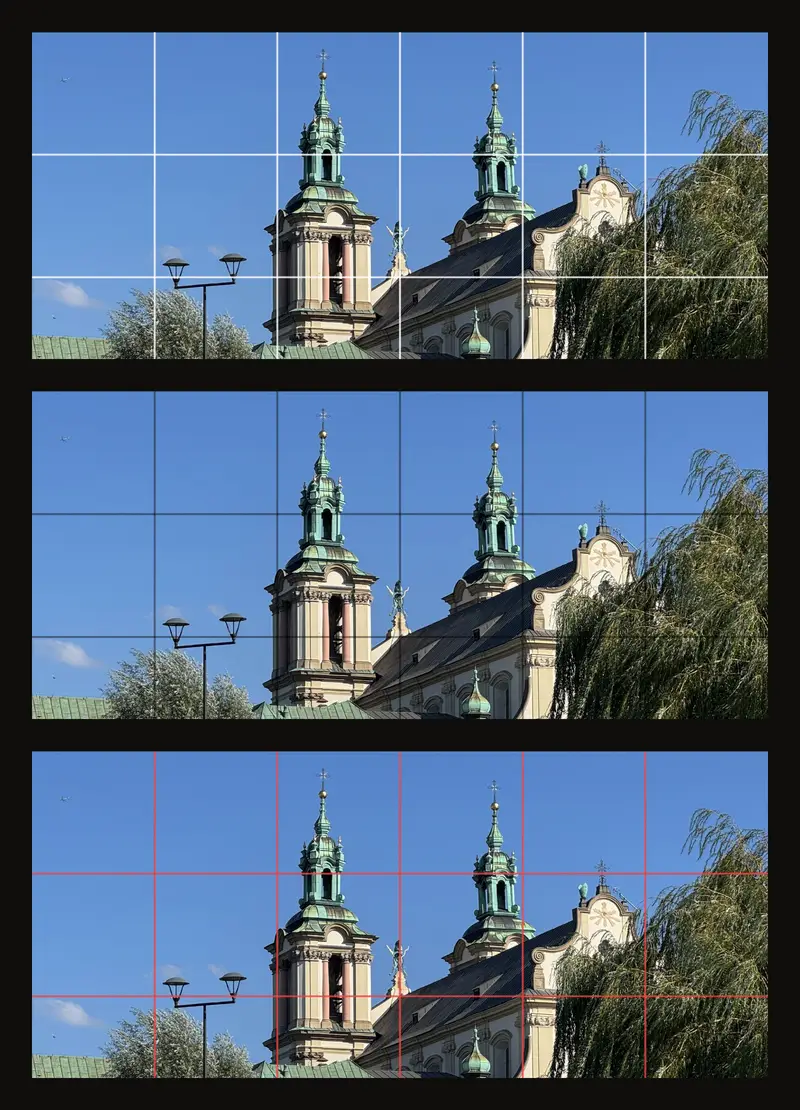
- Click one of the five preset swatches: white, black, red, blue or yellow.
- Type a six-digit hex code in the field. The color changes as soon as the code is complete. A code that is not valid is undone when you leave the field.
- Click the round swatch just before the # field to open a color wheel with a lightness slider.
The color wheel and the lightness slider work with a mouse, pen or finger only. With the keyboard, use the swatches or the hex field.
The tool does not choose a color for you. These rules of thumb work for most photos:
- Use white or yellow on dark references, and black on light ones.
- Use red or blue when the photo is mostly neutral gray or brown.
- Lower the opacity if the lines hide detail.
- Over a black and white or posterized view, a colored grid stands out best.
The one automatic part is the background behind each label, which is dark or light depending on the grid color.
Focus mode: work on one cell at a time
Focus mode dims the rest of the photo so you see only the one cell you are copying, like a viewfinder card held up to the reference. It is on by default. It works while the grid is on and you are not adjusting a crop box: turn Crop Canvas off, or apply the crop, first.
Click or tap a cell to focus it. The rest of the photo darkens and the cell gets an amber border, as in step 8. The cell does not zoom; it stays where it is. A small slip while you click still counts as a click, but a longer drag pans the photo instead.
Click another cell to move the focus. Click the same cell again, click outside the photo, or press Esc to see the whole photo. While a dialog or menu is open, the first Esc closes it instead.
To turn the mode off, use Focus mode under Focus. The focus also clears when you turn the grid off, switch Crop Canvas on or off, apply a crop, rotate or flip the photo, load a new photo, or start the color picker.
If you change the number of columns or rows, the cell in the same column and row stays focused, so it now covers a different part of the photo.
You can still pan and zoom while a cell is focused. The focus shows in full screen, but it is never printed. While the grid and focus mode are both on, double-clicking the photo with the mouse does not zoom.
Grid labels: name each column and row
Labels give every column and row a name, so you can find the matching cell on your canvas. Step 7 shows them.
- Column labels names the columns along the top edge.
- Row labels names the rows along the left edge.
- Each can be None, Letters (A, B, C...) or Numbers (1, 2, 3...). Both start at none.
- Both sides repeats the labels along the bottom and right edges.
- Label every cell writes a name inside every cell: its column label followed by its row label. With letter columns and numbered rows that gives A1, and with numbers on both sides 1-1. If only one side has labels, each cell shows just that one.
- Label background puts each label on a background. It starts on. Turn it off to show the labels as plain text, so more of the photo shows around them. Below it, Background opacity sets how solid the background is, from 0% to 100% in steps of 5%. It starts at 80%.
The last three stay dimmed until at least one side has labels. Letter columns with numbered rows are the easiest to read, because every cell name looks like a map reference. After Z the letters go on as AA, AB and so on.
Labels are drawn just inside the edge of the photo, in the grid color, each on a light or dark background chosen automatically so they stay readable. With Label background off they are plain text in the grid color, which can be hard to read on a busy photo or one of a similar color.
Diagonal lines: angles and cell centers
Diagonal lines draws an X through every cell, partial cells included, as in step 9. It is off by default. In each full cell, the two lines cross at the center, and they give you a fixed angle to compare slopes against. In a partial cell the lines keep the same slope and are cut off at the edge.
The diagonals use the same color, weight and opacity as the grid. They hide when a cell is narrower or shorter than 15 pixels on screen. They are printed too.
Where the grid is drawn
Normally the grid covers the whole photo. While Crop Canvas is on and you have not applied the crop yet, the grid covers only the crop box. After you click Apply Crop, the cropped photo is the whole photo, and the grid covers all of it.
The grid is drawn over the black and white view, posterized tones, Value View and detected edges. It also appears in full screen, exactly as you set it.
A printout shows the grid, labels and diagonals when Grid overlay is checked in the print dialog. Printing with the grid has the details.
Printing with the grid
The print dialog turns the photo and its grid into a PDF that you then print yourself. It works in centimeters or inches, so you can print a reference at the exact size of your canvas, spread over several sheets when it is large. This section covers what matters for the grid. The numbers refer to the figure in step 10.
- Target Size ①: choose Width or Height, and type the size, from 1 to 500 cm or in. The other side follows the photo's proportions and is marked (auto). If you set a canvas size in Crop Canvas, the dialog opens with that unit and your canvas's longer side already filled in. Without one, the size stays empty until you type it.
- Paper ②: A4 (210 x 297 mm) or US Letter (8.5 x 11 in), and Landscape or Portrait. The line under them says how many sheets the PDF will have, across and down. The paper starts as US Letter if your browser is set to US English, and as A4 otherwise.
- Print Options ③: Margin is the white border on every sheet, 5 to 20 mm, 10 mm to start. Overlap repeats a strip of the picture where two sheets meet, 0 to 15 mm, 5 mm to start, so you can line the sheets up and tape them together. On a phone, both are behind More options (margin, overlap).
- Grid overlay ④ adds the grid with its current settings, labels and diagonals included. It starts checked when the grid is on. Check it to print a grid you have hidden on screen.
- B&W conversion ⑤ prints the photo in black and white, with your tonal steps and value view when they are set. It starts checked when Black & White is on.
- Page numbers ⑥ prints each sheet's column, row and page number in its bottom corner. It is on to start. Crop marks ⑦ adds small marks at the corners of the margin for trimming. It is off to start.
- The preview ⑧ shows how the sheets are laid out.
The PDF is made at 150 dots per inch, so a 1 px line is about 0.17 mm on paper. For a line you can see from the easel, raise Line Weight to 2 or 3 px before you print.
The PDF shows the photo as the tool does, with your brightness, contrast and saturation, and with the detected edges when Edge Detection is on and B&W conversion is off. The focused cell's dimming never prints; it stays on screen. If a crop box is still not applied, the print button first opens the Apply crop first? dialog: Apply Crop crops the photo and opens the print dialog, and Cancel returns you to editing.
The dialog warns you when the PDF would have more than 25 sheets, or when the photo would be enlarged so much that it may look soft. When you print the PDF, set your printer to 100% or actual size, as the dialog's tip says. Otherwise the cells will not measure what the cell size line says.
Full screen at the easel
Full screen shows only the photo and its grid, so you can work from the screen at your easel. The toolbar and both side panels disappear. The grid, labels and diagonals stay exactly as you set them, and focus mode still works: click a cell to focus it, and click it again to see the whole photo. You can still pan and zoom. You cannot change settings in full screen, so set them first. A short hint, Esc to exit, appears when you enter and whenever you move the mouse or touch the screen. Press Esc, or click the × next to the hint, to leave full screen.
Are your grid settings saved?
Yes. The tool saves all of your grid settings in this browser as you work, including the focused cell. Replacing the photo keeps them, except the focused cell, so you can use the same grid on the next reference. Starting a new artwork resets them.
When you save an artwork to your account, it keeps every grid setting except the focused cell.
If you are signed in, you can set your own starting values in Settings. They are used whenever you start fresh: on your first visit and after a new artwork. They never replace a grid you have already changed. They cover columns, rows, square cells and the side that sets them, line weight and color, with separate defaults for labels. Opacity, focus mode, diagonals and whether the grid is on have no default.
Tips
If labels or diagonals disappear, zoom in. Column labels hide when cells are narrower than 20 pixels on screen, and row labels when cells are shorter than that. Labels inside cells need 40 pixels, and diagonals 15.
With focus mode on, a click on the photo selects a cell. To pan, drag instead of clicking.
Turn the grid off before you sample a color. The color picker reads the pixels on screen, and that includes the grid lines.
Choose a column count that gives whole centimeters or half inches. Cells that size are much quicker to rule on the canvas.
Frequently asked questions
Why are my grid labels gone?
Your cells are too small on screen for labels to fit. Zoom in and they come back. Labels along the edges need cells of at least 20 pixels on screen, and labels inside cells need 40.
Can I use decimal columns?
Yes. Type any value from 0.1 to 1000, such as 6.4. The full cells keep the size you want, and one narrower cell fills the rest of the edge.
Why is the last column narrower?
The column count has a decimal part, or square cells did not divide the photo evenly. The grid starts at the top-left corner, so the leftover space ends up as a narrower column on the right or a shorter row at the bottom.
Does the grid print?
Yes, when Grid overlay is checked in the print dialog. The box starts checked when the grid is on. The printout includes the labels and diagonals too, but never the focused cell. See Printing with the grid.
Why doesn't double-click zoom work?
Focus mode uses clicks on the photo to select cells, so double-click zoom is off while the grid and focus mode are both on. Turn off Focus mode, or the grid, to zoom by double-clicking again.