Turn the photo, or reverse its composition
Rotation turns the loaded reference by exactly 90°. Mirroring reverses it left to right or top to bottom. Both work without an account, in Position in the right panel (on a phone, open the settings sheet first). Upload a photo first; the four buttons are disabled without one.
Look at familiar shapes with fresh eyes
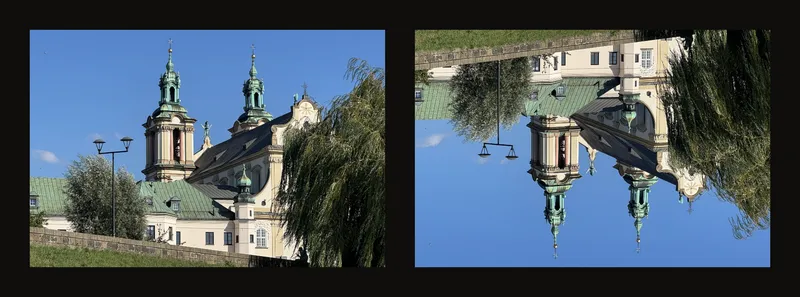
A horizontal mirror can reveal a lean or an uneven gap you stopped noticing. Compare the large shapes before the details. In this church photo, the dark tree begins on the right and the street lamp on the left. After a horizontal flip they exchange sides; the towers still point upward.

Rotate or flip in three steps
- Load the photo and open Position
Upload your reference, then expand Position. This section starts collapsed. Opening it does not change the image.
- Choose one of the four controls
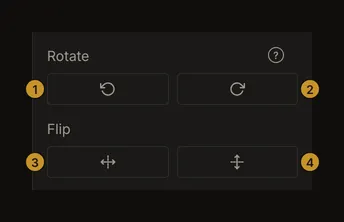
① Rotate left. ② Rotate right. ③ Flip horizontally. ④ Flip vertically. Under Rotate, the left button turns 90° counterclockwise and the right button turns 90° clockwise. Under Flip, the left button exchanges left and right; the right button exchanges top and bottom.
- Compare, then return if needed
Wait for the image to finish changing. Rotate in the opposite direction to reverse one turn, or use the same mirror button again to reverse one flip. Do this before making further edits if you want a simple comparison.
Quarter turns change the image dimensions
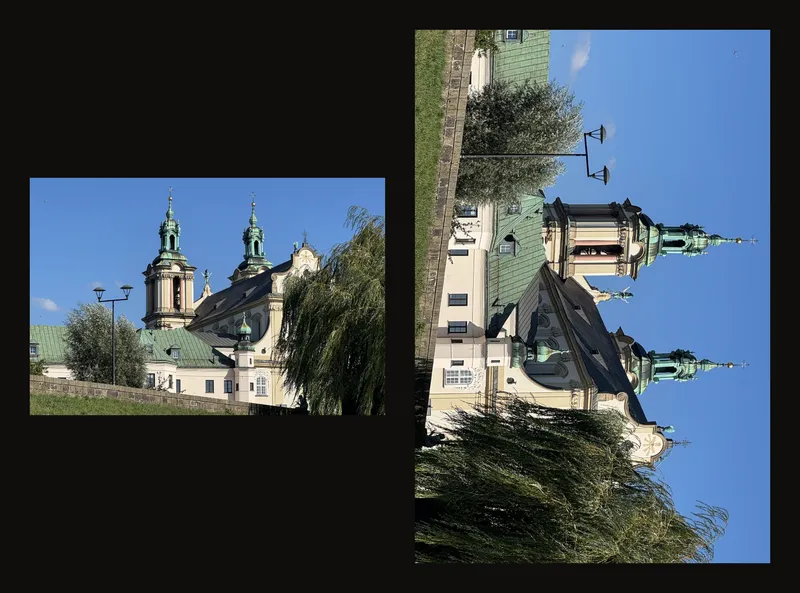
There is no free-angle rotation or horizon-straightening slider here. One turn exchanges pixel width and height; two turns make the photo upside down; four return it to its starting orientation.
Horizontal and vertical are different
Horizontal mirroring keeps sky above ground but reverses left and right. Vertical mirroring puts the sky below the ground. Neither changes the pixel dimensions. Text in the photograph is mirrored too, so check the final orientation before drawing lettering.
Use the keyboard or touch controls
Press [ to rotate left and ] to rotate right. Press H to mirror horizontally or V vertically; uppercase and lowercase both work. Shortcuts are ignored while typing in a field or while a dialog is open. Combinations with Ctrl, Cmd or Alt still do what your browser normally does. If your keyboard needs AltGr or Option to type [ or ], that combination rotates the photo too.
On a touchscreen, each button reacts after about a third of a second, and two quick taps count as one. Tap, wait until the photo has turned, then tap again.
Check the crop and physical canvas size afterwards
Both transformations reset the crop box, clear the focused grid cell and reset image position and scale. Grid, B&W, edge and image-adjustment settings remain. With Crop Canvas enabled and a valid target size, a fresh crop box is active afterwards; check it before applying a crop.
Rotating also exchanges the confirmed physical width and height of an applied crop. An unconfirmed target size stays as entered. Mirroring does not exchange physical dimensions. In Crop Canvas, the width/height swap button changes the target dimensions only: it does not rotate the photo.
Keep a way back to your reference
The browser's local autosave keeps the transformed image. For an artwork in your account, save the version you want to keep. Version history holds the versions you saved, not every rotation or flip. Keep the original file on your device, especially before applying a crop. Rotating or flipping back cannot restore pixels already cropped away.
If a rotation or flip fails, the app shows an error and keeps the previous image. Wait for the message and try the control again.