A reference that fits your painting
Download your reference as a PDF at a chosen physical size. A large image is divided across A4 or US Letter sheets that you can print and join. You can include the grid, labels and drawing aids, or print the photograph without a grid. No account is needed.
Make a correctly scaled PDF
- Finish the composition
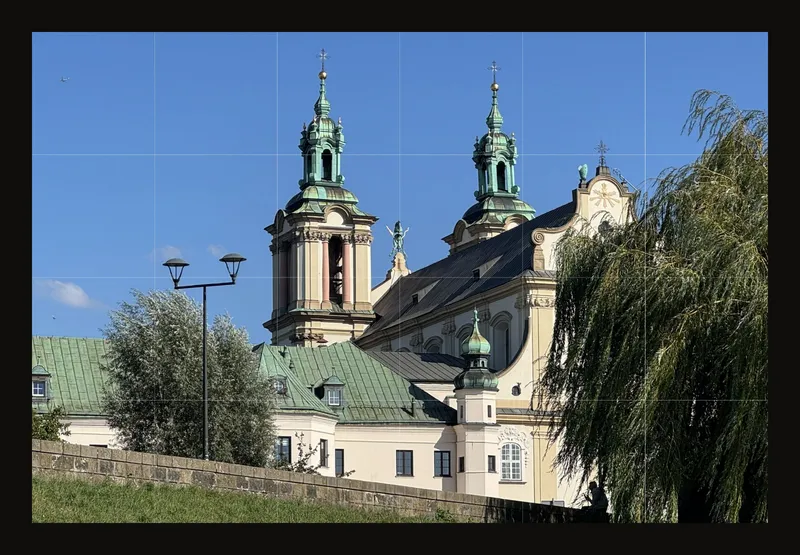
Upload your reference and apply any crop before printing. Follow the cropping guide to give it the proportions of your painting. For this example, use a landscape reference at 60 × 40 cm and a grid of 6 columns and 4 rows. Each cell then represents 10 × 10 cm.
- Open the print dialog
Choose Print in the toolbar. On a phone, find it in the More actions (⋯) menu. The tool downloads a PDF; it does not immediately send pages to a printer.
- Choose the finished image size
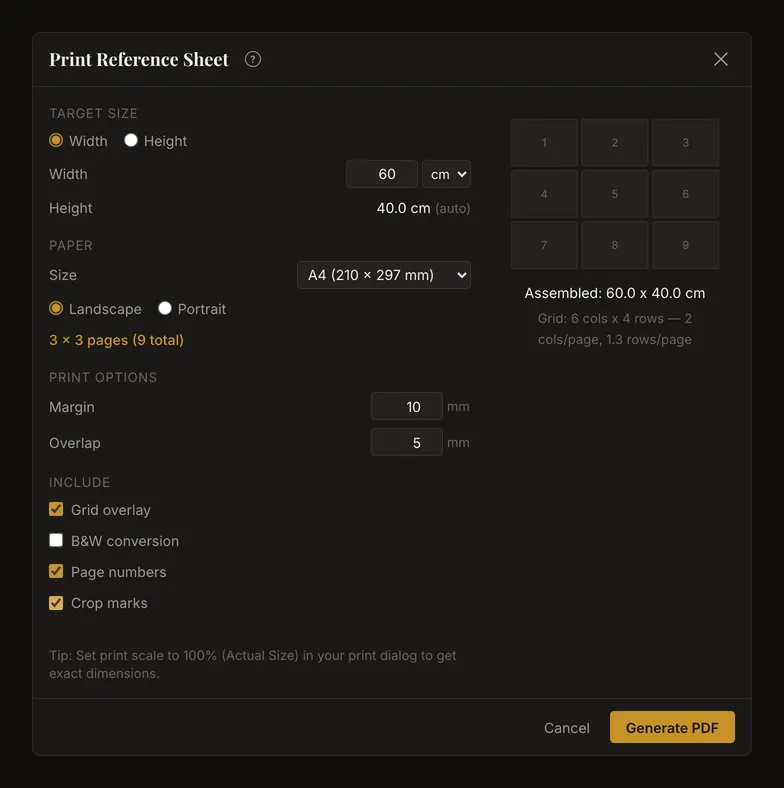
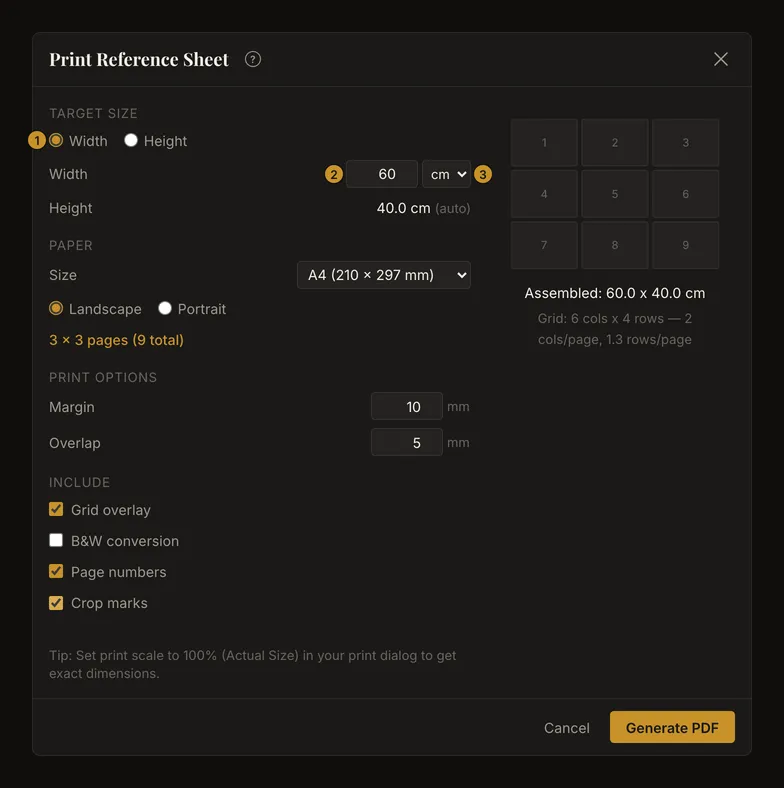
Under Target Size, select Width or Height, check Unit and enter the length. The other dimension follows the photograph's proportions. Use width 60 cm for the example; height should read 40 cm.
- Match your printer's paper
Choose A4 and Landscape. Set Margin to 10 mm and Overlap to 5 mm. Check the page count before downloading: this example needs 3 columns × 3 rows, or 9 sheets.
- Decide what to include
Keep Grid overlay and Page numbers on, and turn on Crop marks for assembly. Leave B&W conversion off for this colour reference.
- Download and check the PDF
Choose Generate PDF. When generation succeeds, the dialog closes and
drawing-grid-reference.pdfdownloads. Open it and inspect the pages before printing. The next sections explain the controls and how to join the sheets without changing scale.
Physical size and proportions
The target field accepts 1–500 in the selected unit, cm or in. Its arrows move by 1 cm or 0.5 in; you can type a decimal. Positive out-of-range values settle within the limits when you leave the field or press Enter. Empty, zero or negative target values leave no usable size, so PDF generation stays disabled.
Switching units converts the value using 1 in = 2.54 cm, rounds to one decimal place and applies the 1–500 limit again. Check both displayed dimensions after switching, especially near the limits.
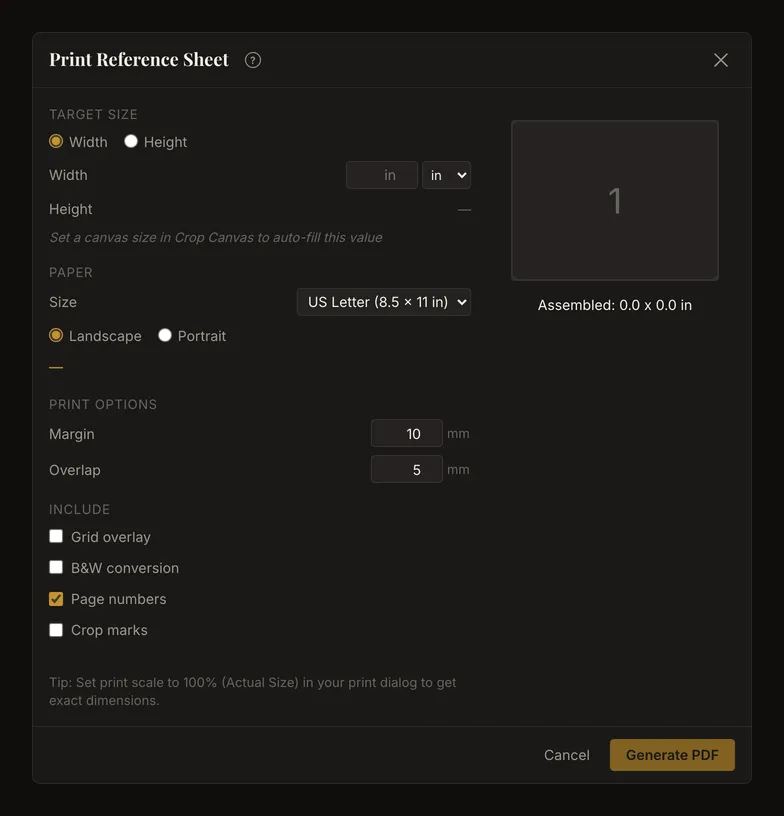
A known canvas size pre-fills its longer side and unit. Otherwise, enter the target yourself; your default unit is used. A saved unit preference takes priority, then US English browsers start in inches and other browsers in centimeters. The paper choice is separate.
Paper, orientation and page count
Choose A4, 210 × 297 mm, or US Letter, 8.5 × 11 in. The default is US Letter for a US English browser and A4 otherwise. Orientation starts at Landscape; choose Portrait when it uses fewer sheets or fits your printer setup better. Changing orientation turns the paper, not the photograph.
The preview is a page-layout diagram, not a photographic proof. Its numbered rectangles show the reading order, left to right, then top to bottom. The assembled dimensions use your chosen target unit. The grid line under the preview appears only when Grid overlay is checked. It shows how many grid columns and rows fall on each sheet.
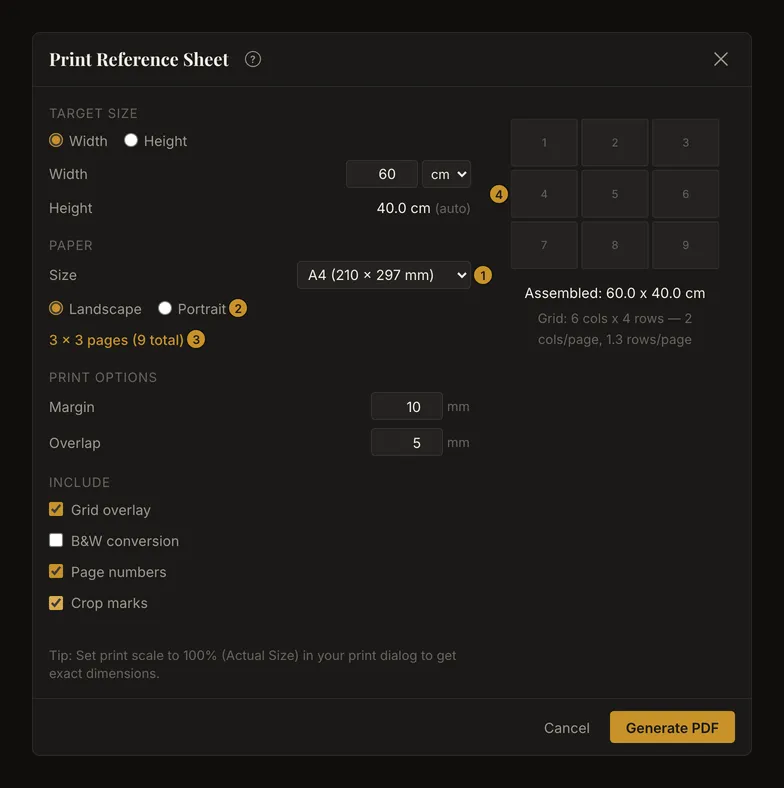
For 60 × 40 cm on A4 landscape with 10 mm margins, each full tile covers 27.7 × 19 cm. The image therefore needs 3 × 3 sheets. The last column contains only the remaining 4.6 cm of image; the last row contains 2 cm, plus any joining overlap. Blank space on those pages is expected.
Margins and joining strips
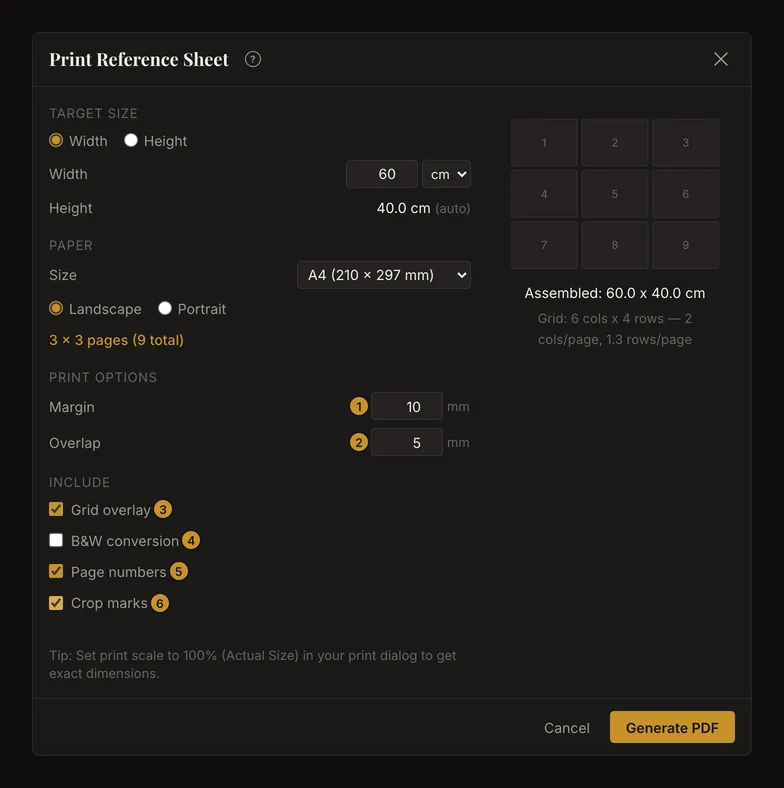
Margin accepts 5–20 mm and starts at 10 mm. It sets the inset of the main image area from the paper edge. Overlap accepts 0–15 mm and starts at 5 mm. Both use whole millimeters.
Overlap repeats image detail along joining edges so adjacent sheets can be aligned. It extends into the margins; it does not add pages or change the target size. Keep overlap smaller than the margin and allow for your printer's non-printable edge. If overlap exceeds the margin, some repeated image can fall outside the page. Zero overlap gives no repeated strip to match.
What appears in the PDF
- Grid overlay starts from the on-screen grid setting. You can change it independently for this PDF. It includes the configured labels and diagonals when those are enabled. The focused-cell dimming is not printed.
- B&W conversion starts from the on-screen B&W setting. When checked, it uses the current tonal steps and active value-view colouring too; a value study can therefore contain coloured highlights. When unchecked, active edge detection is printed instead, if enabled. To print an ordinary colour photograph, turn edge detection off in the tool as well.
- Page numbers starts on and adds column, row and page identifiers to each sheet. Keep it on while assembling several pages.
- Crop marks starts off. When enabled, marks identify the corners of each page's usable area. On a remainder page, they do not necessarily coincide with the photograph's outer edge.
Image adjustments are included. Screen zoom, pan, toolbar controls and focused-cell shading are not part of the PDF. Inspect the downloaded file for the final image appearance; the small page diagram cannot show it.
Printing from a phone
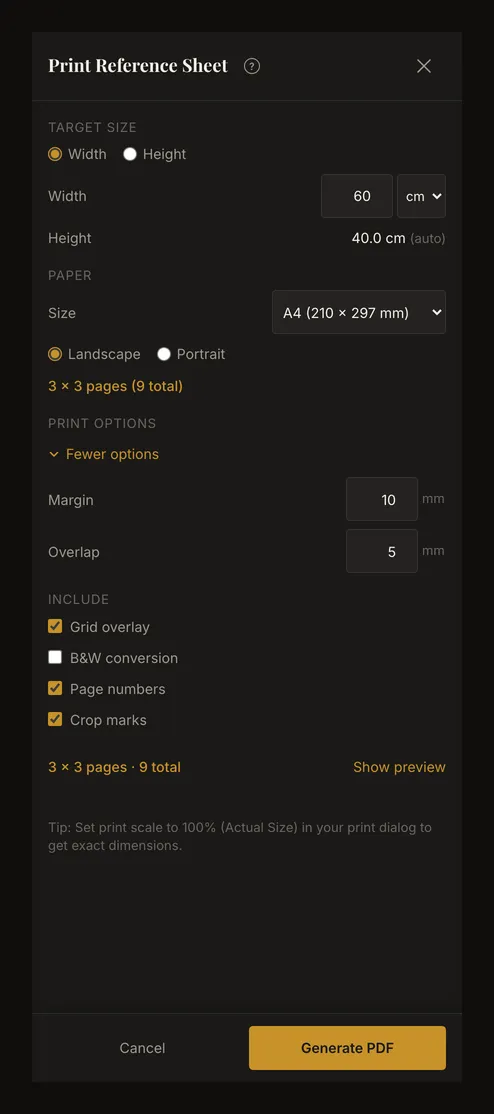
The same PDF controls work on narrow screens. Open More options (margin, overlap) to reveal margin and overlap, and Show preview to see the page arrangement. These disclosures start closed when the dialog opens. Scroll inside the dialog to review the options, then use Generate PDF. Where the downloaded file appears depends on your browser and device.
Print, measure and join the sheets
- Print one test sheet at 100%
In your PDF viewer or printer dialog, select 100% or Actual Size and the same paper size and orientation used for the PDF. Turn off Fit to page, shrinking and extra poster tiling. The PDF is already divided into pages.
- Measure before printing the rest
Measure a known distance with a ruler. In this example, a complete grid-cell side must be 10 cm. If it is smaller or larger, correct the printer scaling before continuing. Screen zoom is not a physical measurement.
- Lay out the numbered sheets
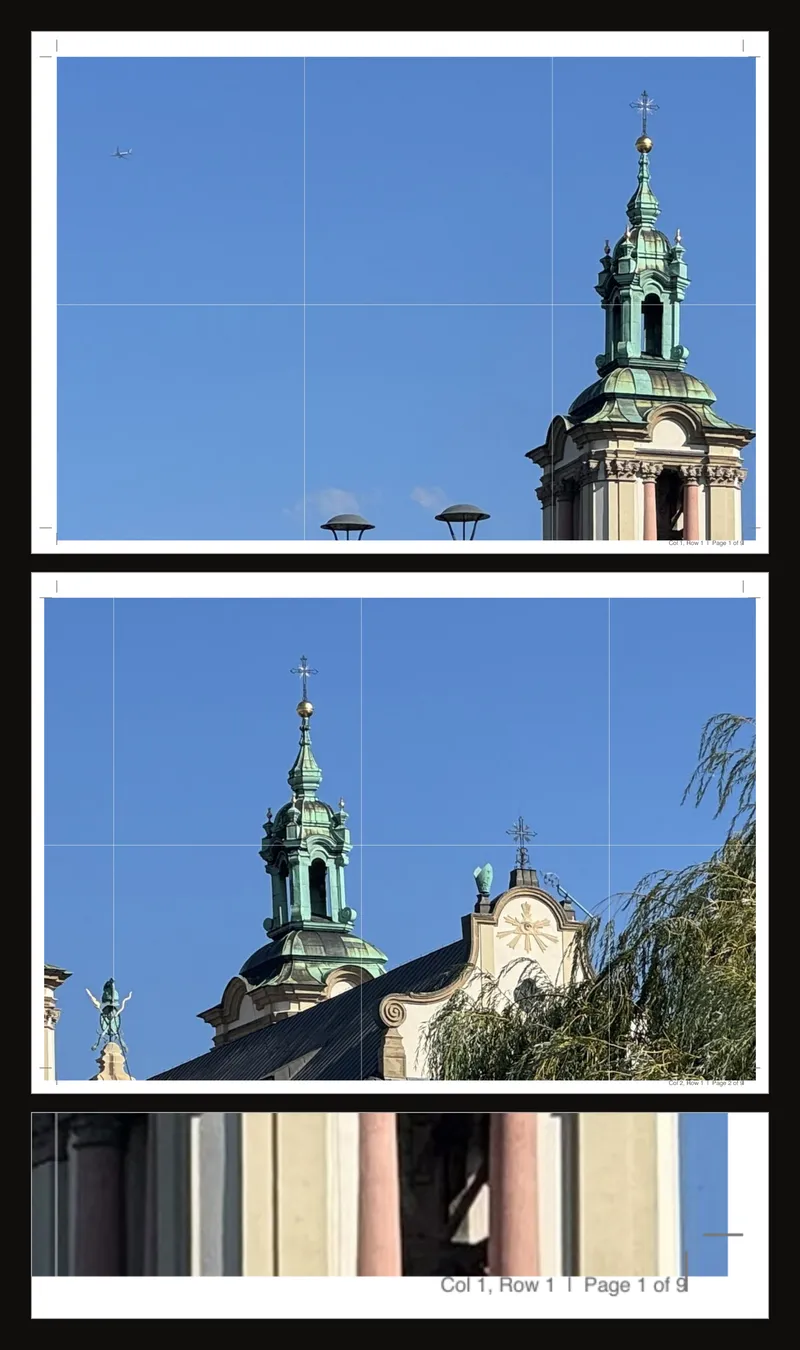
Use the printed column and row identifiers to arrange the sheets left to right, then top to bottom. Check the narrow remainder strips at the right and bottom; do not stretch them to fill a sheet.
- Trim one joining edge and match the repeated detail
At each seam, trim the covering sheet along the line joining its crop marks on that edge, leaving the neighbouring sheet's repeated strip underneath. Match grid lines and photographic details across the join, then tape from the back. Work along one row, then join the rows. Keep the outside image edge intact; trim final blank borders only after checking the complete composition.
- Check the assembled reference
Measure the image itself, excluding paper borders: it should be 60 × 40 cm. Check several grid cells and long straight lines across seams before transferring the drawing.
Resolution, warnings and large exports
The PDF uses image tiles at 150 dpi. Enlarging a small source cannot restore detail. The dialog warns when the output width needs more than three times the source image's pixel width, and separately when the layout exceeds 25 pages. A warning does not prove a print will be sharp or prevent you from continuing.
Use a clear original photo, check the target unit and page count, and print a test sheet. Very large targets can exceed the browser's image-processing limits. If generation reports an error, reduce the physical size or use a smaller working image, then try again. An error message may be in English.
Closing, errors and remembered settings
Before generation, close with Escape, the close button, Cancel or the dimmed area outside the dialog. Closing does not change the artwork. During generation, the download button is disabled. Closing the dialog is not a guaranteed way to cancel work already started; a download can still finish.
Print choices reset when you reopen the dialog, taking the current canvas size, grid and B&W state again. They are not a saved print preset. If an export fails, the dialog displays the error and allows another attempt; a successful export downloads the file and closes the dialog.
Frequently asked questions
Why is my printed grid the wrong size?
First check the target unit and assembled dimensions in the app, then the paper choice and 100%/Actual Size setting in your PDF viewer. Fit-to-page scaling changes physical dimensions. Measure a complete grid interval on one sheet before printing all pages.
Why is part of the last sheet blank?
The app fills full usable tiles first and puts the remaining image on the final column or row, aligned to the top left. It does not stretch the remainder. Blank paper is expected when the target is not an exact multiple of a tile.
Will a crop box be printed?
Apply the crop before exporting, then check the calculated dimensions. If you open Print while the crop box is still not applied, the tool first asks Apply crop first? Apply Crop applies the crop and then opens the print dialog; Cancel goes back without printing. A crop box is an editing aid, not a printed border. Keep the original photo if you may want a wider composition later.
Do I need an account or a PDF printer?
No account is needed to generate the PDF. The app downloads the file directly. Open that file in a PDF viewer and use your own printer or a print service when you need paper copies.