One cell, fewer distractions
Focus mode lets you focus on one grid cell at a time. Click a cell and the rest of your reference photo darkens, leaving an amber border around the part you are drawing. The cell stays in place: focusing does not crop the photo or zoom in.
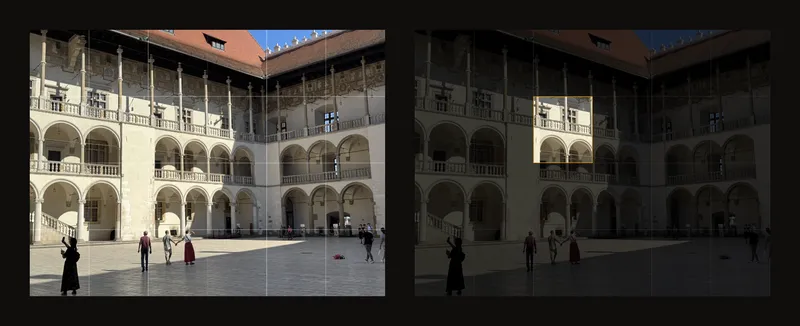
Think of a card with a small window cut in it, held over a printed reference. You can study one shape without the rest of the picture competing for your attention. Focus mode is on by default; once the grid is on, just click or tap a cell.
Draw the shapes you see, not the object you expect
A window, arch or hand can feel complicated when you try to copy it all at once. Inside one cell, you only need to judge a few edges: where a line enters, how steeply it slopes and where it leaves. Transfer those points to the matching cell on your paper or canvas, then join them.
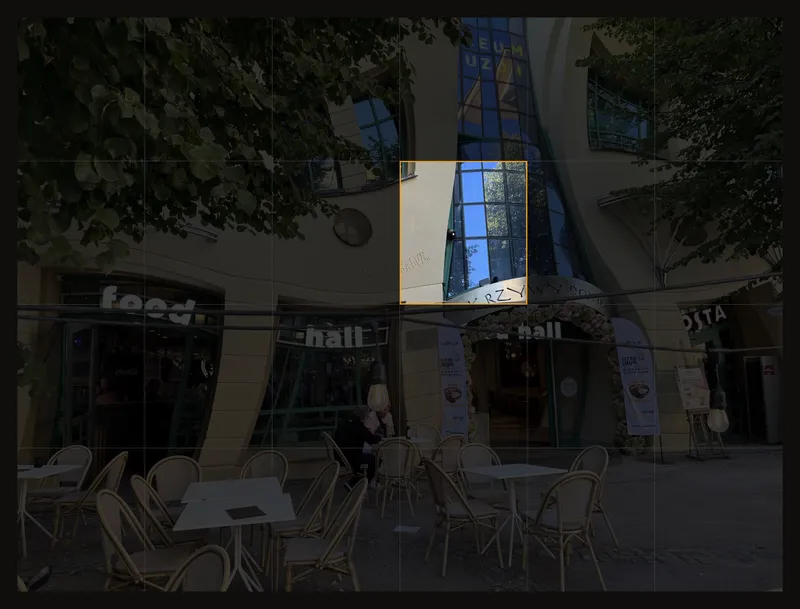
This is especially useful with the grid method when a busy reference feels overwhelming. Clear the focus regularly to check the whole composition and the balance of light and dark. A well-drawn cell still needs to fit its neighbors.
Start drawing one cell at a time
- Load a photo and turn on the grid
Open your reference in the tool, then use Grid or the switch beside Grid Overlay. Set the same number of columns and rows as on your drawing surface. See how to set up a drawing grid if you are starting from scratch.
- Check that focus mode is on
Open Grid Overlay and find Focus. Leave Focus mode on. If you are adjusting a crop box, first apply the crop or turn Crop Canvas off; you cannot select a cell while adjusting a crop.
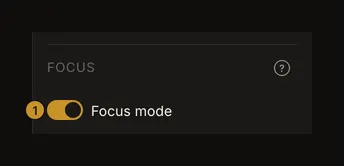
① The switch that lets clicks select grid cells. The grid must also be on. - Click the cell you are drawing
Click or tap inside the photo. The selected cell stays bright while everything around it dims. Begin with a clear landmark, such as an arch meeting a grid line, and copy it into the corresponding cell on your canvas.
- Draw it, then choose the next cell
Click the next cell when you are ready. Check that lines meet across the shared edge. You choose the order yourself; there are no next-cell or previous-cell buttons.
- Check the whole picture
Click the selected cell again or press Esc to clear the focus. Compare the overall proportions, then select another cell to continue.
- Use the reference beside your easel
Set up the grid first, then enter Fullscreen. You can still select cells, pan and zoom. See working full screen below.
Select a cell without moving the photo
Use a short click or tap. A small slip still counts as a click; a drag pans the photo instead. With a mouse, the pointer becomes a crosshair when cell selection is available.
The focused cell has a thin amber border. The rest of the photo is dimmed by a 75% black overlay; the original image is unchanged. Zoom separately if you need to examine a detail more closely.
Move between cells and keep lines connected
Click any other cell to move the focus directly to it. You do not have to work left to right or finish an entire row before moving down.
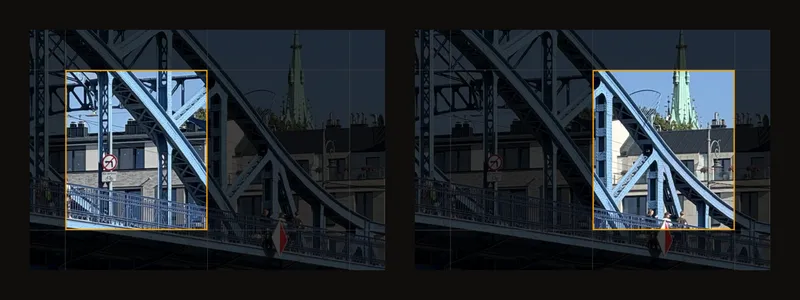
Pan by dragging and zoom as usual. Focus remains on the same grid cell. If you change the row or column count, that cell's position in the grid stays selected when it is still valid, but it covers a different part of the photo. Set your grid before you begin transferring the drawing.
See the whole reference again
Click the same cell a second time, click outside the photo on the canvas, or press Esc. This clears the selection without turning focus mode off, so your next click can select another cell.
If a dialog or menu is open, Esc closes that layer first. To stop selecting cells entirely, turn Focus mode off.
Why the highlighted cell disappears
The selection clears when you turn the grid off, toggle focus mode, enter the color picker, rotate or flip the photo, apply a crop, load another image, or switch Crop Canvas on or off. These actions change the image or what a click does. Select a cell again when you are ready to draw.
The browser's local autosave keeps the selected cell. An artwork saved to your account keeps the focus-mode on/off setting, but not the selected cell. There is no account default for focus mode.
Work full screen at the easel
Full screen hides the toolbar and side panels, giving the reference more room. Set the grid first, then use the toolbar's Fullscreen button. On phones and small tablets, find it in More actions (⋯).
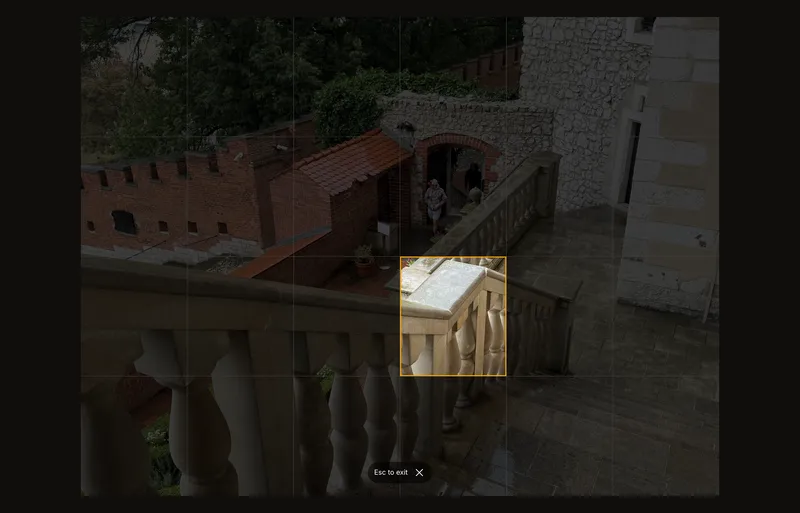
Click or tap cells just as in the normal view. You can still drag to pan and zoom to inspect detail. To leave full screen, use the × beside the exit hint or press Esc. The full-screen reference instructions explain the view in more detail.
Make each cell count
Compare where an edge crosses the cell boundary before drawing its middle. Halfway up, near a corner, or a third of the way across are easier judgments than the position of an entire building.
Use column letters and row numbers on both the reference and your drawing. Grid labels help you find the same cell again after looking away.
Clear the focus every few cells. Check that long contours connect and that the drawing still reads as a whole, rather than a collection of separate squares.
Frequently asked questions
Why can't I double-click to zoom?
Mouse double-click zoom is disabled while the grid and focus mode are both on, because clicks select cells. Use the other zoom controls, or turn focus mode off to restore double-click zoom.
Does the focused cell print?
No. The dimming and amber border are only for working on screen. A printed or exported PDF can include the grid, but never the focused-cell overlay.
Why did my focus disappear?
Image changes and tool switches can clear it. See what clears the selection. If clicking does nothing, check that the grid and focus mode are on and that you are not adjusting a crop box.