Work from the keyboard without losing your place
Use the keyboard to open controls, change values and navigate saved work. Start with the live shortcuts sheet: it shows the keys for your platform. This guide also explains when a field, menu or dialog owns a key instead of the image. Some direct canvas tasks still need a mouse or touch; the app does not provide keyboard shortcut customization.
Start with three useful habits
- Open the live shortcuts sheet
On the tool page, press
?while focus is outside an input and no dialog is open. On a screen at least 1024 px wide, you can also open the account sidebar and choose the "Press ? to see all keyboard shortcuts" button; no account is needed. Read Command (⌘) on Mac and Ctrl on other platforms. Use the character shown on your keyboard layout, not the position of a US key.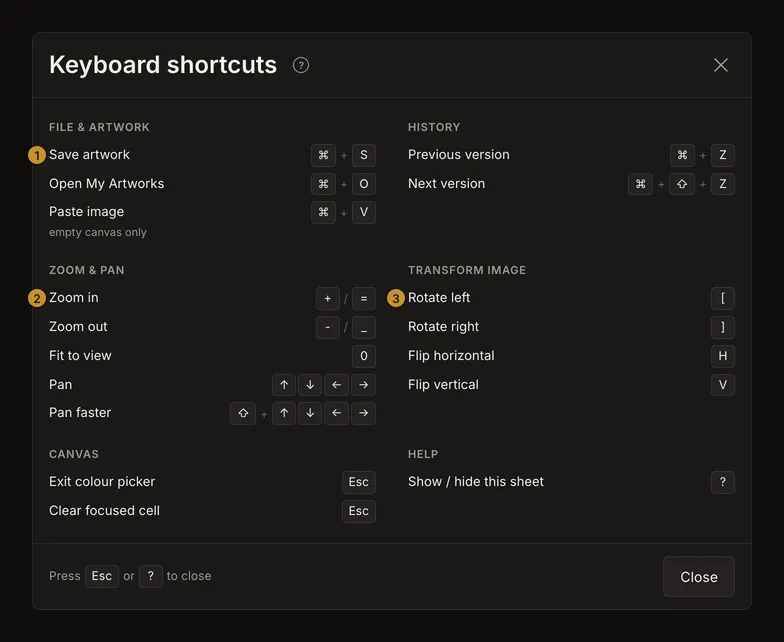
① Save artwork. ② Zoom in. ③ Rotate left. The sheet shows platform-specific keys; a listed action can still be unavailable. The list receives focus without an outline and can scroll with arrow keys. Its buttons retain their visible focus indicators. Tab reaches its controls. Press Escape,
?, or its Close button to return to the tool. - Follow the visible focus indicator
Use Tab to move forward and Shift+Tab to move back. Enter activates a focused button or link; Space activates buttons and switches. Open a panel or section before reaching its controls. Closed sidebars are excluded from keyboard focus. The exact sequence changes with the screen width, account state and loaded image: follow the highlighted control rather than counting Tab presses.
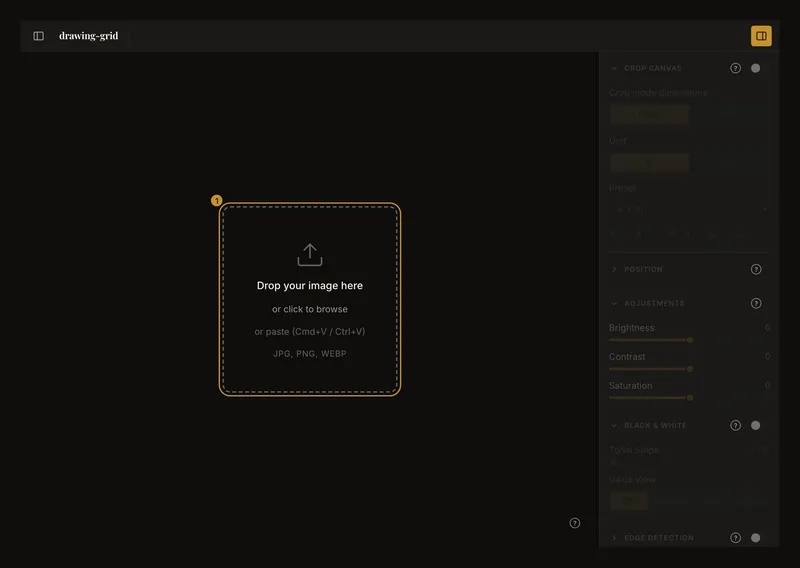
① When the upload card has focus, Enter or Space opens the file chooser. - Let the focused control own its keys
In a number field, type a value or use its Up/Down arrows; Enter commits the edit. On a slider, arrow keys change that setting. A select menu uses its native keyboard controls. These keys should adjust the focused control, not pan the photograph behind it.
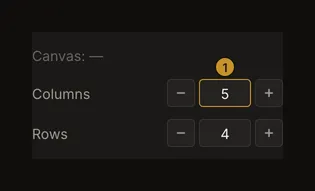
① A focused value field owns its arrow keys. Press Tab to move out of the field before using image navigation shortcuts.
Upload, crop and grid controls
Upload a reference by tabbing to the empty upload card and pressing Enter or Space. Cmd/Ctrl+V can paste a copied image only while no image is loaded and focus is outside an editable field. Cmd/Ctrl+O is the saved-artwork gallery shortcut, not a local-photo chooser.
For cropping, reach the section switch, dimensions, preset and Apply Crop with normal keyboard navigation. Editing physical dimensions is supported from the keyboard; dragging the crop box or its handles still requires a pointer or touch. Escape is not a universal crop undo command.
For grid setup, use the switch, number fields, sliders and menus. You can toggle Focus mode from its switch, but choosing or moving the focused cell uses the photo itself with a pointer. Escape clears the selected cell once no overlay owns that key. There is no arrow-key cell rover on the canvas.
Save, open and navigate saved versions
Cmd/Ctrl+S saves when you are signed in, have unsaved changes and the tool is not busy or covered by a dialog. Cmd/Ctrl+O opens My Artworks when the account has saved work and opening is available. The tool suppresses the browser's Save/Open dialogs for these shortcuts even when the app action cannot run; an inactive shortcut does not mean a local file picker will appear.
In the gallery, arrow keys move between artwork cards and Home/End reaches the first/last loaded card. F2 enters a card's inner controls. Press Enter or Space on a card to open that artwork. In the version list, Up/Down moves through versions, Home/End reaches an end, and Enter or Space chooses the active version.
Cmd/Ctrl+Z and Cmd/Ctrl+Shift+Z navigate earlier and later saved versions of an artwork. They are not an edit-by-edit undo/redo stack for every slider move, crop or rotation. At the end of available history there is no further version. While typing in a text or number field, the same combination belongs to that field's native text undo; a focused slider or select does not have that exception. These shortcuts work only while a saved artwork is open. See how to choose a saved version.
Use Escape one layer at a time
An open dialog or menu gets the first chance to handle Escape. Close it and check where focus returns before trying an image shortcut. When no overlay consumes Escape, it can clear the Focus cell selection or leave colour-picker mode. Leaving the picker does not dismiss its retained sample card.
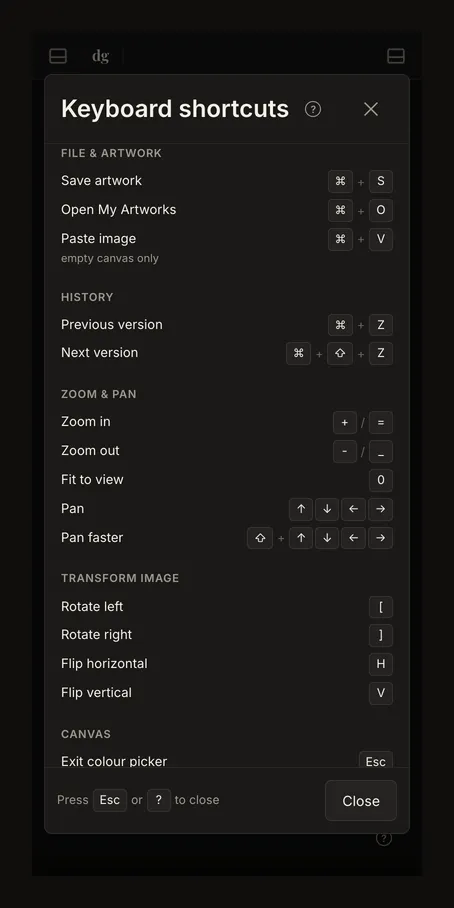
A modal keeps Tab navigation inside its controls. Image movement and transform shortcuts are blocked while the modal is open. The shortcut sheet itself demonstrates this: arrow keys scroll the list instead of moving the photo behind it.
When a shortcut seems inactive
A photo is required for image zoom, pan, rotate and mirror. Account actions need their account and saved-work conditions. Form controls keep their own editing keys, and an open modal blocks image shortcuts. On a Mac, Safari skips some controls with Tab unless you turn on Safari Settings › Advanced › "Press Tab to highlight each item on a webpage" (or hold Option while pressing Tab).
The sheet is a reference, not a promise that every row is enabled right now. There is no supported shortcut rebinding screen. If an essential action requires direct canvas manipulation, use the available pointer or touch path rather than assuming an undocumented key exists.