Compare saved stages of a study
Artwork history lets you return to a saved photo and its drawing settings. Use it to compare a colour reference with a value study or revisit an earlier grid. It belongs to a saved account artwork: sign in and save first. It is not an undo list for every slider movement, crop or brush-like gesture.
Find and use an earlier version
- Save your current changes, then open the version list
Save any changes you want to keep and wait for saving to finish. With at least two saved versions and no unsaved edits, click the version badge beside the artwork name. It shows which version you are viewing and how many there are, for example
v2/4orv2 of 4, meaning version 2 of 4. On a phone, look in the row under the toolbar that shows the artwork name. If the badge disappears while you edit, save or deliberately discard those edits first.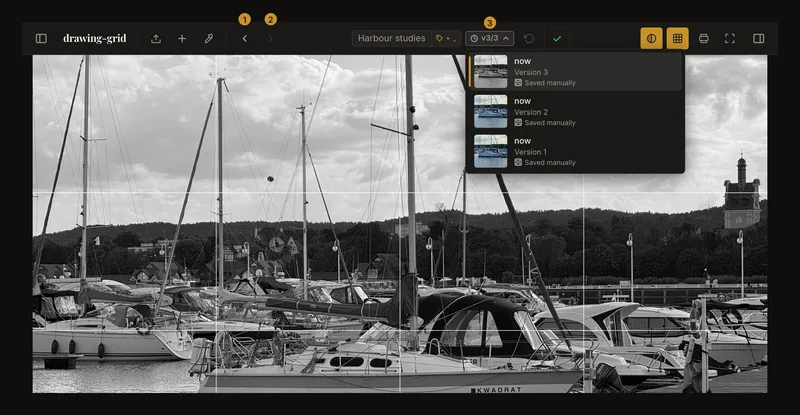
① Previous saved version. ② Next saved version. ③ The version badge opens the list. Rows show saved stages, newest first. - Choose a saved stage and inspect the reference
Choose a row to load that version's photo and settings, including its grid and image adjustments. Wait for loading to finish. The selected version is highlighted in the list. The arrows move chronologically through all retained versions, including those marked off path. The end of the list is a boundary, not a loading error.
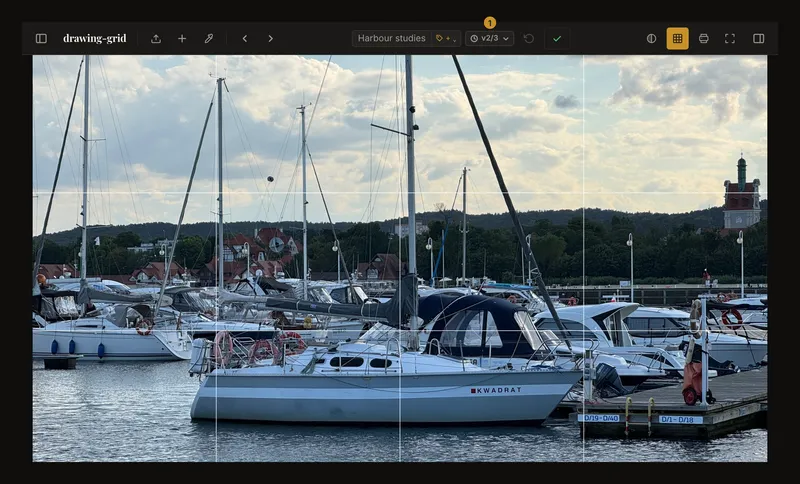
① The version badge shows which version you are viewing, here version 2 of 3. Viewing an older version changes your working view. It does not create a save or replace the latest version stored in your account. - Continue from that version when it suits your drawing
Make the changes you want, then save manually. That save becomes the newest version, based on the version you were viewing. Simply selecting a version does not create another one; Save is inactive while that version is unchanged. To return to the latest saved stage without making a new save, choose the newest row or use the next-version arrow until you reach it.
Read the list and its version numbers
Rows show a thumbnail, relative save time and a version number. Saved manually identifies a manual save; Auto-saved identifies account autosync. A thumbnail is a visual aid: load the version to inspect the full reference. An older or unavailable preview can fall back to the source image or a placeholder.
The oldest kept version is number 1, and the newest has the highest number, the same as the total shown in the badge. Numbers describe positions in the current retained list, not permanent identifiers. They can change when old entries are removed. A badge such as v2/4 or v2 of 4 means you are viewing the second of four retained versions; it does not mean there are two unsaved edits. On wide screens, an older selection reads “Viewing v2 of 4 — older version”.
Open the list with Enter or Space. Up/Down moves within it, Home/End reaches its ends, and Enter or Space chooses a row. Escape closes it; Tab closes it and continues normal keyboard navigation. Outside text-entry fields, Cmd/Ctrl+Z and Cmd/Ctrl+Shift+Z move to older and newer saved versions. These shortcuts do not undo individual edits.
Protect changes before you navigate
The version badge is hidden while there are unsaved changes, but that does not turn the arrows into edit undo. If you are editing an older version, an amber ⚠ v2/4 badge takes its place; it cannot open the list and means that saving will create a new latest version. Prompts for opening another artwork or starting a new one are separate safeguards. Read the actual prompt before continuing.
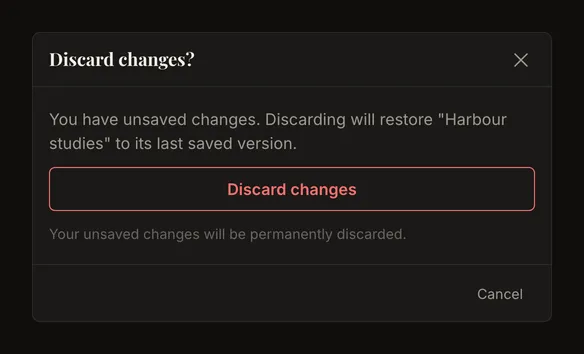
To abandon edits intentionally, use Discard changes beside Save and confirm. This restores the saved version you were editing, including an older selected version; it does not necessarily jump to the account's newest version. It creates no history entry. If restoration fails, keep the page open and retry when the saved image is available.
Save a different direction without erasing the other path
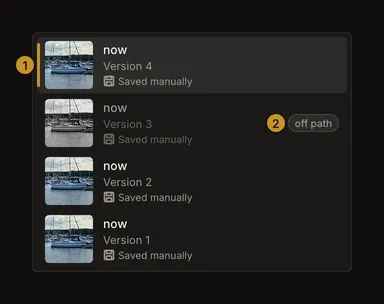
Suppose you save a colour reference, then a grid, then a black-and-white study. You return to the grid version, change it and save. Your new save becomes the latest stage; the previous black-and-white version remains in the list, marked off path because it is outside the path leading to the new save. You can still select it while it is retained. This is another path within the same artwork, not a separate artwork copy.
Account autosync pauses while you are viewing an older version. Save manually after editing it to commit your chosen direction. Returning to the newest version lets autosync operate again when enabled and its other conditions are met. Do not confuse account autosync with local browser recovery.
Keep the original photo file
The first saved version contains the image and settings at your first Save. If you cropped or rotated before saving, that version can already contain the transformed image. It is not a guaranteed archive of the uploaded file, and account images need not be byte-for-byte copies of that file.
Keep the original photo separately. If you want an uncropped version in saved history, save before applying a crop. You can return to that saved version while it remains in history. See applying a crop for the difference between framing and changing the image.
History keeps up to 50 saved versions per artwork
As more versions are saved, the oldest entries can be removed, including the first saved version and off-path alternatives. The latest account version is protected during this pruning. Viewing an old version does not give it permanent protection. The limit is based on the number of saved versions, not a promise of a particular number of days.
Deleting an artwork also removes its history; the version list is not a recycle bin. Keep source files and any exports you need separately. Neither a PDF nor a local browser recovery is a replacement for the account's editable history.
If a version is missing or will not load
If there is only one saved version, the list badge is absent. If edits are unsaved, save or discard them to show it again. At the newest or oldest retained entry, the corresponding arrow has nowhere further to go. Let an in-progress save or version load finish before trying another action.
For a loading error, use Retry when offered and check your connection. If the app reports settings from a newer version, refresh the app before trying again. A removed history entry cannot be brought back by repeatedly pressing the arrow. Reopen the saved artwork to check its current retained history; preserve any unsaved edits first.
Frequently asked questions
Why does Ctrl+Z skip my last adjustment?
It navigates saved artwork versions outside text-entry fields. Restore an adjustment with its own control or choose an existing saved version; there is no history entry for every edit.
Does selecting an older version make a new save?
No. Selection changes the working view. Make your intended changes and save manually to create a new latest version based on it.
Is my original photo always in Version 1?
No. The first Save can already contain a cropped image, and the earliest saved entry can later be removed by the 50-version limit. Keep the original file separately.
Is an off-path version broken or deleted?
No. It is outside the path leading to the latest save, but remains selectable while retained. It counts towards the same 50-version limit.