Bring your reference into the tool
A reference photo gives you the shapes, proportions and light to study while drawing. Open a JPG, PNG or WebP, then add a grid or crop it to your canvas. The tool works without an account. Loading a file into the editor does not, by itself, upload it to your account.
Start with a photo
- Open the tool
Use the button at the end of this guide to open the tool. On an empty canvas, the large central area is where you choose or drop a photo. If the tool reopens your last photo from browser recovery, use New artwork when you want to start fresh.
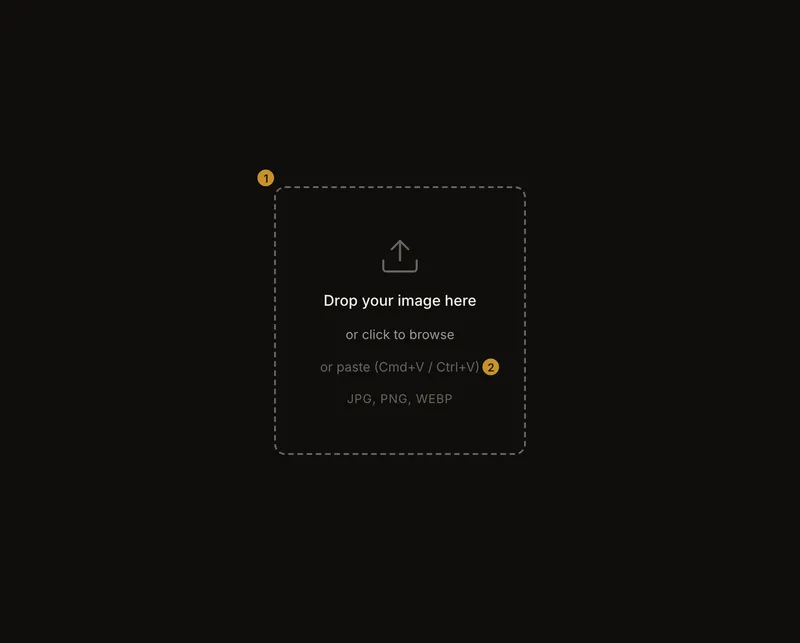
① Choose a file or drop it here. ② Paste an image from the clipboard. - Add your photo
Drop one photo into the central area or click it to choose a file. With a keyboard, Tab to that area and press Enter or Space. You can also paste an image as described below.
- Begin drawing
Once the photo appears, turn on Grid Overlay. Follow the drawing grid guide to set the number of cells. The orange boat is a useful starting subject: its hull has a clear outline against the water and sand.
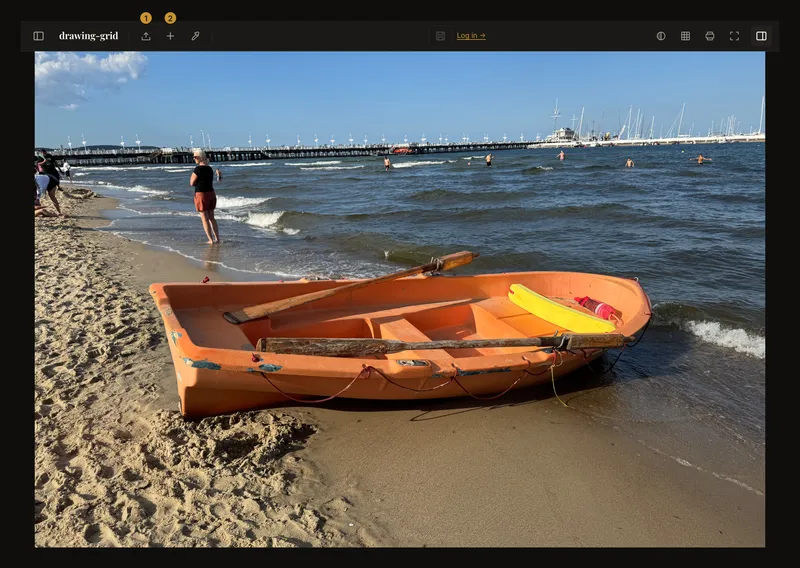
① Choose another photo. ② Start a separate artwork.
Drag and drop, or choose a file
Drop files onto the empty drop area. If you drop several at once, only the first is used. A file picker works on computers, phones and tablets; you can choose the same file twice in a row. When a photo is already open, use Upload or Replace image instead of dropping onto the canvas.
Paste from the clipboard
Copy the image itself, not its web address. On an empty canvas, press Cmd+V on a Mac or Ctrl+V on Windows. Close any open dialog and leave text fields first. Keyboard paste does not ask for clipboard-reading permission and never replaces a photo that is already loaded.
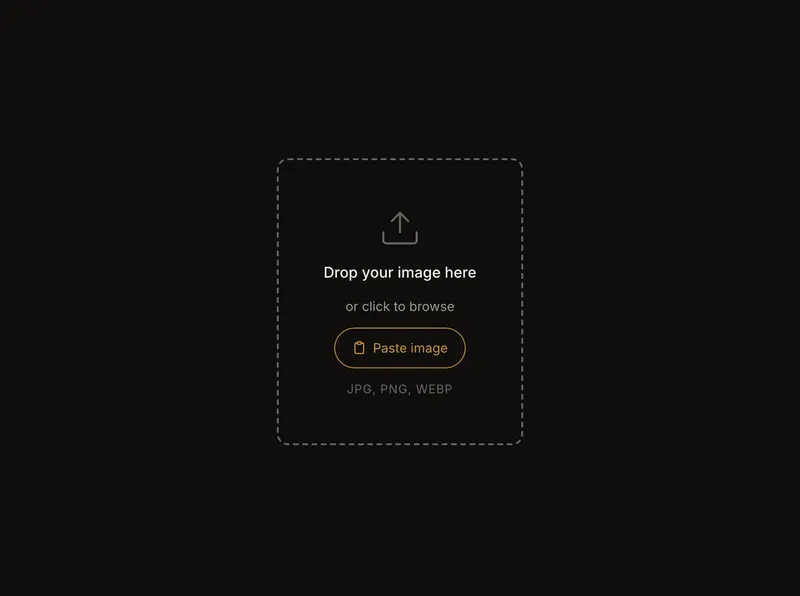
On a touch device with a compatible browser, tap Paste image. This also works in iPad landscape, where the button replaces the keyboard hint. The browser may ask you to allow pasting. If you refuse or dismiss it, nothing changes. If the clipboard contains no image, a short message says so. When the button is absent, use the file picker.
File types, size and errors
JPG, PNG and WebP are accepted, up to 20 MB per file. HEIC and GIF are not. Export or convert a HEIC photo to JPG first; changing the filename extension does not convert it. The example photographs in this guide were converted from HEIC originals before opening them.
An unsupported-format message means you need a supported export. A file-too-large message means you need a smaller copy. If the tool cannot load the image, try opening it in your photo app and exporting a fresh JPG. There is no app-imposed pixel-dimension limit or automatic downscaling, but very large images can exceed what your browser can handle.
Replace the photo in your current artwork
Without a saved artwork open, Upload opens the file picker directly. With a saved artwork open, the button becomes Replace image. It first asks you to confirm, then opens the picker. Cancel to keep working on the current photo. On phones and other narrow screens, find this action in More actions (⋯).
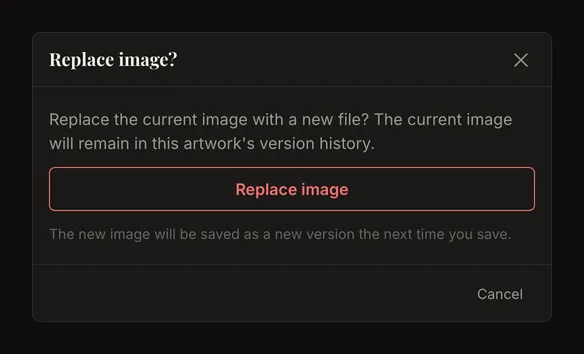
Replacing belongs to the same artwork. Its current saved image remains in version history; the replacement becomes a new version when it is saved. That can be a manual save or an eligible automatic save if Autosync is enabled. To keep two independent studies, start a new artwork instead.
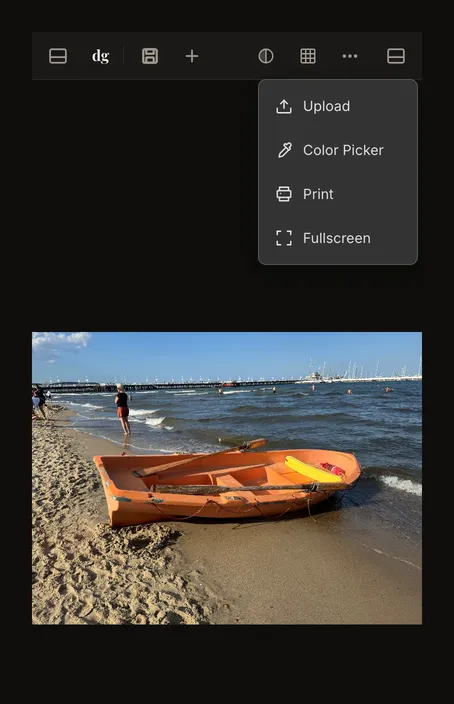
Start a separate artwork
Choose New artwork to clear the editor and return to the empty drop area. If there are unsaved changes, confirm that you want to discard them and start again. A loaded photo also counts as unsaved when you are not signed in. Save anything you want to keep before confirming.
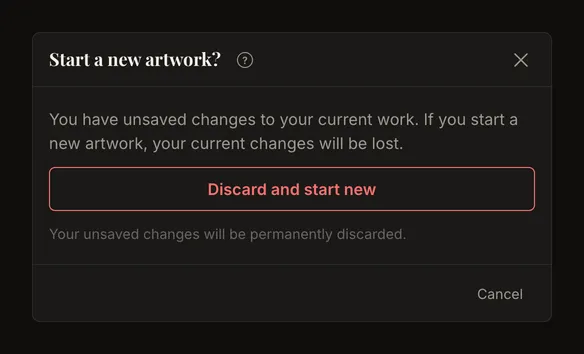
Starting new leaves the current saved artwork and its history intact; it ends your editing session for that artwork. The artwork reference disappears from the address bar. Grid and crop settings return to their starting values, including your account defaults where applicable.
What changes with a new photo?
Loading or replacing a photo resets Black & White, Tonal Steps, Value View, Edge Detection, image adjustments, zoom/pan and the focused cell. Grid settings and the dimensions entered in Crop Canvas stay. However, the new photo is not already cropped to those dimensions: any previously confirmed canvas size is cleared. Check and apply the crop for the new composition.
Choose a useful reference
Choose a photo with a readable main shape and enough detail for the size you will draw. In the garden below, start with the large hedge patterns and walls before the small leaves. A busier reference is still usable; decide which forms matter most before adding a dense grid.
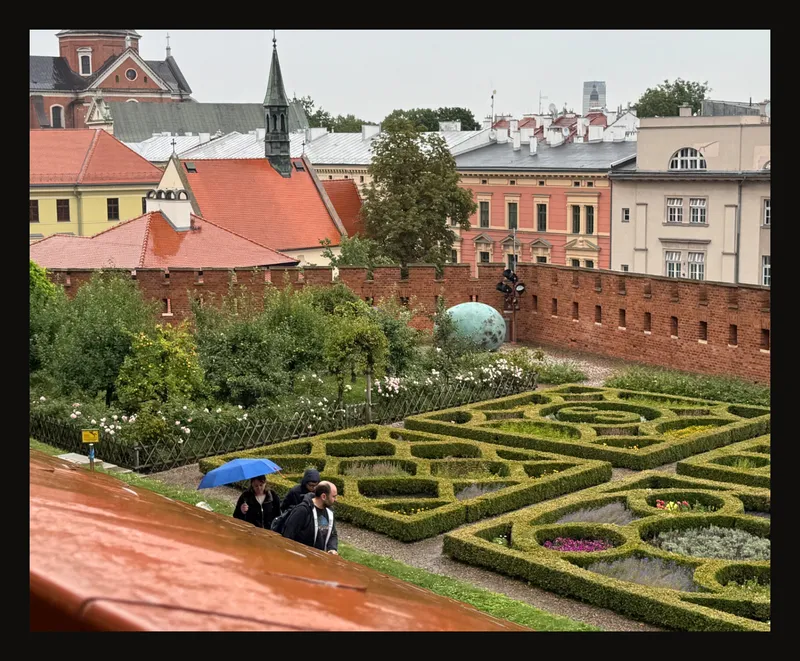
Keep the original photo elsewhere. The browser can recover your local session, but local recovery is not a permanent backup and does not put the photo in your account. Use your account to save work you need on another device.
Working on a small screen? See the phone and tablet workflow.
Frequently asked questions
Why is my HEIC photo rejected?
HEIC is not one of the three supported formats. Export the photo as JPG, PNG or WebP, then choose that converted file. Renaming .heic to .jpg is not enough.
Is my photo uploaded to a server?
By default, opening and editing a reference happen on your device. Saving an artwork to your account uploads it to the server. Autosync can also upload changes to an existing saved artwork when enabled. Local browser recovery and account saving are different things.
Why did my black and white settings reset?
These settings belong to the previous photo and reset when you load another one. Your grid settings stay, so you can use the same grid while choosing fresh tonal settings for the new reference.
Why does paste do nothing?
Paste only loads an image into an empty editor. Close dialogs, leave text fields, and check that you copied an image rather than a link. If a photo is already open, use Upload, Replace image or New artwork.