Turn a reference photo into a drawing plan
Start with one photo and one question: which shapes or light relationships do you want to understand? The tool can crop the reference, overlay a grid and simplify its values. It does not draw or paint the finished picture for you. Keep the original photo file separately.
Create an account to save your artwork and return to it with its settings. You can still crop, add a grid, study values and download a PDF without signing in. Opening a local photo alone does not save an artwork to your account.
Make your first reference in five steps
- Open a useful photograph
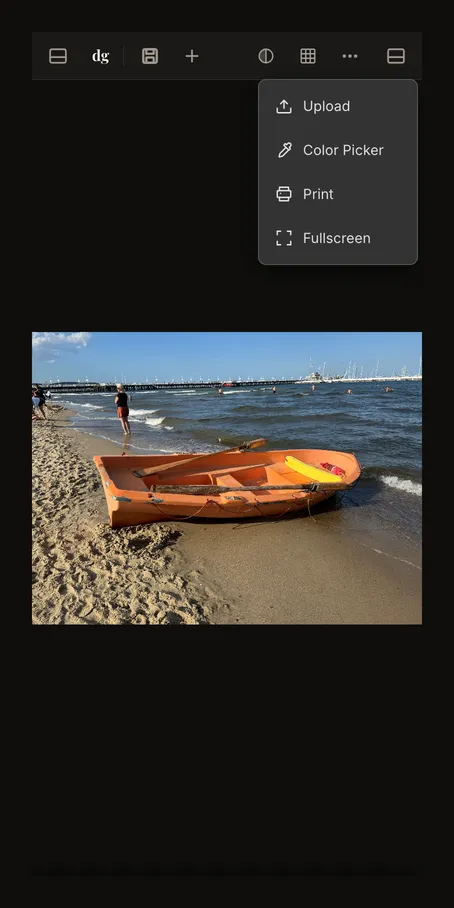
Use the button at the end of this guide to open the tool. Choose or drop a JPG, PNG or WebP into the empty area; use a file of up to 20 MB. For this example, the orange boat gives you a clear main shape against sand and water. The upload guide explains clipboard paste, phone file selection, supported formats and replacing a photo.
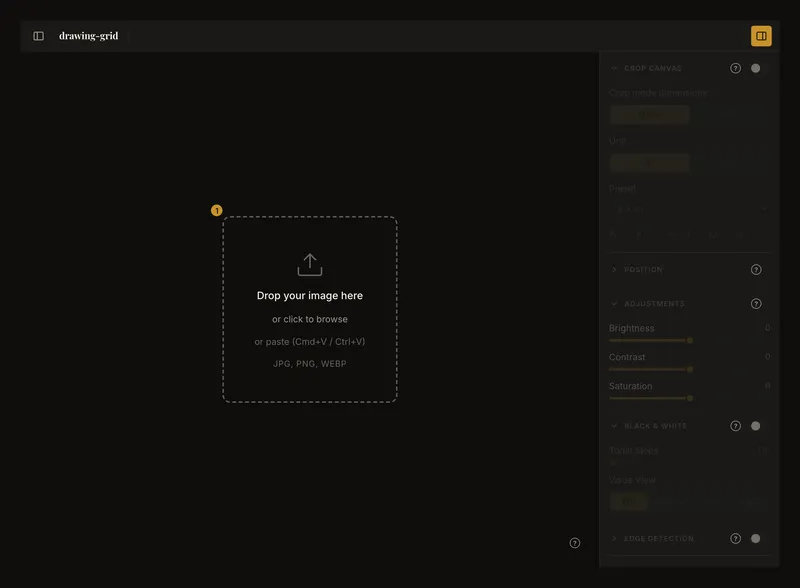
① Choose your reference in the central area. The left header control opens the account menu; the right one opens the editing controls. - Match the composition to your paper
Open Crop Canvas. Enable crop mode, choose a unit and enter the width and height of the composition you want. Adjust the frame, then choose Apply Crop. Our boat example uses a wide 15 × 7.5 cm composition. Entering dimensions alone does not apply the crop. Follow the crop guide for the frame, presets and favourites. Applying a crop changes the working image.
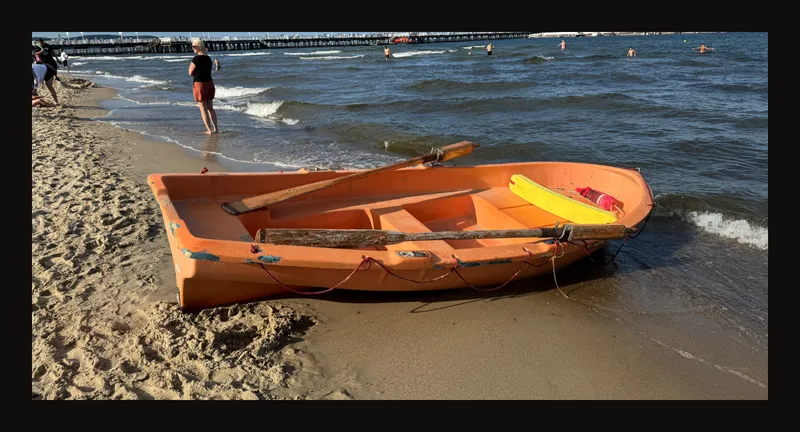
A 2:1 crop removes extra sky and foreground while retaining the boat's outline. - Use a few cells to compare positions
Turn on Grid Overlay and begin with a modest grid, such as six columns and four rows. Set Square cells by off if you want those counts independently; enable it when square cells matter more. Compare where the hull crosses the grid rather than tracing every detail. The grid guide explains counts and partial cells; its labels and diagonals sections cover extra references. Try cell focus when you want to study one area at a time.
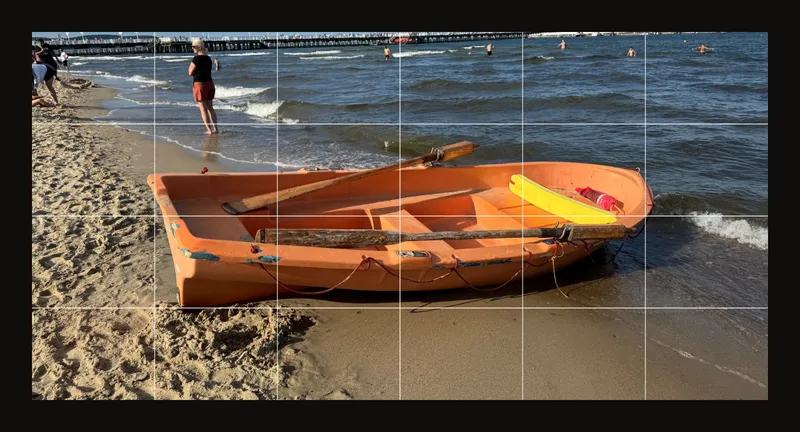
Use the broad grid to locate important corners and curves. More cells are not always more helpful. - Compare the light and dark shapes
Turn the grid off to judge larger masses. Enable Black & White for grayscale. Start with smooth tones; then try Tonal Steps at 3 to see a simpler grouping. These automatic bands are a starting point, not a painting plan you must copy. Return to the colour photo when judging colour. Other controls let you adjust the image, inspect edges or sample a colour.
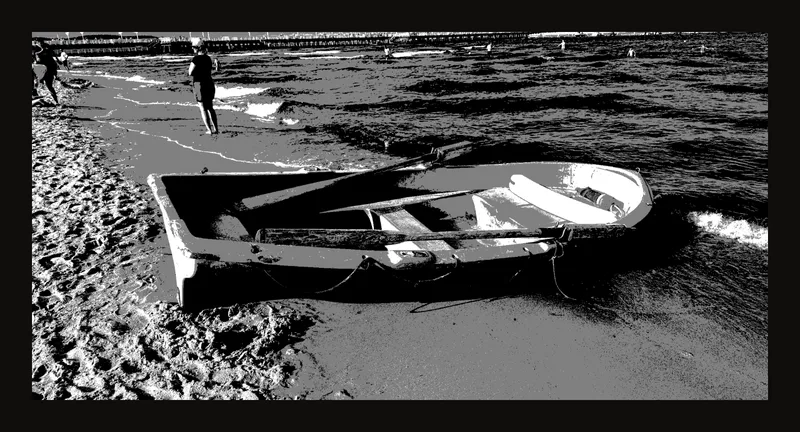
Three values make large light and dark areas easier to compare without prescribing your brushwork. - Save your artwork to continue later
We recommend creating an account and saving your artwork so you can return to it. Sign in, choose Save and confirm that the save succeeds. You can reopen the saved artwork with its settings and continue working; saved-version history lets you revisit versions that are still retained. Use projects to group related artworks and tags to label and filter them.
Local browser recovery, saving to an account and downloading a PDF are different things. Do not depend on browser recovery as your only copy; keep the original photo and save important work deliberately.
Optional: print a reference or download a PDF. The PDF is an output copy, not the original photo file or an editable account artwork. Open Print to configure a PDF. Its preview shows page layout; inspect the downloaded PDF to check the actual image. If Print asks about an unapplied crop, apply it to continue to the print settings, or cancel to return to editing. Check paper size, margins and scale before printing. Turn off any grid or analysis overlay you do not want in the output.
Find a control when it is out of sight
The left header button opens the account menu; the right header button shows or hides the editing controls. On narrow screens, account navigation and editing controls use compact menus or panels instead of the wide desktop layout. Open a section by its title or chevron. Expanding a section does not necessarily enable its effect: use its switch separately. Some image controls stay disabled until you load a photo.
After a photo is loaded, a narrow toolbar puts actions in More actions (⋯). Look there for actions such as uploading or replacing the image and printing. The available entries depend on screen width and the current artwork. Closing a panel only hides its controls; it does not discard the photo.
A question-mark help link opens its guide in a new tab, keeping the editor tab available. On desktop, click Press ? to see all keyboard shortcuts in the account sidebar, or press ?, to see the shortcut list. On a touch device, use the visible controls; a keyboard shortcut is not a required step.
Know which tools need an account
Create an account to build a collection you can return to: reopen saved artworks with their settings, continue a study, and revisit retained saved versions. Projects group related artworks; tags help you label and filter them.
The account menu shows locked actions before sign-in. Saved artworks, projects, tags, saved-version history, Settings, Account and sending feedback belong to the signed-in workflow.
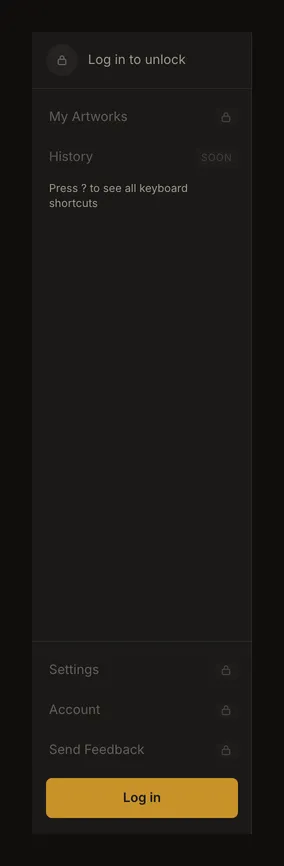
After signing in, find saved work in the gallery. Projects organise artworks; tags label and filter them. The toolbar's Previous version and Next version buttons move between saved versions, not individual slider changes; the separate account-sidebar History entry is still marked as coming soon. Settings holds reusable defaults and options; Account holds account details and access controls. Enabling Autosync does not replace making the first account save. Verify save status before leaving the editor.
Choose the next useful task
For proportions, refine the grid or focus a cell. For a new paper format, adjust the crop and canvas size; favourites can save repeated sizes. For viewing, try fit, fill, zoom or fullscreen. These change how you inspect the reference, not the size of a downloaded image by themselves.
For light studies, compare colour, grayscale and tonal groups. For output, inspect a downloaded PDF before printing. For another reference, read about starting a separate artwork before discarding unsaved changes.
Frequently asked questions
Why can I not find the control shown in a guide?
Open the right controls panel and expand the relevant section. On narrow screens, also check More actions. Load a photo if an image control is disabled. Account-only actions require sign-in; opening a panel does not remove that requirement.
Is my photo saved as soon as I open it?
It is loaded into the editor, not automatically created as an account artwork. Browser recovery may retain a local session, but it is not a permanent backup. Sign in and make an explicit first save when you need an account copy.
Do I need to use every adjustment before drawing?
No. Start with a useful crop and, if it helps, a simple grid. Add a value study or another tool only when it answers a specific drawing question. Keep comparing your plan with the original photograph.