Keep a reference and its drawing setup together
Saving an artwork to your account keeps its reference image and drawing settings together so you can return to it. Sign in, make your first save, and wait for the saved confirmation. Simply opening a photo or seeing it return in the same browser does not confirm that it has reached your account.
Make your first account save
- Sign in and prepare your reference
Open a photo and choose the grid, canvas dimensions or view you want to keep. If you want an account version of the untouched photo, save it before cropping or replacing it: the first save records the image currently in the editor.
- Choose Save
Use the toolbar Save button (a disk icon; the word Save appears on wide screens). On a phone, Save stays separate from More actions; after the first save, it moves to the row under the toolbar that shows the artwork's name. On a keyboard, use Ctrl+S on Windows or Linux, or Command+S on a Mac. Close other dialogs first.
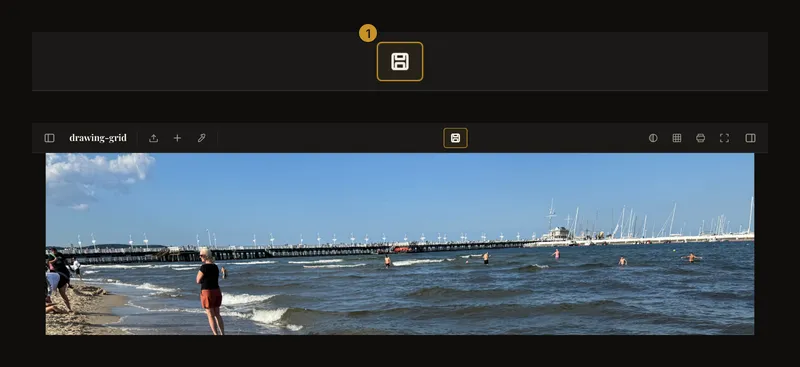
① Save sends the current reference and settings to your account. Wait for the result before leaving. - Choose a name and project
The first-save dialog lets you give the artwork an optional name, up to 100 characters. A descriptive name makes it easier to find later; leaving the name blank is allowed. Select an existing project or leave it Unfiled. The dialog selects projects rather than creating them: you can organise the artwork into a project later from My Artworks.
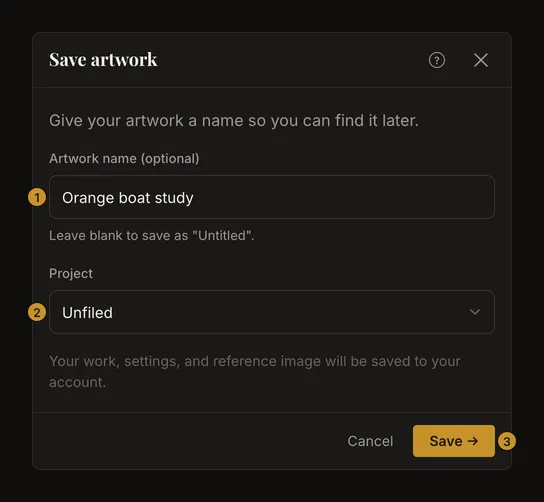
① An optional name. ② An existing project or Unfiled. ③ Confirm the save. Choose Save → and keep the dialog open while saving. A failed save leaves an error to address; closing the dialog is not confirmation that the artwork was saved.
- Check the saved state
Wait for the toolbar's saved checkmark. Open My Artworks when you want to find the account copy again. After further edits, Save becomes available again; saving updates this artwork rather than asking you to create a new name each time.
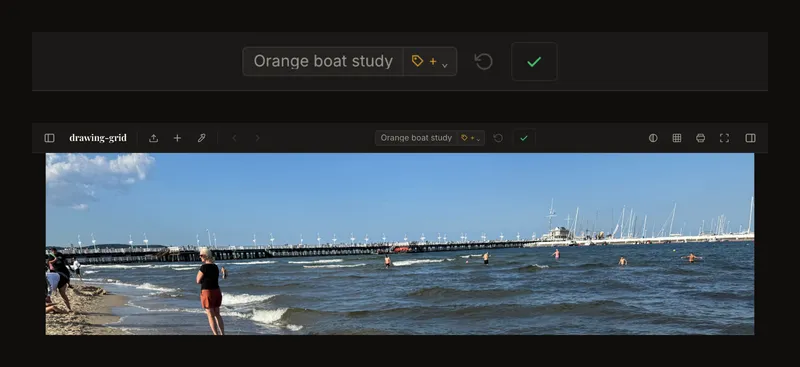
The checkmark confirms the completed save. Later edits can make the artwork unsaved again.
Read the save state before moving on
Save means there are changes to send. Saving means a request is still in progress. Saved means the last save succeeded and the editor has no further changes to save. An error state means you should check the message and try again; it is not a saved confirmation. Loading can appear while opening an artwork or changing history versions and is separate from saving. If you continue editing during a save, check the state again when it finishes. Save any remaining changes before starting another artwork or signing out.
Local recovery, account saving and cloud sync
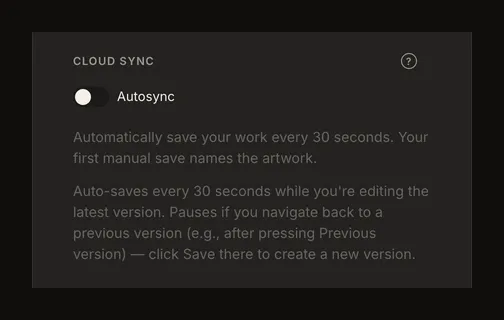
The browser keeps a local working copy to help restore your session. That copy belongs to this browser and device; it is not an account backup, and clearing browser data or logging out can remove it. Browser storage can also fail. Do not use a reopened local session as proof of a successful account save. Manual Save sends the current artwork to your account. It is the way to create the first account copy and the clearest choice before deliberately leaving your work. In Settings, you can turn on Autosync under Cloud sync for later changes. It is off when no preference has been set. After a successful first save, it checks periodically, about every 30 seconds, for changes that can be sent. It needs a signed-in account and a working connection. It pauses during loading, history navigation and conflict handling, and while you are viewing an earlier version with a forward history step available. It does not create the first account copy of a session that has never been saved.
What a save keeps in history
Content saves keep versions of the artwork's image and settings. A change to the reference image saves that image; a settings-only save can reuse the same image. Renaming an artwork or moving it between projects is organisation, not a new drawing version. History is limited to 50 entries per artwork. Older entries can be removed as more are saved, including the first version. Keep your own original photo separately. Saving while working from an earlier version can create a branch; it does not make every intermediate version permanent.
Start a new artwork without losing unfinished edits
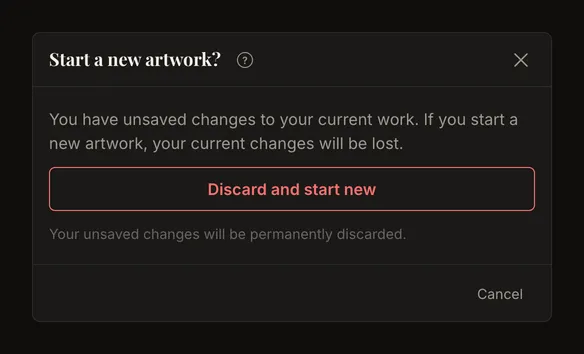
New artwork clears the editor for another reference. If changes are unsaved, a confirmation asks whether to discard them. Cancel that confirmation, save, wait for success, and then start the new artwork when you want to keep those changes. Confirm discarding only when you intend to abandon them. The toolbar's Discard changes action returns to the saved version you are currently viewing. It is different from starting a blank artwork. Logging out with unsaved changes offers Save and log out, logging out without saving, or Cancel. A failed save should be resolved before you choose to leave.
When a save does not complete
Keep the editor open and read the error. If the connection is unavailable, reconnect and try Save again; do not assume that the local copy or the next sync interval has already protected your changes. If requests are temporarily limited, wait before retrying. Automatic sync also pauses briefly after a rate-limit response. Your account's artwork and storage limits can prevent a new artwork or a changed image from being saved. Check the usage shown in your account and remove only work you no longer need. Settings-only updates to an existing artwork can still be saved when image storage is full; that does not mean a replacement photo has been uploaded. Limits can differ between accounts, so use your account's displayed allowance.
Choose carefully when another tab has saved newer work
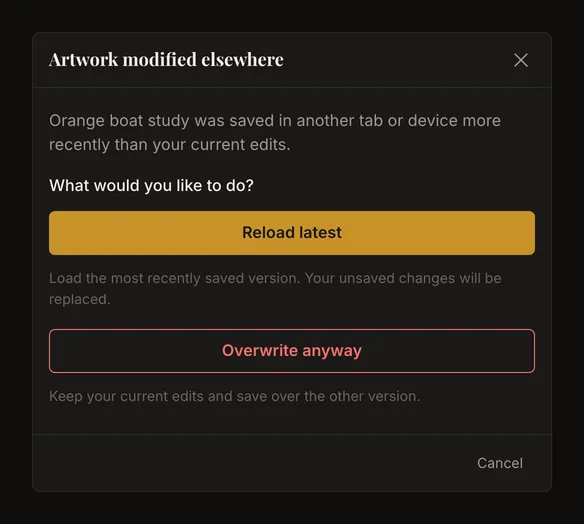
The Artwork modified elsewhere dialog means another tab or device has saved a newer version. Reload latest loads that version and replaces your unsaved edits. Overwrite anyway keeps your current edits and attempts to save them as the latest version instead. Cancel returns to your work without resolving which version should win. Use one tab for edits when possible. If you are unsure which changes matter, cancel and inspect the other tab before choosing. Neither closing the warning nor choosing an action proves that a subsequent save succeeded: check the result.