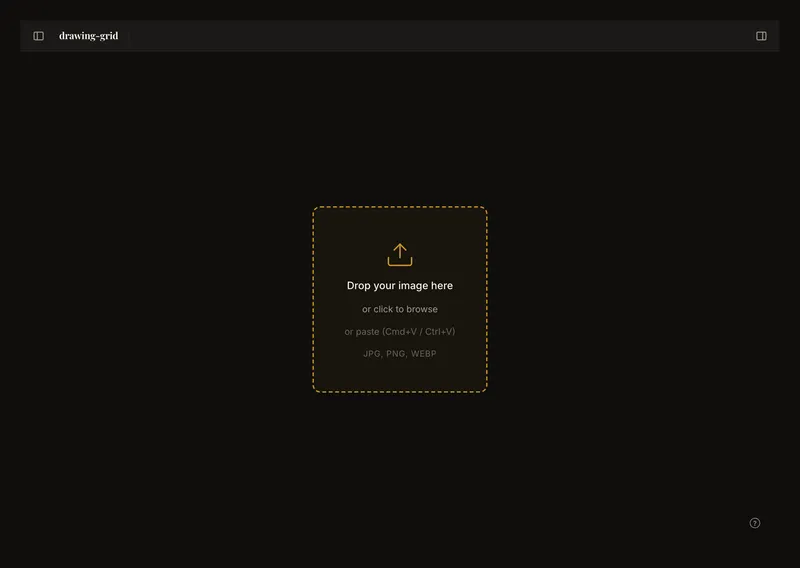
Return to your reference in the same browser
Browser autosave keeps a local working copy of your current reference and many editor settings. You do not need an account. If that copy is still available, reopening the tool in the same browser profile can restore your photo and grid without another upload.
This is a convenience for continuing one session, not an archive of every drawing or every edit. It does not send your work to another device. Keep the original photo and save important work to your account before replacing it or leaving it behind.
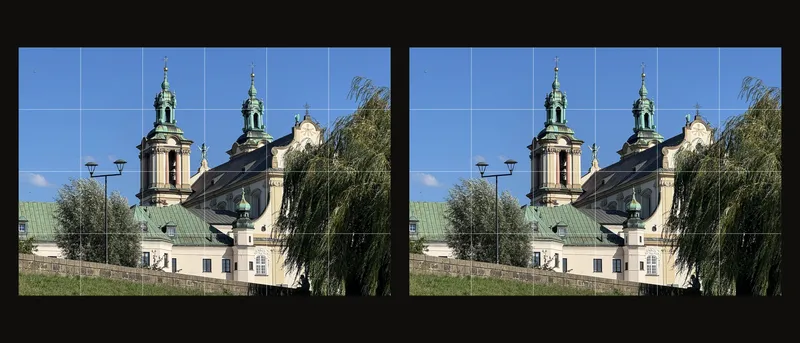
Check your local working copy
- Load a photo and make a recognizable change
Upload your reference and turn on the grid. Choose a distinctive number of columns so you can recognize the restored setup. Browser autosave works in the background; there is no separate local-save button or success badge.
- Return using the same browser profile
Pause after editing before closing or reloading. Settings are saved after a short delay, and storing a newly loaded image takes time. Immediately closing the tab can lose the latest change. Open the tool again at the same site in the same browser profile, then inspect the photo and settings rather than assuming everything returned.
- Check the framing before continuing
Confirm the grid, dimensions and view. An applied crop is part of the stored image, but an unfinished crop frame is not preserved as an exact position and size. Check and adjust that frame again before applying it. Local recovery is not an undo history: Cmd/Ctrl+Z does not recover each earlier local edit.
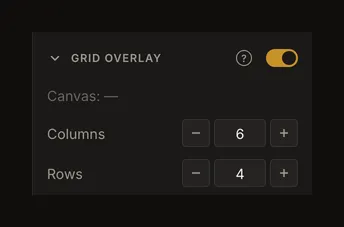
The example checks the recovered grid values. Also inspect the photo and any unfinished crop before continuing.
What the browser copy can retain
The local copy includes the current image, grid settings, black-and-white and tonal settings, edge detection, image adjustments and canvas dimensions. A saved snapshot can include the view mode, zoom and pan position, but switching between Fit and Actual size without any other change may not be saved. Recheck the view after reloading if needed. Some restored values are normalized to the current tool's limits; this is not a recording of every temporary interaction.
Closing a panel or navigating away is not the same as deliberately starting a new artwork. However, a tab crash, interrupted write, full storage or browser restriction can prevent recovery. There is no visible receipt proving that the local copy has finished saving.
Separate browser recovery from account saving
A local copy belongs to this site's storage in this browser profile. Another browser, profile or device does not automatically share it. Signing in alone does not turn every local edit into a saved account version. Use the tool's Save action and check its result; Autosync is a separate account feature.
When you return to a linked account artwork, the app restores its saved version through the artwork's own recovery path. It does not simply prefer the newest anonymous browser draft. If normal restoration fails, an available offline copy may appear with a warning that it could be older. Read that warning; when your connection is back, reload the page to load the latest saved version. Do not treat the offline copy as proof that the latest server version was recovered.
A failed save or missing local copy cannot be repaired by this guide. If an account version exists, reopen it from your artworks. If no usable copy remains, reload your original photo and recreate the setup.
Cancel before discarding something you still need
New artwork (+) starts a fresh editor. With unsaved work, the confirmation offers Cancel or Discard and start new. Cancel keeps you in the current work so you can save it first. Confirming clears the current local working copy; reopening the browser is not a way to undo that choice.
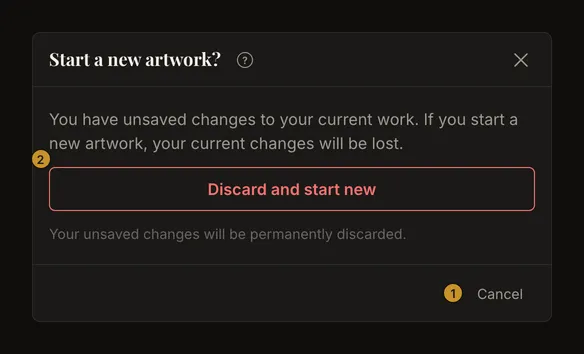
Opening another artwork can also ask you to discard unsaved changes. Read the action in the dialog: a discard action does not save the changes first. Replacing the photo changes the current working image, so keep its original file if you will need it again.
Save before logging out
Logging out clears this browser's editor recovery data. When the logout dialog offers to save first, choose that action and wait for success if you need the work. Logging out without saving is not a way to keep a private draft for the next sign-in. Saved account versions remain separate from this local cleanup.
When local recovery may be unavailable
Clearing the site's browser data removes the local copy. Private browsing has separate storage that may disappear when the private session ends. Browser privacy restrictions, storage limits and automatic eviction can also prevent writing or restoring it. Do not rely on local autosave as your only copy of important work.
Use the same site and browser profile when checking a missing draft. Avoid clearing storage as a first troubleshooting step: doing so removes the very copy you are trying to recover. If the tool opens empty, a local photo may be missing, unreadable or paired with unavailable settings. There is no recovery-bin control for deleted browser data.