Find a saved study and carry on drawing
My Artworks is your account’s library of saved artworks. Search by name, narrow the results with projects and tags, and open the study you want to continue. Sign in to the account that owns the artwork. A photo opened only in the editor has not yet been added to this library: save it to your account first.
Open an artwork in three steps
- Open your library
Open the account menu on the left and choose My Artworks. When a saved artwork is open, clicking its name in the toolbar also opens the library. With a keyboard, use Cmd+O on a Mac or Ctrl+O on Windows or Linux once your saved artworks have loaded. Close other dialogs first.
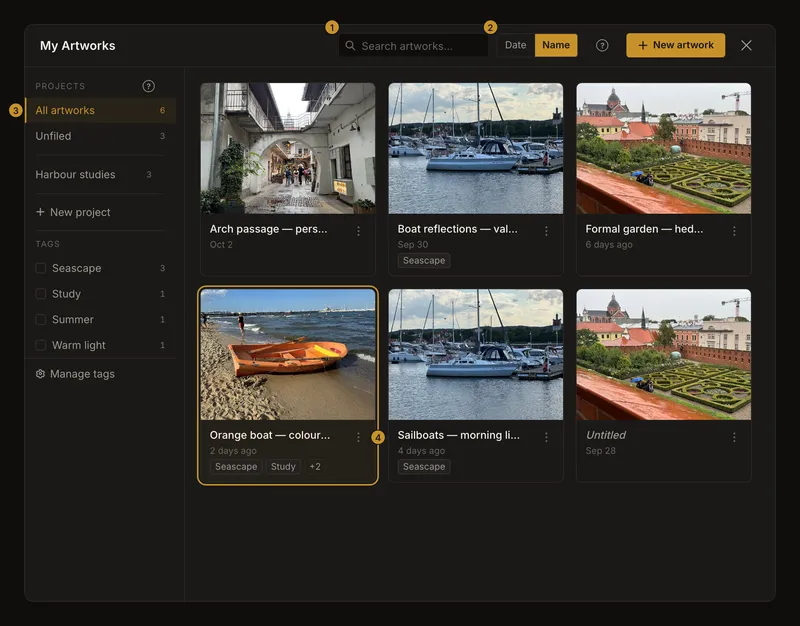
① Search names. ② Choose the sort order. ③ Narrow the library by project or tag. ④ Open a card’s options. - Find the study you need
Type part of its name, or choose a project. Use Date for recently saved work and Name for alphabetical browsing. Search and filters cover the whole library, including artworks that have not been loaded onto the screen yet.
- Open the artwork
Click or tap the artwork’s card to load its latest saved version. The library closes and the editor opens that artwork. Choosing the artwork that is already open simply returns to it; it does not discard your unsaved changes.
If you choose a different artwork while your current work has unsaved changes, read the confirmation before continuing. Cancel and save first to keep those changes. Discard and resume leaves them behind. This confirmation does not include a save-and-open option.
Search names, including part of a name
A search such as “boat” finds names containing that text, regardless of letter case. Results update shortly after you stop typing. The field accepts up to 100 characters. Search matches artwork names, not project names or tag names; choose those separately as filters.
An unnamed artwork appears as Untitled, but that display label is not its saved name. Searching for “Untitled” will not find an artwork whose name is blank. Clear the search to see unnamed artworks, then rename any you want to find by name later.
Clear search removes the search text. It leaves your project and tag selections in place, so check those too if an artwork is still missing.
Date means the last saved content change
Date puts the most recently saved artwork first. Saving a changed photo or drawing settings updates that date. Renaming an artwork or moving it to a project does not make it newly saved. Opening a card alone does not move it to the top.
Name sorts names from A to Z without treating capitals as a separate group. Sorting applies to the complete set of matching artworks, not just the cards currently visible.
Combine a project, tags and search
Choose All artworks to search across projects, a named project for that collection, or Unfiled for artworks assigned to no project. Tag filters work alongside that choice. Selecting several tags includes artworks with at least one selected tag; it does not require every tag.
For example, select the Harbour studies project, search for “boat”, and select the Study and Seascape tags. You will see artworks in that project with “boat” in their name and either of those tags. An artwork outside the project stays excluded even if its name and tags match.
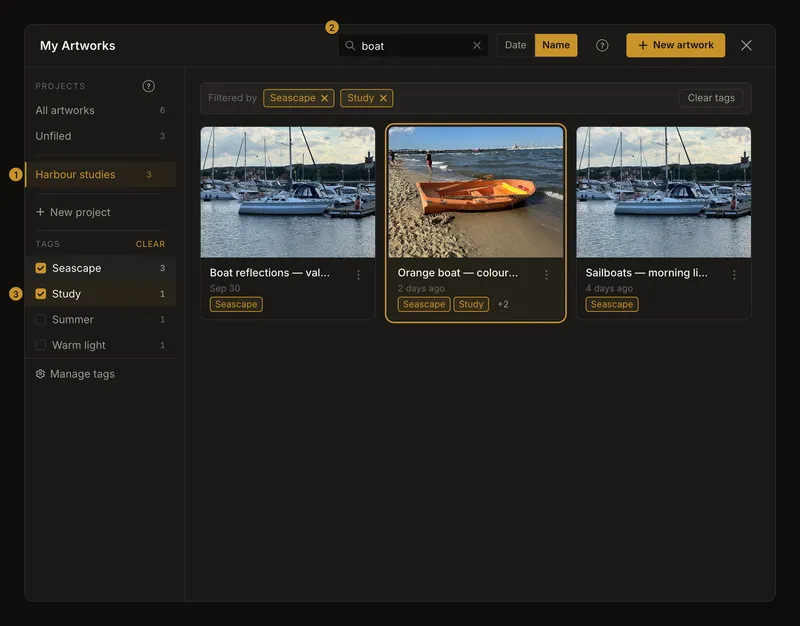
To return to the whole library, choose All artworks, clear the search and remove the selected tags. Clearing just one part does not reset the others. Closing and reopening the library resets these filters and restores date sorting. Opening the library through an artwork’s tag can start it with that tag selected.
Browse beyond the first page
The library loads up to 24 artworks at a time. At the bottom, Load more adds the next matching cards. Repeat while the button is available. Changing a search, sort order or filter starts again from the first page of the new results.
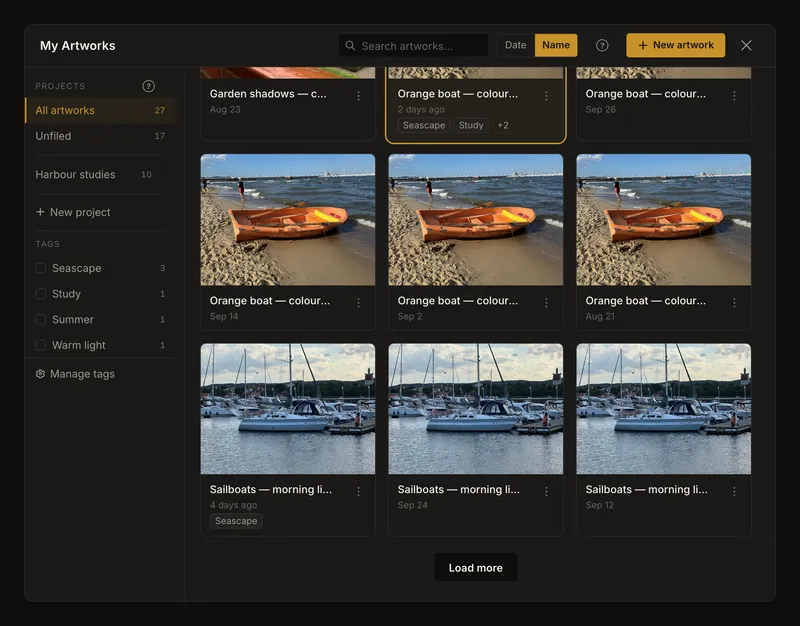
If loading more fails, the cards already loaded stay available. Check the connection and use Try again. A loading or error message is different from an empty library: it does not mean your saved artworks were deleted.
Use the library on a phone
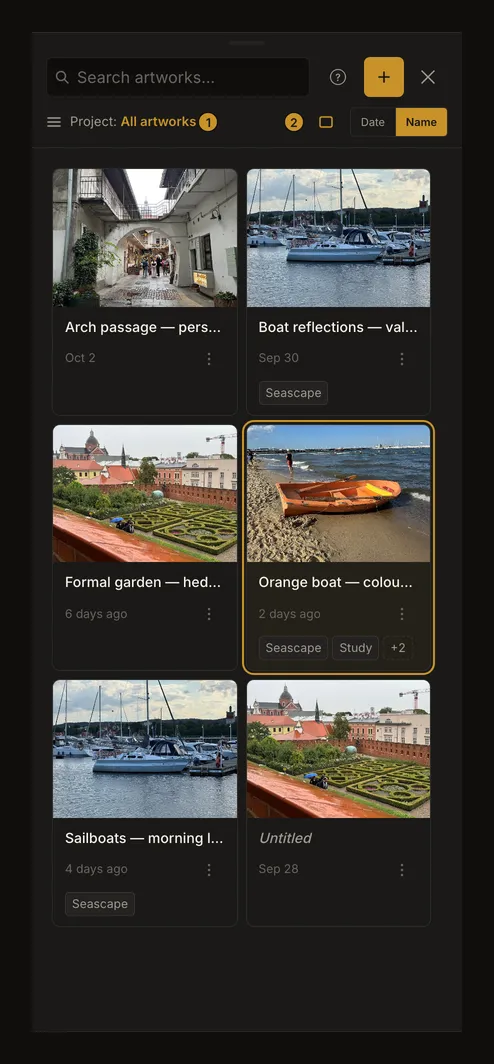
On a narrow screen, the project button opens Projects & tags in a separate panel. Choose a project or tags there, then return to the cards. Search and sorting remain in the library header. The layout button switches between one and two artworks per row; the browser remembers that layout choice after you close the library or reload.
Close the library with its × button when you want to return to the editor without opening a different artwork.
Read the tags and details behind a card
Cards show the artwork’s name, preview and saved date. Up to two tags appear on a card. A +N button reveals the full tag list, including the tags already shown. Choosing a tag chip filters the gallery; it does not rename or retag the artwork. Use the card’s Tags action when you want to edit its tags.
Choosing a tag on a card replaces the previous tag selection with that one tag. It keeps the current project and search. To select several tags together, use the project-and-tag panel instead.
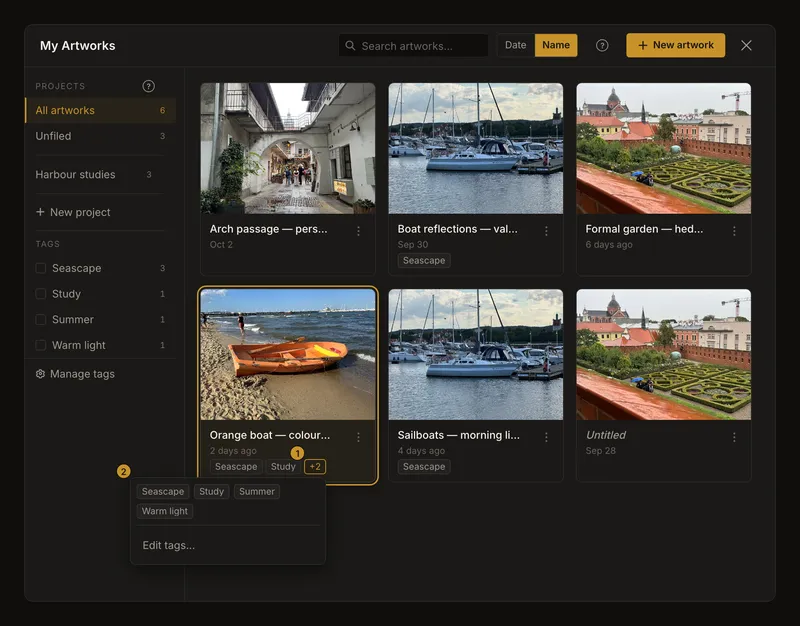
For the artwork open in the editor, the tag control beside its name opens Artwork details. There you can see its project, save information and tags. When viewing an earlier version, the details identify that version; the gallery’s normal open action still loads the latest saved version.
Rename and organize from the card menu
Open the card’s ⋮ menu for Rename, Duplicate, Tags, Move to project… and Delete. You do not need to load the artwork first.
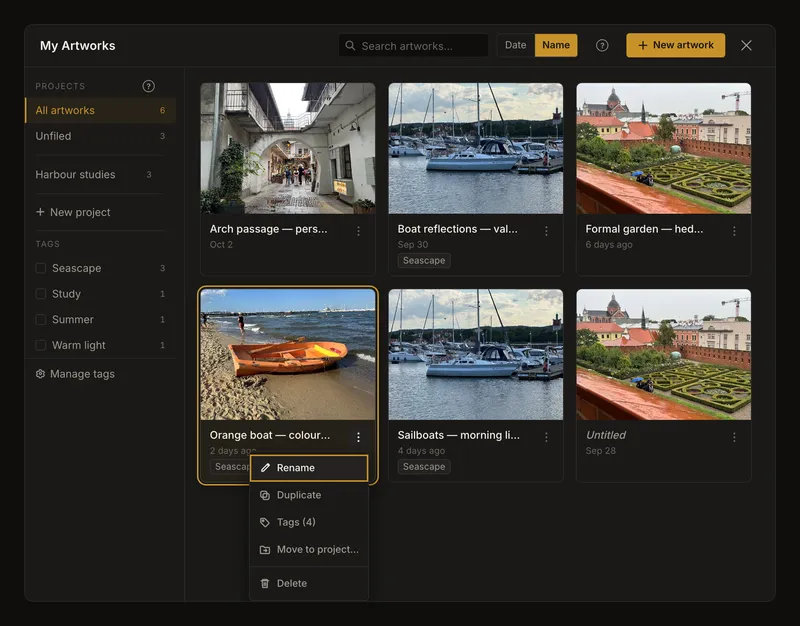
Names can be blank or up to 100 characters. A clear name such as “Orange boat — colour study” is easier to find than several unnamed artworks. Renaming changes the label, not the photo or its version history. Moving to a project changes where it is filed; an artwork belongs to at most one project, while it can have several tags.
Make an independent copy before trying another idea
Duplicate creates and opens a separate artwork from the source’s latest saved photo and settings. It copies the tag assignments, but starts in Unfiled with its own first version. Earlier versions are not copied. Edits or deletion of one artwork do not change the other.
Save changes you want in the copy before duplicating. Unsaved edits and an earlier version merely being viewed in the editor are not the source of the copy.
If your current saved artwork has unsaved changes, the confirmation offers to save it before opening the copy, open the copy without saving, or keep working. Read the artwork names: the unsaved work can belong to a different artwork from the one being duplicated. For work that has never been saved, there is no save-and-open choice; cancel and save it first if you want to keep it.
A duplicate uses additional artwork and storage allowance. If your account limit prevents it, the app reports the problem; remove only work you no longer need or review your account allowance.
Delete only what you no longer need
Choose Delete and check the artwork named in the confirmation. Deleting removes that artwork and its version history; the gallery has no trash or undo for this action. Its project and shared tags remain available for other artworks.
If you delete the artwork currently open in the editor, the editor is cleared to the upload state and the gallery stays open. Deleting another card leaves your current artwork open. Save anything you intend to keep before deleting the current artwork; its unsaved editor changes are not retained as a separate study.
Browse without a mouse
Tab to the cards, then use the arrow keys to move between cards. Home and End go to the first and last loaded cards. Enter or Space opens the focused artwork. F2 enters the card’s tag and options controls; left and right arrows move within those controls. Escape returns from the inner controls to the card. In the options menu, use up and down arrows, then Enter or Space to choose an action.
Activating Load more with the keyboard moves focus to the first newly added card. Escape closes the gallery when no inner menu or dialog needs closing first.
When an artwork seems missing or will not open
Check that you are signed in to the right account, then clear search, project and tag filters. If you never saved the work to that account, the gallery cannot retrieve it from another device. Browser recovery of an unfinished drawing is separate from account saving.
For a network error, restore your connection and try again. If opening an artwork takes more than a few seconds, a Cancel button appears. Cancelling the load leaves the editor as it was before that load. An artwork deleted elsewhere cannot be reopened; refresh the library instead of repeatedly selecting the stale card. If the app says its saved settings need a newer version of the tool, refresh the app before trying again.
To begin a separate study, use New artwork in the gallery header. Unsaved work can require confirmation before the editor is cleared. The reference photo guide explains choosing the next image.
Frequently asked questions
Why does searching for Untitled miss my unnamed artworks?
Untitled is a display label for a blank name. Search matches the actual saved name. Clear search to find unnamed cards, or give them names you can search for.
Does Duplicate copy my unsaved changes or all versions?
No. It copies the source artwork’s latest saved photo and settings into a separate artwork with a new first version. Save the changes you want to copy first. Tags are copied; project membership and older versions are not.
Can I recover a deleted artwork from its history?
No. Deleting the artwork also deletes its version history. Keep a separate copy of work you need before confirming deletion.