Keep a saved reference up to date while you work
Cloud autosync saves changes to an existing account artwork in the background. Use it while refining a grid, adjusting a reference or developing a value study. You must sign in, save the artwork manually once and enable autosync in Settings. It is off by default.
Autosync is separate from the browser's local recovery copy. It does not create the first account artwork, synchronize every gesture instantly or turn multiple open tabs into a shared live canvas. Keep your original photo separately.
Enable autosync and check an actual save
- Save the artwork manually first
Open your photo and choose Save. Complete the save dialog, then wait for the tool to show that saving succeeded. Signing in or turning on autosync alone does not create an account copy of a new reference.
- Turn on Autosync in Settings
Open Settings while signed in. Under Cloud sync, turn on Autosync. Return to the tool and open the saved artwork you want to edit. The setting belongs to your account; it is not a separate switch for each artwork.
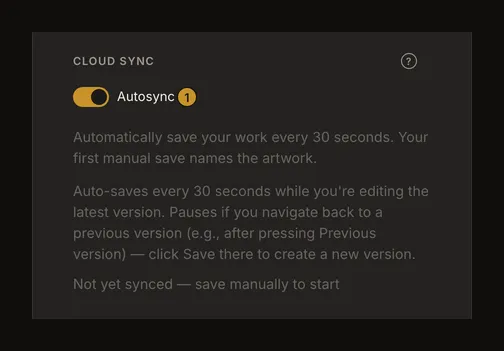
① Autosync switch. The text below explains the prerequisites. The Settings message is not proof that your current artwork has saved. - Make an edit and check the tool's save status
Change a visible setting, such as the grid. Leave the tool open and connected. Autosync normally checks on a 30-second interval, but busy work, navigation, connectivity and other conditions can delay a save. It is not a deadline or a promise that the last edit has reached your account.
Watch the tool's Save control. Wait for saving to finish and the saved state to return. A successful autosync does not show the manual-save success toast. When the version list is available, an Auto-saved entry identifies an automatic save.
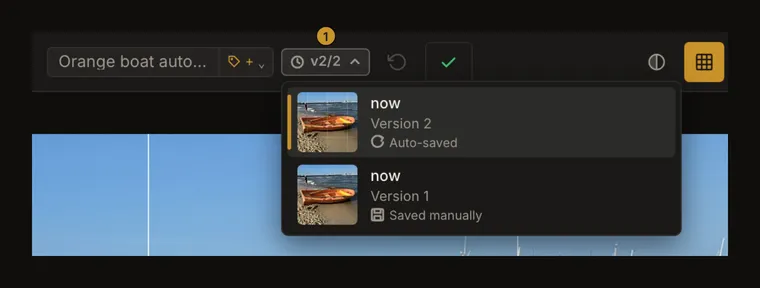
① Version badge opens the list. The automatic entry records a completed account save; it is separate from local browser recovery.
Know when autosync waits
Autosync needs unsaved changes to an already saved artwork. It waits while a save is running, a version is loading, history navigation or restoration is in progress, or a conflict is unresolved. It also skips attempts when the browser reports that it is offline.
Viewing an older saved version pauses autosync. If you edit that version and want to continue from it, save manually. Returning to the newest version lets autosync work again when its other conditions are met. Merely browsing history does not create a save.
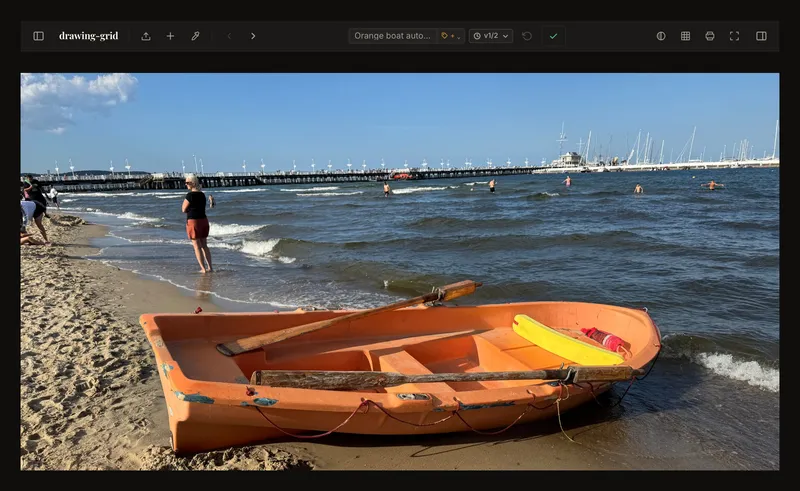
Read save status in the tool, not as a Settings receipt
An enabled switch means autosync is selected. The current Settings page does not display the active artwork's real last-save time, so its “not yet synced” message can remain even after an artwork has saved. Use the tool's Save state and saved versions to check that artwork.
An error is not a successful save. Keep the page open and the edits available while you read the message. Saving settings can create another history version even when the photo itself has not changed; history is not a record of every intermediate slider position.
Recover from connection and save errors
If you are offline, reconnect and try a manual save when the tool allows it. Autosync can try again later while the tool remains open and its conditions are met; reconnecting is not confirmation of success. Browser recovery may help with a local interruption, but it is not evidence that an account copy exists on another device.
Follow the actual error message for storage limits, an expired session or a failed upload. Repeated clicks will not remove an account limit. After a too-many-requests response, background attempts pause for about two minutes. Manual Save remains available when otherwise allowed, but repeatedly pressing it does not bypass the server limit. Wait before trying again.
Resolve a newer version from another tab or device
Two tabs or devices can edit the same artwork independently. A save may find that the account version has changed and open a conflict dialog. Autosync pauses while that conflict is open.
Reload latest replaces your current edits with the most recently saved version. Overwrite anyway saves your current edits over the newer version; choose it only if those are the changes you intend to keep. Read the dialog before choosing. Closing the dialog alone does not reconcile the versions, and a later save can show the conflict again. Avoid editing the same artwork in two places at once.
Turn autosync off without deleting your saved work
Return to Settings and turn off Autosync. This stops future automatic saves once the tool uses the updated preference; it does not undo a save already sent or delete saved artwork. Continue using manual Save when you want to keep changes. If an already open tab still has old preferences, reload it only after preserving its unsaved work.
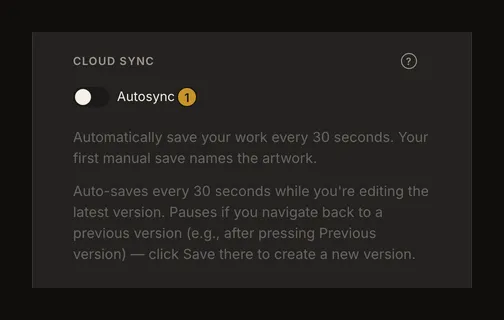
Signing out stops authenticated autosync and clears the editor's local recovery data. If the sign-out dialog offers saving first, wait for success. Signing out without saving is not a way to keep a private draft for your next session.