Make the reference easier to read
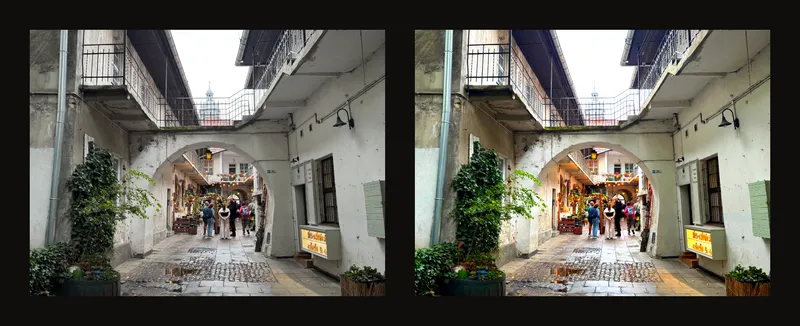
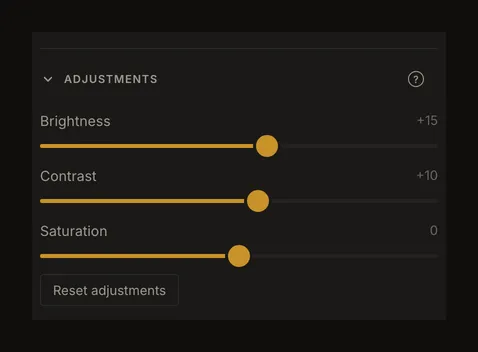
Use Adjustments to lighten a dark reference, separate similar tones or soften distracting colour. The three sliders change the displayed photograph without changing your device's original file. No account is required. They do not recover detail that was never captured in the source photo.
Adjust one thing at a time
- Load a photo and open Adjustments
Upload your reference, then find Adjustments in the right panel. It is expanded by default; if you collapsed it earlier, click its heading to open it. On a phone, open the controls panel first. Without a photo, the sliders are unavailable.
- Start with a neutral comparison
Keep the framing unchanged. For a colour-photo comparison, turn off B&W and edge detection. If adjustments are already present, note their values before using Reset adjustments. All three return to 0; this does not reset the whole artwork.
- Make small changes and inspect the detail
Try brightness first, then contrast, then saturation. Watch a light area and a dark area together. Stop before pale surfaces become blank or shadow shapes merge into one dark patch. The example values illustrate this photograph, not a preset for every reference.
Three sliders and one shared reset
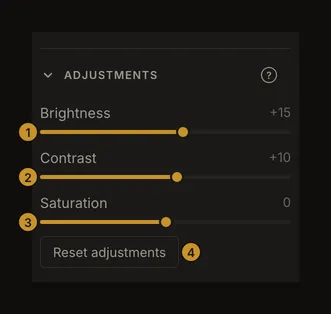
Each slider runs from −100 to +100 in steps of 1. The neutral value is 0. Drag the handle or click the track; with the slider focused, use the arrow keys for small changes. The displayed number is a setting, not a percentage measurement of the photograph. There is no separate number-entry box.
Reset adjustments appears when any value is nonzero. It resets all three together. To reset just one adjustment, move that slider to 0.
Brightness changes the overall lightness
Positive brightness lightens the photo; negative brightness darkens it. Use a modest increase to inspect a dim reference, checking that pale walls or clouds still retain useful differences. At −100 the photograph becomes black. Increasing brightness cannot recreate missing texture in a completely black or white source area.
Contrast separates or compresses tones
Positive contrast pushes light and dark tones farther apart. Negative contrast brings them closer together; −100 produces a flat middle grey. A strong increase may make a composition easy to read at first, while hiding small changes you need to paint.
Saturation changes colour strength
Positive saturation intensifies colours; negative saturation makes them quieter. At −100 the colour view is desaturated. This is not the B&W tool: it does not enable tonal steps or the value-study controls.

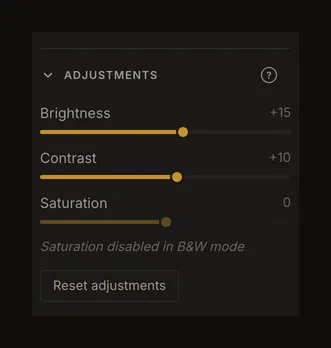
Turning on B&W resets saturation to 0. The saturation slider is then disabled and an explanatory note appears. Returning to colour leaves saturation at 0; set it again if needed.
Check B&W and edges after a correction
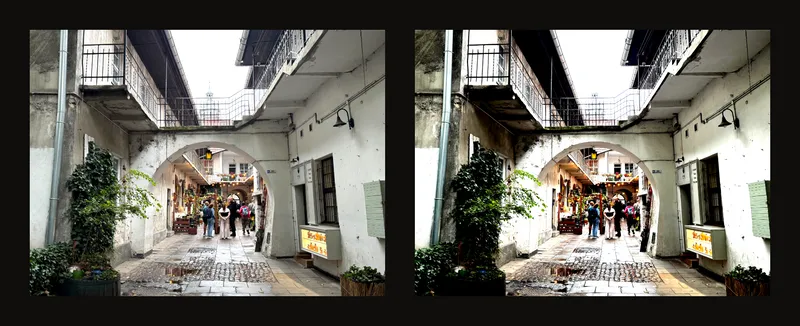
Brightness and contrast remain available in B&W. They can move image areas into different tonal steps or value bands, so check your value study again after changing them. The coloured value overlays are guides; adjusting the photo is not a way to recolour those overlay colours.
On screen, edge detection finds edges in the original photo, so the adjustments do not change which edges appear; with the Photo background they only change the photo shown under the lines. The PDF is different: it detects edges after applying the adjustments, so check the downloaded PDF. The adjustments do not change grid colours, cell counts, crop dimensions or the photo's orientation.
Use the same settings on a phone
Open the right controls panel and expand Adjustments if needed. Drag one slider at a time and check its number. Close the panel to judge the whole photograph; reopening it preserves the settings.
Keep the settings and check the PDF
The browser's local autosave includes these settings, but browser storage is not a backup of your original file. Saving an account artwork includes the adjustments too. Changing a slider does not create a separate saved history version for every movement.
The PDF exporter uses image adjustments. Its B&W option controls whether the output uses the B&W view; check the downloaded PDF before printing, especially when combining adjustments with tonal steps or edges. Screen brightness and printer output can look different, so judge a physical print separately. If you tick the PDF's B&W option, edge lines are not printed.
Resetting these settings restores the unadjusted appearance of the currently loaded image. It does not undo a crop, rotate the image back or recover an earlier file. Keep your original photograph for that.