See the light and dark shapes
A bright colour can attract attention without being a light tone. A value study removes that distraction: compare the large dark, middle and light shapes before deciding how to paint the details.
The garden below is the same photograph in colour and grayscale. Look at the dark opening under the foliage, the pale sky and the gravel. These larger shapes matter more than individual leaves.
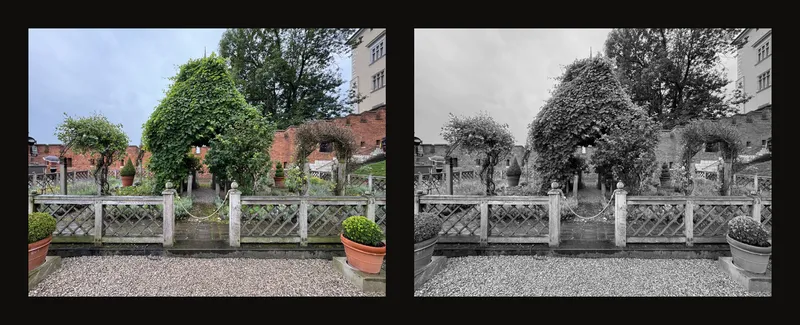
Start with continuous grayscale
- Choose and frame your reference
Open a reference photo. If necessary, crop it to your composition before judging how much of the image each value occupies.
- Turn on black and white
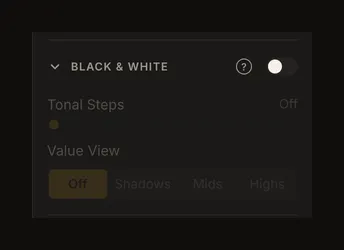
Use B&W in the toolbar or the switch beside Black & White in the right panel. Both change the same setting. Leave Tonal Steps and Value View at Off to see smooth grayscale.
- Compare the big shapes
Try 3 tonal steps, then return to smooth grayscale. Which dark shapes join together? Does the light area lead your eye where you want it? Simplify deliberately; a small isolated patch does not have to become a separate painted shape.
Choose how much detail to keep
Tonal Steps offers Off or 2–10 levels. Off keeps continuous grayscale; it does not switch black and white off. There is no one-level setting.
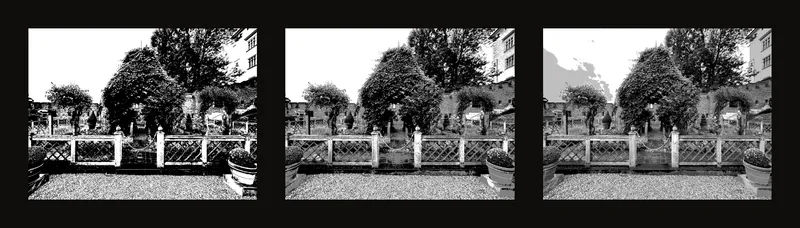
- 2 levels: compare the balance of black and white shapes—a simple notan study.
- 3 levels: separate light, middle and dark masses before planning a painting.
- 5 or more: retain smaller changes where form needs more explanation.
These levels divide brightness into equal intervals. They do not recognise objects, choose your palette or prescribe paint mixtures.
Find shadows, midtones and highlights
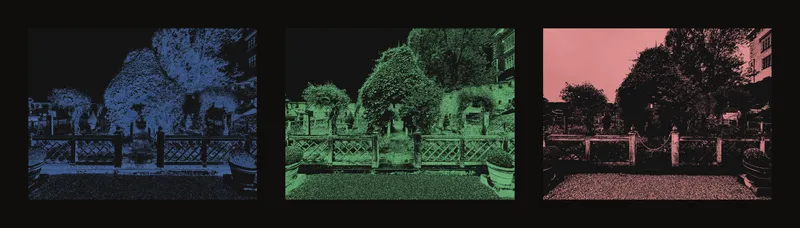
Choose Shadows, Mids or Highs under Value View. The chosen range is tinted; the rest darkens. Blue marks shadows, green marks midtones and red marks highlights. These are diagnostic colours, not colours to paint.
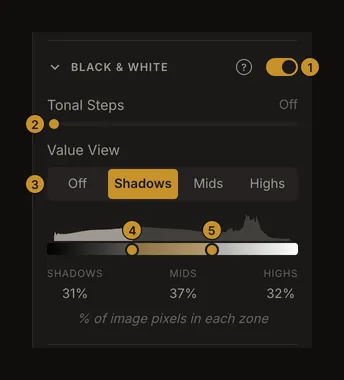
- Black & White switch.
- Tonal Steps.
- Value View.
- Lower boundary: separates shadows from midtones.
- Upper boundary: separates midtones from highlights.
Move either handle, or focus it and use the arrow keys. The handles cannot cross. Moving a boundary changes which pixels belong to each range; it does not brighten the photograph. Choose Off to remove the coloured mask.
Read the histogram without chasing a percentage
The graph runs from dark on the left to light on the right. Taller parts mean more image pixels at that brightness. The three percentages describe the whole current image, not just the visible zoomed area or a focused grid cell. Rounded percentages may not add up to exactly 100.
Brightness and contrast affect the distribution. With tonal steps active, pixels gather at a few levels: moving a handle may leave the image unchanged, then change a large area at once. Start with tonal steps Off when exploring a subtle boundary.
Know what changes with the mode
Turning black and white on resets saturation to zero and switches edge detection off. Turning it off restores colour, but does not restore your previous saturation setting. Enabling edge detection switches black and white off and clears the selected value range.
The grid and Focus mode can sit over your value study. Clear the focused cell when judging the whole composition, because its surrounding dimming changes what you see.
Save or print the study
Browser autosave and saved account artwork settings include black and white, tonal steps and value view. Loading a different photograph resets them. Keep your original photo file; saving settings is not a promise that every old version will remain available.
In the print dialog, B&W conversion includes tonal steps and the selected coloured value mask. Set Value View to Off before printing plain grayscale. Check the print options; the focused cell's dimming is not printed. See printing with the grid for physical size and paper setup.
Frequently asked questions
Why are the value controls dimmed?
Load a photo and turn black and white on. The panel can be open while its switch is off.
Why is a black-and-white study blue, green or red?
A value range is selected. Those colours identify its pixels. Set Value View to Off for ordinary grayscale.
Why do large areas change together?
Tonal steps group many pixels at the same brightness. A boundary crossing that level changes the whole group. Turn tonal steps Off to inspect continuous tones.