Turn a reference photo into an outline
Edge detection picks out changes in light and dark and displays them as lines. Use it to study the slope of a roof, the curve of an arch or the spacing of windows before drawing. It can also make a photo easier to trace, but it does not decide which lines belong in your drawing: shadows, leaves and surface texture can become edges too.

This effect does not overwrite the loaded photo. No account is needed to use the controls.
What edge detection is good for
An outline is a quick starting point. These are the most common ways to use one.
Try out color ideas without redrawing. Drawing the same picture ten times just to compare color schemes takes hours. Instead, turn on edge detection, download the outline as a PDF and print as many copies as you need. Try a different palette on each copy. When you have found the version you like best, make your final piece as a normal drawing or painting. Check the downloaded PDF before tracing explains how to print the outline.
Prepare starting sheets for a class. When a lesson is about color, shading or painting technique rather than drawing, students can begin from the same printed outline instead of drawing it first. Print one copy per student at the size the class needs, so the lesson time goes into the skill being taught.
Transfer a drawing to watercolor paper. Heavy pencil lines and erasing can damage watercolor paper. Print the outline, tape it under the paper on a light box or against a bright window, and trace only the lines you need with a light pencil.
Check a drawing you made by hand. Draw the subject freehand first. Then print the outline at the same size and lay it over your drawing on a light box or against a window. Where the lines do not match, your proportions have drifted, so you can see exactly what to fix.
Plan the big shapes before you paint. The outline shows where the main shapes begin and end. Use it to block in an underpainting or to decide where the lightest and darkest areas go before you start on the details.
Practice ink and line work. Use printed outlines to practice steady ink lines, hatching or changing line thickness. You can repeat the same subject as often as you like, because each new copy is just another print.
Make coloring pages from your own photos. Turn a photo of your pet, your family or a trip into a coloring page for children or adults. Lower the sensitivity first, so only the main lines remain and the page is not crowded with small marks.
Start a pattern for crafts and printmaking. The outline can be the first draft of a design for linocut, wood burning, embroidery, stained glass, mosaic or paper cutting. These crafts need clean, simple shapes, so redraw the outline by hand and leave out the small details before you transfer it.
Scale a design up for a mural or a large piece. Combine the outline with the drawing grid to copy a design onto a wall or a large canvas one cell at a time. The outline shows the main lines inside each cell, so you can place them quickly and add the detail by hand.
Build an outline you can draw from
- Start with a clear reference
Open a photo in the tool. A sharp image with a clear silhouette is easier to simplify than a blurred or heavily compressed one. See how to add a reference photo.
- Turn on edge detection
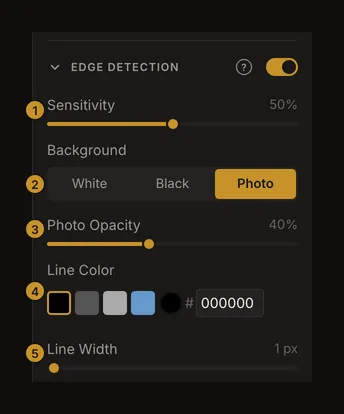
Open Edge Detection in the controls panel and turn on its switch. The section starts collapsed and the effect starts off. While the image is being analyzed, the photo dims and a waiting message appears.
- Keep the useful lines
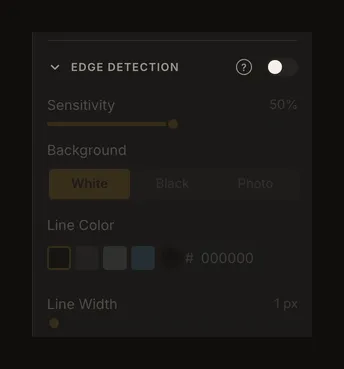
Begin at 50% sensitivity, with black lines on white and a line width of 1. Change one setting at a time. Compare the outline with the photo, then add a drawing grid if you want to transfer the proportions to paper.
Find the main edges without filling the page
Sensitivity runs from 0 to 100%; the default is 50%. Higher values show weaker edges as well as strong ones. Lower values remove more detail. At 100%, nearly everything can be marked, so the result may be a solid mass rather than a clearer drawing.
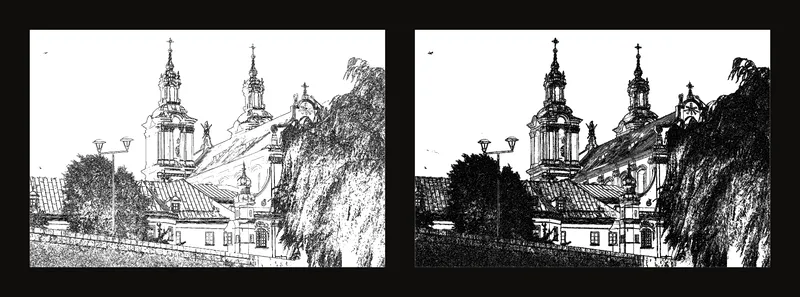
For noisy foliage, fabric or brickwork, lower the sensitivity. If an important contour disappears, raise it gradually. A blurred boundary may never become a clean line; check the original instead of inventing detail from the filter. Drag a slider or focus it and use the arrow keys for small changes.
Choose paper, dark ground or the photo
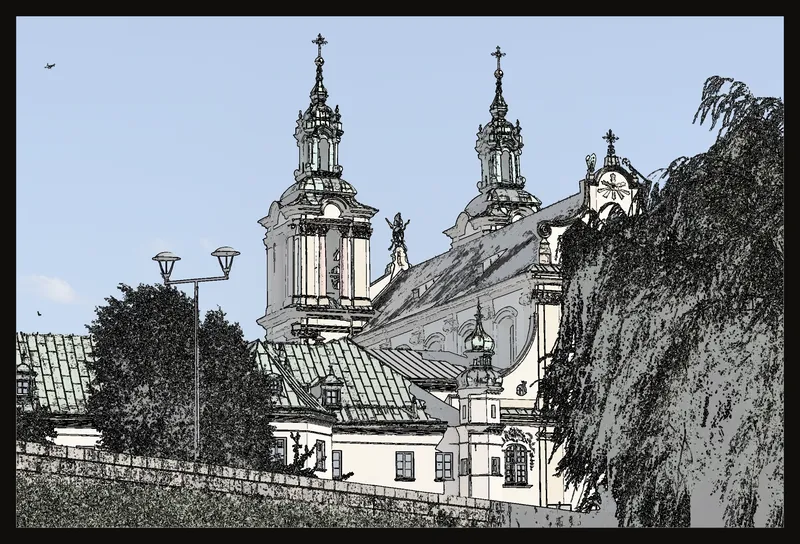
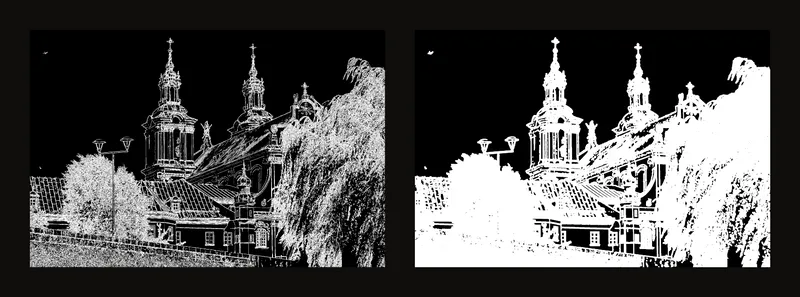
Background offers White, Black and Photo. White is the default and gives a simple outline for paper. Black can make light lines easier to inspect. Photo keeps the reference underneath so you can check what a line represents.
Switching to black automatically changes pure black lines to white; switching to white changes pure white lines to black. Other chosen colors stay as they are, so check that they still contrast with the background.
Keep just enough of the photo underneath
With Photo selected, Photo Opacity appears. Its range is 0–100%, with 40% as the default. At 0%, only the white base and the edges remain. At 100%, the full photo sits beneath the lines. This changes the photo layer, not the strength of the detected lines.
Give the lines enough contrast
Use Line Color to choose a swatch, enter a hex color or open the color wheel. The presets are black, dark gray, light gray and steel blue; on a black background the first swatch is white instead. Start with a high-contrast color, then use a lighter one if the outline competes with your pencil marks.
Judge line width at the size you will use
Line Width ranges from 1 to 8, with 1 as the default. It thickens detected edges in image pixels, so zooming in also makes them look thicker on screen. Wider lines can merge nearby details. Check window frames and other narrow gaps before printing.
Switch views without losing your settings
Turning edge detection on turns off B&W and Value View. Turning either of those on switches edge detection off. The other settings and tonal thresholds remain available, but the active tonal range is cleared to off. The previous view does not automatically turn back on when you disable edges. The grid can stay on and is drawn over the outline.
On screen, brightness, contrast and saturation do not change the detected edges or the flat white/black background. In Photo mode they affect only the photo underneath. Do not expect a contrast adjustment to recover a missing screen contour.
The browser's autosave and saved account artworks keep all edge settings. Loading a new image resets them to the defaults. Saving an artwork to an account requires signing in.
Check the downloaded PDF before tracing
For an edge-detection print or PDF, leave B&W conversion unchecked in the print dialog. Checking it overrides the live edge view and prints a grayscale photo. Choose the grid option separately if you want grid lines on the sheet.
Print recomputes the edges at print resolution and applies image adjustments before detecting them. The screen detects edges from the original photo instead. Fine detail and line thickness can therefore differ, even with the same controls. The print preview is a page-layout diagram, not a preview of the actual edge pixels. Inspect the downloaded PDF at your intended size before printing or tracing; do not assume it will be pixel-for-pixel identical to the canvas.