Compare a detail at the size you will draw it
Actual size uses your canvas dimensions to show the reference at its intended physical size on screen. A shape in a 20 × 15 cm drawing should occupy the same distance on your display as on your paper, once the screen scale has been checked. This is useful for comparing a window, eye or leaf directly with your drawing.
The initial screen scale is an estimate. Selecting Actual size is not, by itself, proof that an on-screen centimetre matches your ruler. Set the drawing dimensions, return the view to its 100% baseline (the slider reads Actual size ✓), then check the screen with a physical ruler or a standard bank card.
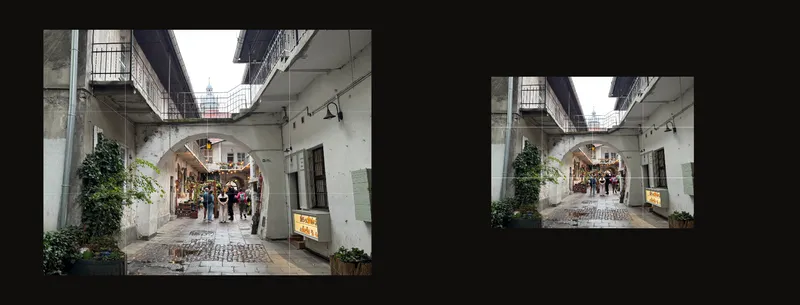
Set dimensions, then choose Actual size
- Tell the tool how large your drawing will be
Load a reference. In Crop Canvas, enable the controls, choose cm or inches, and enter the width and height of your drawing surface. Check the framing and apply the crop when ready. The canvas-size guide explains the crop controls.
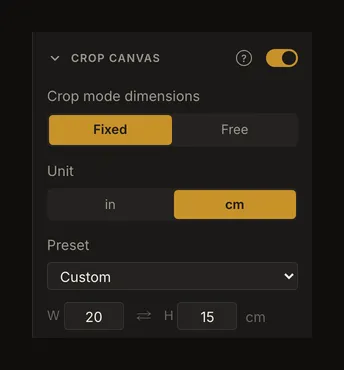
The example drawing is 20 cm wide and 15 cm high. These are physical drawing dimensions, not the photo's pixel count. - Open Position and select Actual size
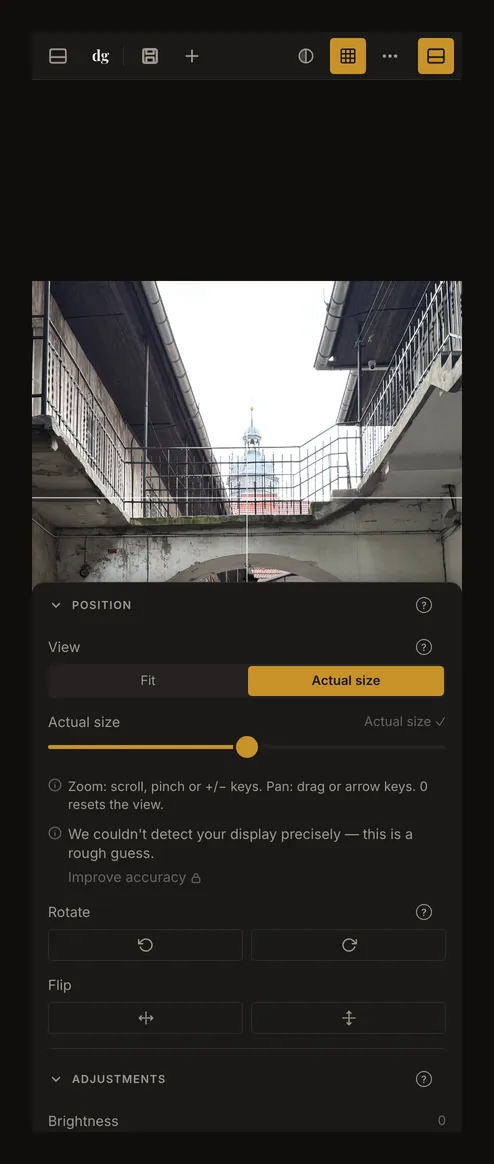
Expand Position in the right panel. Under View, choose Actual size. On a phone, open the controls panel first. No account or saved calibration is required to try this view.
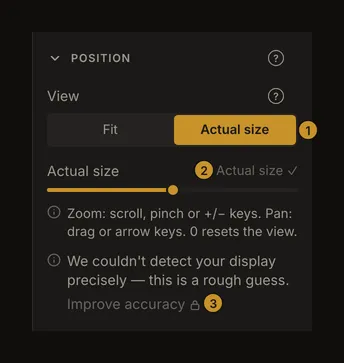
① Choose Actual size. ② The slider; its readout on the right shows Actual size ✓ at the baseline. ③ Improve accuracy with a physical reference; opening the calibration requires sign-in. - Check a known distance on the screen
At the baseline, the slider reads Actual size ✓. Place a physical ruler gently against the screen and compare a known span. For the example, turn on the grid and set four columns and three rows. In this 20 cm-wide drawing, one cell should measure 5 cm horizontally. Measure between the centres of its boundary lines. No ruler at hand? A standard bank, credit or ID card is 85.6 mm wide, so you can hold it against the screen as a known length instead. Do not measure this guide's screenshot: it is resized to fit the page.
Fit, 100% and physical size mean different things
Fit fits the photo inside the available workspace at its 100% baseline. Opening a panel or resizing the window can change how large the photo looks.
Actual size uses the drawing dimensions and estimated or calibrated screen scale. Its 100% baseline is physical size, not one photo pixel per screen pixel. A large canvas can extend beyond the visible workspace; drag to inspect another part.
The slider zooms from 25% to 400% of whichever baseline you selected. At 200% of actual size, a 5 cm feature is shown twice as large; it is no longer a life-size comparison. Browser zoom is another, separate setting.
Click the already selected Actual size segment again to return to its baseline and centre the reference. Switching between Fit and Actual size also resets the zoom and position. These view changes do not crop the photo or change the drawing dimensions.
Improve accuracy before comparing lengths
If the check is wrong, use Improve accuracy in Position and sign in to calibrate and save a screen setting. Once a screen is calibrated, the button reads Recalibrate instead. The calibration dialog offers two references. With Card, hold any standard bank, credit or ID card (85.6 × 53.98 mm) against the screen and resize the outline until it matches the card. With Ruler, lay a ruler against the screen and match its 0 mark and end mark. Calibrate a screen walks through both step by step. A screenshot cannot supply a physical reference.
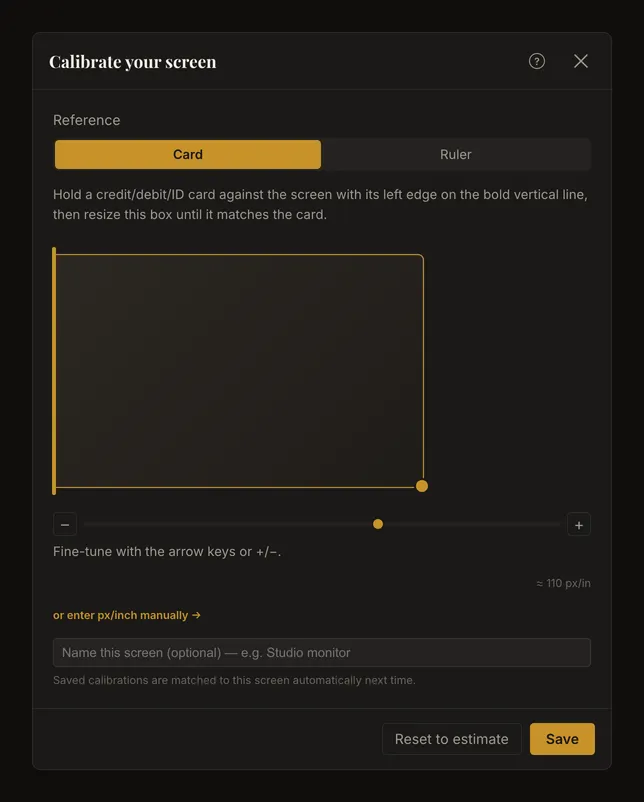
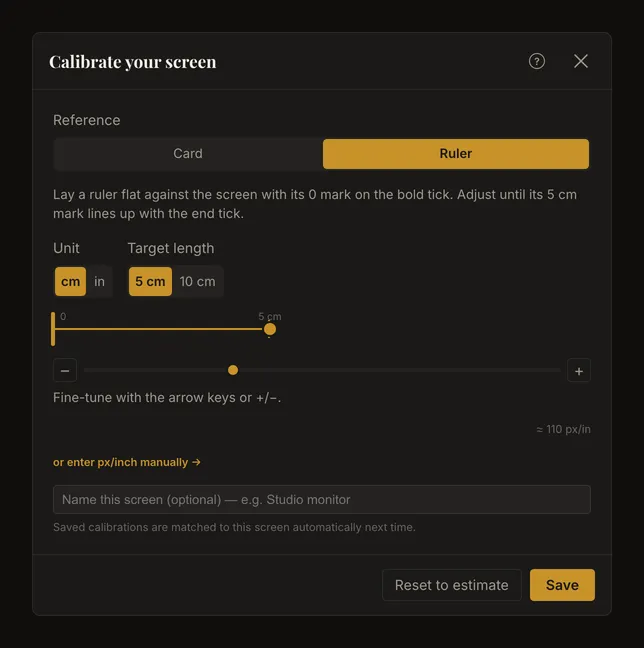
After saving, the button in Position reads Recalibrate. Return to Actual size at its baseline and repeat the known-distance check. The calibrated message identifies a saved screen match; your ruler check confirms whether that match is appropriate for the display and settings you are using now.
Check again after changing the screen or its scale
Keep browser zoom and operating-system display scaling unchanged between calibration and use. After changing either, or moving the window to another monitor, recheck with your ruler. The app tries to match saved calibrations to the current screen and may warn that the display changed or the match is uncertain. Similar displays can be difficult to distinguish, so do not rely on the message alone.
A normal window resize changes the room available around the reference, not the physical baseline. On a phone or tablet, turning the device may reveal a different portion of the drawing. Pan to inspect it; use Fit when you want the whole composition.
Recheck reopened artwork on the current display
Local autosave and saved account artworks include the view mode and zoom setting. Reopening work can therefore restore a magnified view: check the readout and click Actual size again before measuring. If the restored work has no usable physical dimensions, the view falls back to Fit.
Canvas dimensions belong to the artwork; screen calibration belongs to your display setup. A saved artwork does not guarantee physical accuracy on another monitor. Check dimensions, baseline and ruler match each time you change the setup. Screen zoom also does not set the dimensions of a PDF or printed sheet.