Make the reference match a physical measurement
A photo that fills your screen is not necessarily shown at its real canvas size. Screen calibration helps Actual size translate the canvas dimensions into a physical size on your display. Match an on-screen guide to a real ruler or a standard payment card, save the result, then check it before using the screen as a measuring reference.
Calibration requires an account and sign-in. You can use the tool and Actual size without an account, but the size is then based on an estimate. Calibration changes the screen display; it does not resize the original photo or set the dimensions of a printed PDF.
Calibrate with a ruler
- Open the accuracy control
Load a photo and set a physical canvas size in Crop Canvas. In the Position section, choose Actual size, then Improve accuracy. If this screen already has a saved calibration, the button reads Recalibrate. Sign in if prompted.
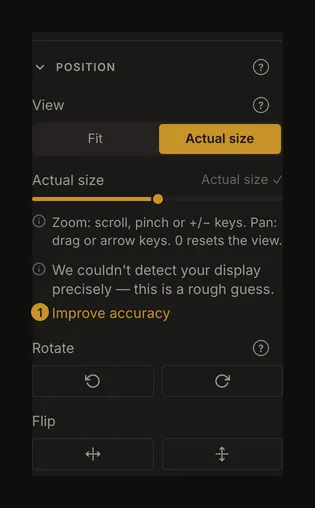
① Improve accuracy, under the accuracy message in the Position section, opens the calibration dialog. - Choose the reference you have beside you
Choose Ruler, select centimetres or inches and choose a target length. The choices are 5 or 10 cm, and 2 or 6 inches. Use the longer target when it fits comfortably; a target that needs more screen width is unavailable.
- Match the two ends
Hold a ruler gently against the screen. Align its zero mark with the bold starting tick. Drag the right-hand handle until the end tick meets the ruler's chosen measurement. Fine-tune with the slider, the −/+ buttons or the arrow keys. Keep the ruler straight and look squarely at the screen.
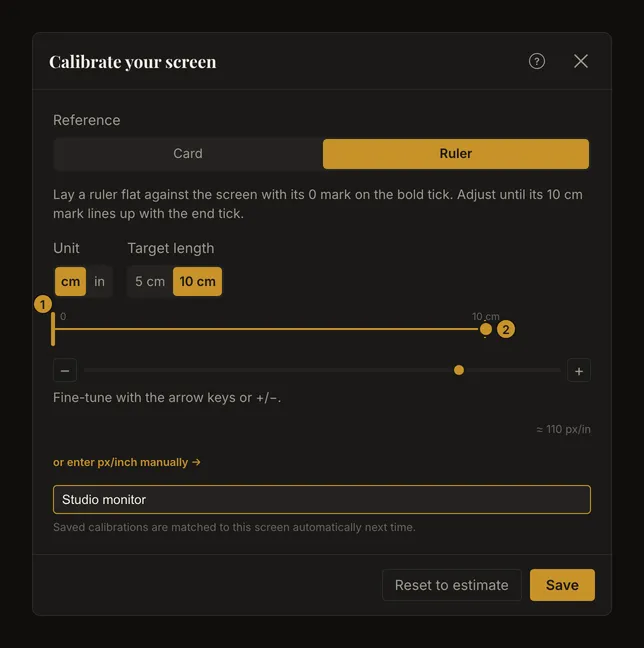
① Align the real ruler's zero here. ② Move this handle until the end tick meets the chosen measurement. This screenshot illustrates the controls; its displayed width is not a measuring standard. - Name the screen and save
Give the screen a useful optional name, such as “Studio monitor”, then choose Save. Wait for the dialog to close. If saving fails, the dialog stays open with an error. Check your connection; if your account already has 20 saved screens, delete one in Settings first, then save again.
- Check one known distance
Return to Actual size, with the slider reading “Actual size ✓”. Measure a known distance with the same ruler. For example, a 10 × 10 cm canvas should measure 10 cm across on screen when it fits. If it does not, recalibrate before relying on the measurement. Zooming to “200% of actual size” doubles the displayed distance; it is no longer a 1:1 check.
Use a standard card instead
Choose Card if you have a standard 85.6 × 53.98 mm payment or ID card. Align its left edge with the bold vertical line and resize the rectangle until it matches the card. An unusually sized card is not a suitable reference. You do not need to photograph, upload or enter any card details.
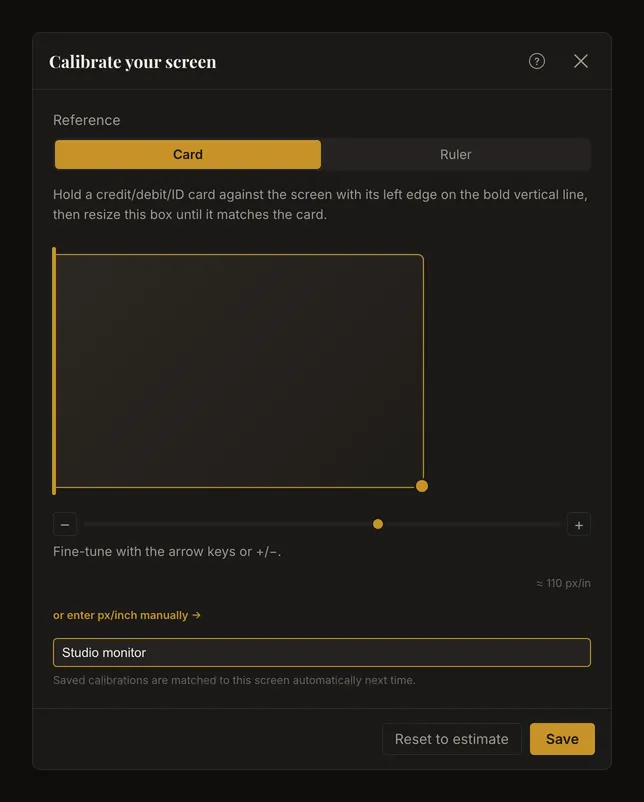
If the card does not fit, use the ruler's shorter target or turn the device to landscape. The dialog can switch to a ruler or a shorter length when the available space shrinks. Changing the reference, unit or ruler length keeps the current calibration estimate; it is not a second independent measurement.
Manage saved screens in Settings
Open Settings and find Saved Screens. Your account can keep up to 20 saved screens. Rename an entry to make it easier to recognise, or delete one you no longer use. Deletion asks for confirmation. To change the measured value, return to the tool on that screen and recalibrate there.
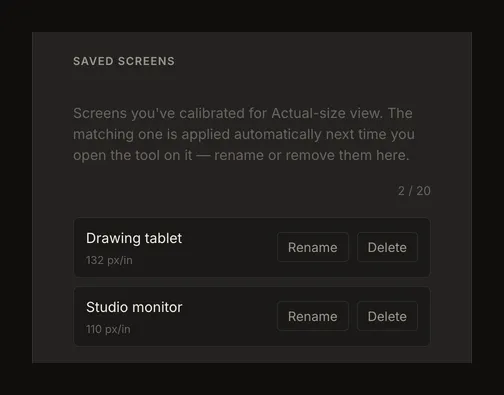
The app chooses a matching entry automatically when you use the tool. It compares the screen information available to the browser. Similar displays can look identical to it, and a scaling change can make an old match uncertain. A friendly name helps you recognise a saved entry, but does not force the app to select it. If the accuracy message warns about a different screen or a changed setup, check with a ruler and recalibrate as needed.
Recalibrating the same screen setup updates its existing entry. A changed screen setup can create a new entry instead. If you reach the limit, remove an unused entry in Settings before saving another.
Recheck after changing your setup
Check the physical measurement after moving the window to another monitor, changing browser zoom or system display scaling, or rotating a device. The app rechecks screen information, but matching is not a physical measurement and cannot guarantee that every change is detected. Keep the browser and display settings consistent while you work.
On a small screen, use a short ruler target and measure a distance that fits. Do not assume that a screenshot, a remote-desktop view or an image of a ruler has the right physical size. These guide images illustrate the real interface; they cannot serve as physical measuring references.
Manual entry and returning to an estimate
Choose “or enter px/inch manually →” to show an optional field. It accepts a value from 1 to 2600 px/in. This is the number of browser display pixels per physical inch in your current setup; a monitor's advertised hardware pixel density may not be the right value. Use a measured value if you already have one. Saving rounds it to a whole number.
Reset to estimate resets the dialog's adjustment and clears the saved calibration when it matches the current screen setup. Treat this as a removal action, not a harmless preview reset: closing the dialog afterwards does not undo that deletion. If the app was using an uncertain match from another setup, remove the unwanted entry explicitly in Settings.
Frequently asked questions
Do I need to sign in?
Yes, to save and manage screen calibrations. Actual-size view itself works without an account using an estimate. Signing in also makes your saved screen entries available to the tool for automatic matching.
Will calibration change my PDF or printed grid?
No. Calibration controls physical size on the screen. Set the intended canvas and print dimensions separately, and check printer scaling when printing.
Why is a calibrated view still the wrong size?
Check that you are in Actual size with the slider reading “Actual size ✓”, that the canvas dimensions and unit are correct, and that browser zoom, display scaling and the screen itself have not changed. Measure with a real ruler and recalibrate if necessary. A saved or automatically matched value is not a substitute for that check.
Can I choose a saved screen manually?
No. The current interface matches saved screens automatically. Settings lets you rename or delete entries. Recalibrate on the screen you are using if the match is uncertain.