Move between the whole picture and a useful detail
Zoom in to judge the angle of a railing or the shape of a small shadow, then return to the whole composition. Panning moves the reference across your screen. Neither action cuts pixels from the photo or changes the canvas dimensions you entered.
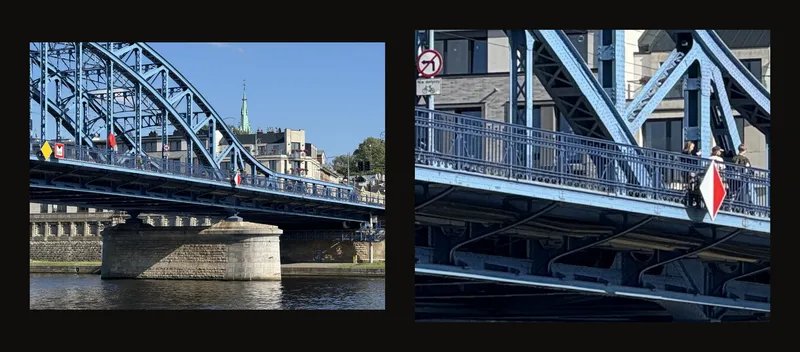
Screen magnification is separate from the size of your painting and your print settings. Use Crop Canvas to set the reference’s proportions and physical dimensions.
A quick way to inspect a detail
- Start with the whole photo
Choose Fit in Position, then move the pointer over the detail you want to inspect.
- Look closer and return
Scroll or pinch to zoom, drag to move, and press 0 or select Fit again to recover the whole composition.
Find the view controls
Open Position in the settings panel. On a phone, open the settings sheet first, then expand this section.
- Fit uses the available screen space as the starting size.
- Actual size uses your physical canvas dimensions and the screen’s estimated or calibrated size.
- Scale changes magnification from 25% to 400% of the chosen starting size. The middle of the slider is 100%. In Actual size, the slider is labelled Actual size and its readout shows a value such as “150% of actual size”; at 100% it reads “Actual size ✓”.
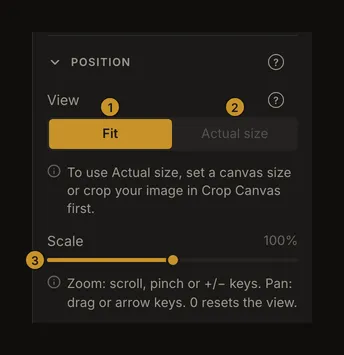
Click the selected view mode again to return to its starting size and centre the photo. There is no separate recenter button. Rotation and flip controls below affect the image itself; they are not needed to move around the reference.
Zoom toward the part you want to study
With the pointer over the photo, scroll the mouse wheel or use a trackpad scroll or pinch gesture. Zoom follows the pointer, so place it over the detail you want to keep in view. On a touchscreen, spread or pinch two fingers over the reference.
You can also use the slider, or press + or - without Ctrl or Cmd. These change magnification without aiming at the pointer. Zoom stops at the 25% and 400% limits.
When you are not cropping, picking a colour or using grid Focus mode, a mouse double-click at 100% zooms to 200% around the clicked point. A double-click at any other magnification returns to the starting view. Touch double-taps do not do this.
Bring a detail back into view
Drag the photo with the mouse, or drag with one finger on a touchscreen. Arrow keys move it in the direction of the arrow; hold Shift for a larger movement. If you lose your place, press 0 or click the current view mode to centre the photo and reset magnification.
With Focus mode, a short click or tap selects a grid cell, while dragging pans. Grid lines and the selected cell move with the photo. Zooming does not add rows or columns or change the selected cell’s physical size.
While adjusting a crop, dragging inside the crop box or on its handles changes the crop. Drag outside the box to pan instead. The colour picker uses clicks to sample a colour, so leave that tool before trying to drag the reference.
Keyboard navigation does not run while you are typing in an input, adjusting a focused slider or using an open dialog. Leave the control first. Ctrl/Cmd shortcuts belong to the browser; browser page zoom is different from magnifying the photo.
Understand what Actual size means
Set physical dimensions in Crop Canvas to enable Actual size. You can use this view without an account. At 100%, it aims to show the reference at your chosen physical size; a large canvas may extend beyond the screen, so pan to inspect it.
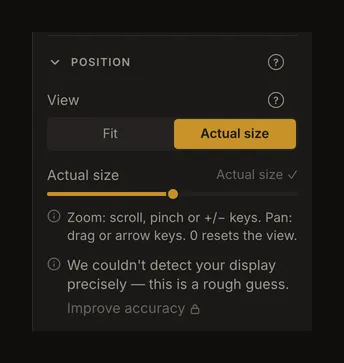
Read the displayed accuracy message before using a ruler against the screen. Improve accuracy requires signing in; once the screen is calibrated, the button reads Recalibrate. A calibration warning can mean that the display has changed.
Pressing 0 in this mode returns to 100% of actual size; it does not switch to Fit. Choose Fit when you want the whole reference visible again. Neither mode sets the paper size or print scale. See Actual size to check the view with a ruler, and screen calibration to make it more accurate.
Keep the reference beside your easel
Set up the image and grid first, then choose Fullscreen in the toolbar. On a narrow screen, find it under More actions. The toolbar and side panels disappear, leaving room for the reference. You can still zoom, pan and select Focus cells.
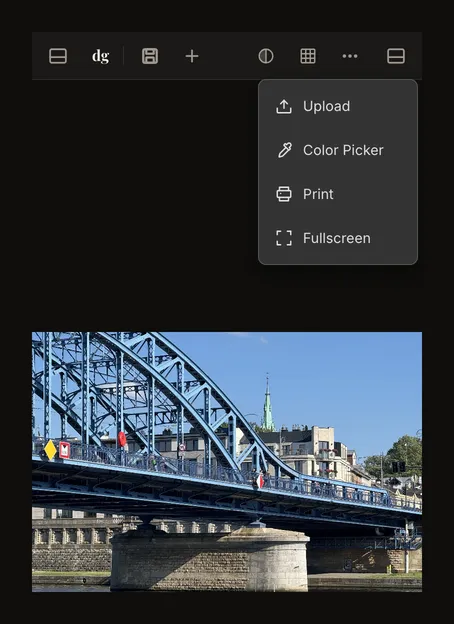
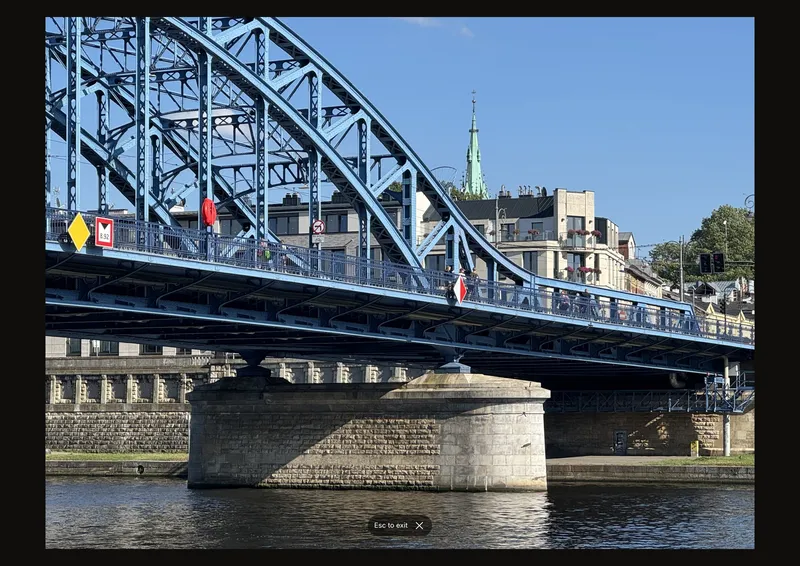
Press Esc or use the on-screen exit button to restore the controls. The exit hint fades after a few seconds; moving the pointer or touching the screen reveals it again. Entering and leaving fullscreen centres the photo and resets magnification within the current view mode.
Where the browser supports native fullscreen, the app requests it. Otherwise, it expands the reference within the page, so browser controls may remain visible. On a device without an Escape key, tap the ✕ beside Esc to exit at the bottom of the screen.
What comes back when you reopen a reference
The browser’s local recovery can restore magnification and panning. A saved artwork or version carries the zoom mode and magnification, but opens with the photo centred: panning stays local to the device. If Actual size no longer has physical dimensions available, the view falls back to Fit. Fullscreen is a temporary viewing mode, not a saved artwork setting.
Frequently asked questions
How do I recover a photo that has moved off screen?
Press 0, or open Position and click Fit. Fit centres the reference and shows the whole composition. In Actual size, 0 keeps that physical-size baseline, which can still be larger than the screen.
Does 100% mean one image pixel per screen pixel?
No. In Fit, 100% is the size that fits the available view. In Actual size, it is the physical-size estimate or calibration. The percentage is relative to the selected mode.
Does zooming crop the image or set its printed size?
No. Navigation changes the view. Apply Crop changes the reference bitmap, and the print dialog controls printing. Return to Fit when checking your overall composition before printing.