Set up your usual drawing workspace
If you often draw on the same board size or prefer a particular grid, save those choices in Settings. Sign in, then open Settings from the account menu. This page manages reusable preferences, favourite sizes and saved screen calibrations. It does not have one Save button for the whole page.
Choose a useful starting point
- Choose your units first
Set Default units to centimetres or inches. Changing this choice clears the selected default canvas size, so choose the unit before the size.
- Pick your usual canvas
Under Crop Canvas, choose a size. None leaves no preferred size selected. Favourites for the chosen unit come next, above the built-in sizes. A nonsquare built-in size offers portrait and landscape; a square size needs no orientation choice. A favourite uses its saved width and height, without this orientation control.
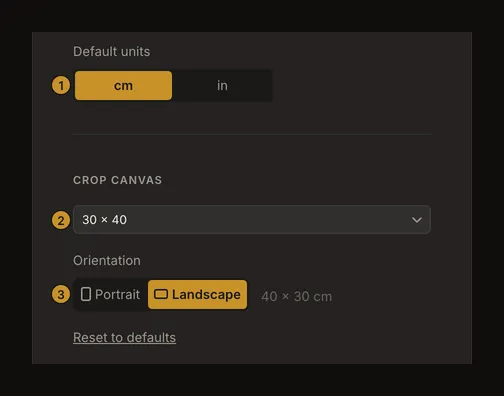
① Choose units first. ② Select a default size. ③ Set orientation for a nonsquare built-in size. - Check a fresh start
Return to the tool and check your next fresh artwork before drawing. Defaults are starting choices, not a command to resize every saved artwork. Use the Crop Canvas guide when you want to change the active composition.
When defaults take effect
The preferred unit applies when the tool starts without a restored photo. Your grid, canvas and label defaults fill in any of those settings you have not changed yet, including after you start a new artwork. If a restored artwork already uses its own values, those stay. After a reload, check the canvas and grid rather than assuming your defaults replaced them.
Changing Settings does not rewrite every saved artwork in your account. A favourite selected as the default must also load from your account before the tool can use its dimensions. If that favourite has been deleted, it cannot supply the starting size.
Keep favourite canvas sizes in order
Favourite Crop Presets has separate centimetre and inch lists, with up to 20 sizes in each. Choose the add button for the right unit, enter width and height from 0.1 to 999.9, and optionally add a label. For example, a 30 × 40 cm board can be labelled “Oil study”. Labels can contain up to 50 characters; a favourite without a label is shown by its dimensions.
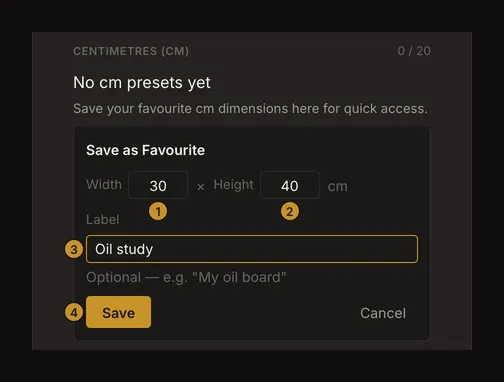
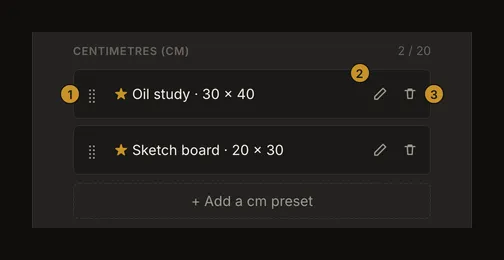
Rename a row to change its label. On a computer, drag a row by its ⣿ handle (keyboard users can Tab to its up and down arrows); on a phone, use the up and down arrows. That order is used in the tool's favourites group. Delete asks for confirmation; keep the row if you change your mind. At the limit, delete an unwanted favourite before adding another. These management actions do not resize an artwork already using those dimensions.
Selecting a favourite and managing favourites are different tasks: choose a row in the default-size dropdown to make it a starting preference; use the lists to add, name, reorder or remove it. Switching units shows the other unit's choices rather than converting the stored favourites.
Choose grid and label defaults separately
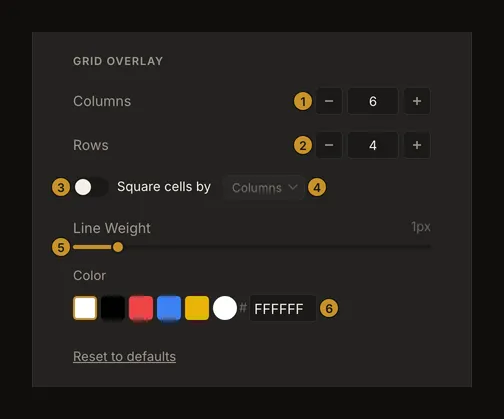
Columns and Rows accept 0.1 to 1000, with 0.1 steps in Settings. Set the square-cells option and its controlling axis when you want equal-width and equal-height cells. Line Weight runs from 0.5 to 5 px in 0.5 steps; choose a colour that will be easy to distinguish from your usual references. These are reusable defaults; the grid guide explains adjusting the grid over a photo.
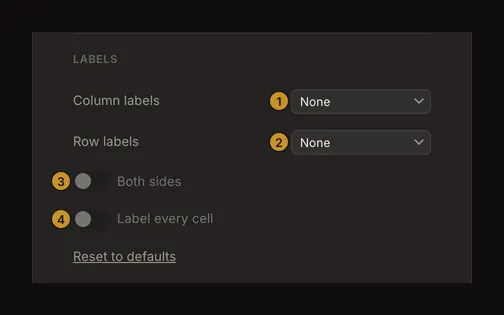
For labels, choose letters, numbers or none separately for columns and rows. Both sides and Label every cell are unavailable when both axes have no labels. Enable an axis's labels to use those options.
Manage calibrated screens and account autosync
Saved Screens lists calibrations created through the tool's actual-size view. Create the calibration in the tool; Settings lets you rename or remove it, not add a screen or edit its measured density. You can keep up to 20. A blank name falls back to its rounded pixels-per-inch value. Removing a saved screen asks for confirmation. Recheck physical size when you change your display setup or browser zoom. The screen calibration guide shows how to calibrate.
Cloud sync controls automatic account saves. It is off by default. Make a first manual save before relying on it; eligible changes are then checked every 30 seconds while editing the latest version. Browsing an older version pauses autosync. The text on this Settings page is not a receipt for the currently open artwork: check the tool and saved version when you need to confirm a save.
Understand save feedback and reset buttons
Unit, canvas, grid and label choices are saved locally and sent to your account in the background. Their saved message appears immediately, so it does not prove another device has received the change. A connection failure can leave a preference waiting to sync. Reconnect and check your choices after signing in on another device. Favourite and screen management actions have their own save operations; if an action fails, keep the form open or use its available retry instead of assuming the account changed.
Each Reset to defaults button belongs to its own section: canvas size, grid or labels. Resetting one does not reset the other sections, delete your favourites, remove screen calibrations or delete saved artworks. Check which section the button belongs to before using it.
Frequently asked questions
Do I need an account for Settings?
Yes. Settings is a signed-in page. You can still use the drawing tool without an account, but account preferences and reusable account lists require signing in.
Why did my default canvas size disappear?
Changing the default unit clears the chosen default size. Choose a size for the new unit. A favourite deleted from your account also cannot be applied as a starting size.
Will defaults change every saved artwork?
No account-wide rewrite happens. The tool can apply defaults where restored fields still match its built-in starting values, so check the active canvas and grid after restoration.
Is Reset to defaults a complete account reset?
No. It resets only the canvas, grid or label preference section containing that button. Favourites, calibrations and saved artworks remain separate.