Group saved references for a painting project
Use projects to collect related artworks, such as harbour studies or garden paintings. Sign in to organise the artworks saved in your account. Each artwork belongs to one project, or remains Unfiled. Projects do not share a grid or apply settings to their artworks.
Create a project and file an artwork
- Open your saved artworks
Open My Artworks from the drawing tool. On a wide screen, the project list is on the left. On a phone, open the project-and-tags drawer from the gallery header. Choose All artworks to include every project.
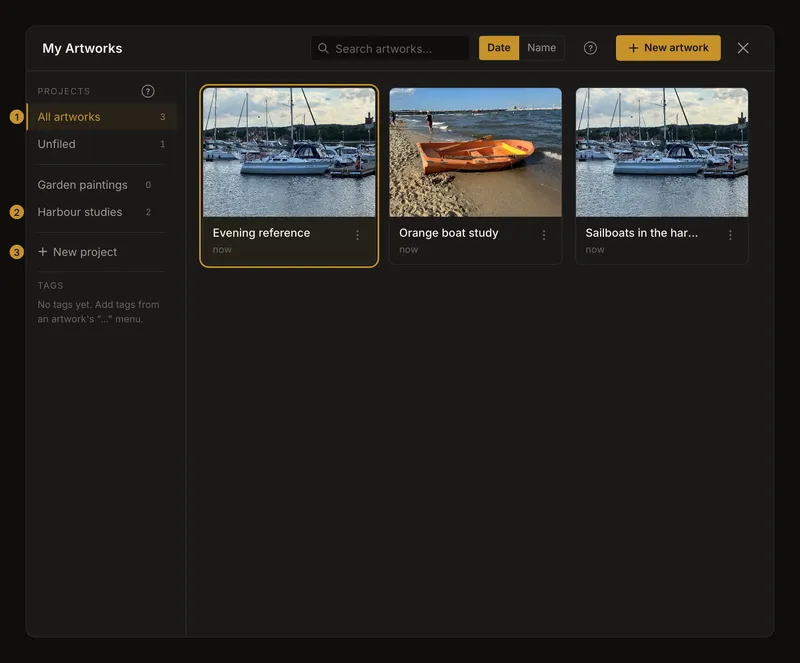
① All artworks. ② A project filter. ③ Create a named project. Selecting a project filters the gallery; it does not move artworks. - Give the project a useful name
Choose New project in the project list, enter a name such as Harbour studies, then choose Create. A project name is required and can contain up to 100 characters. Names must be different within your account, even when only capitalisation differs. Enter submits the name; Escape cancels. The new project becomes the selected filter. An empty project is ready for artworks; creating it does not save the image currently in the editor.
- Move an existing artwork into it
Return to All artworks if needed. Open the artwork card’s actions menu, choose Move to project…, then choose the destination. The picker marks the current project with Current. Wait for the move result.
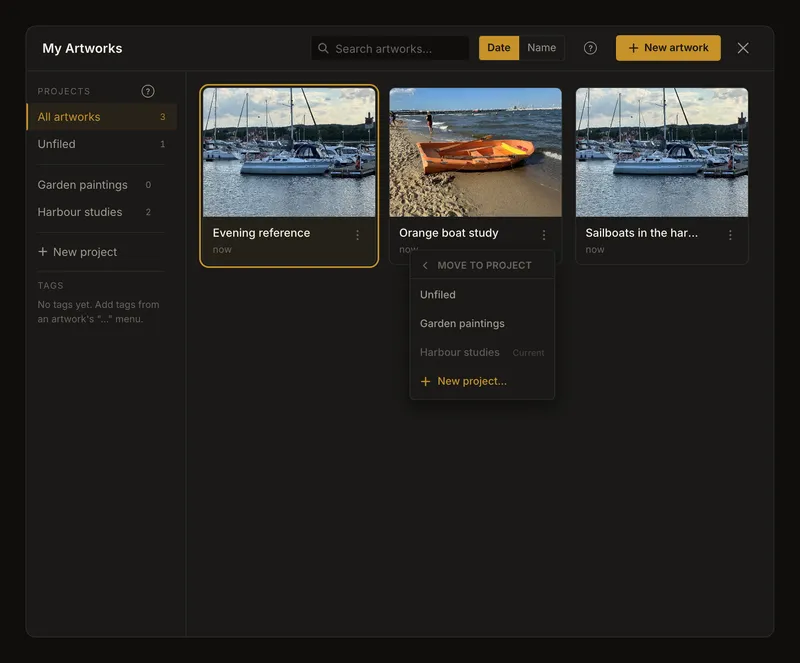
Choose a destination to move this artwork. The current destination is marked; moving does not duplicate the artwork. A move changes the artwork’s organisation, not its image, drawing settings or history versions. In a filtered project, the moved card can disappear because it no longer belongs there. Check its destination before assuming it was deleted.
Choose a project while saving, or create one while moving
The first-save dialog offers existing projects and Unfiled. It does not create projects. You can save without a project and file the artwork later. The move picker also offers New project…. This shortcut creates a project with the default name and moves the artwork into it without asking for a name first. Rename it afterwards. If that default name already exists and the shortcut does nothing, create a differently named project from the project list, then move the artwork there.
Understand project counts and combined filters
Projects appear alphabetically by name. Their counts cover the whole project, even when a search or tag filter hides some cards. Search, tags and the selected project work together; choose All artworks and clear the other filters when looking for a missing artwork. Sorting the cards does not reorder the project list. Unfiled means an artwork has no project. Its filter appears when there are unfiled artworks and at least one project. To remove an artwork from a project without deleting it, move it to Unfiled. Closing the gallery resets its project selection to all artworks; it does not remove saved project assignments.
Rename a project from its own menu
Open the project row’s options menu and choose Rename. Edit the name and choose Save, or press Enter. Escape cancels. The same required-name, length and duplicate-name rules apply. After renaming, the project may move to another position in the alphabetical list; its artworks remain assigned.
Delete a project while keeping its artworks
Open the project’s options menu and choose Delete. Read the confirmation before choosing Delete project. Deleting a project keeps its artworks and moves them to Unfiled. This is different from deleting an artwork from its card menu.
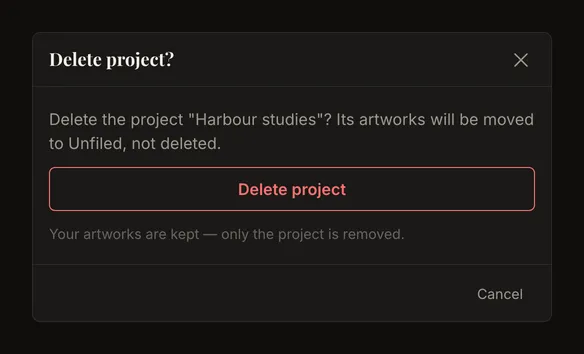
If you were viewing the deleted project, the gallery returns to all artworks. A failed deletion leaves an error with a retry action; check the connection and result before repeating it.
Use the same projects on a phone
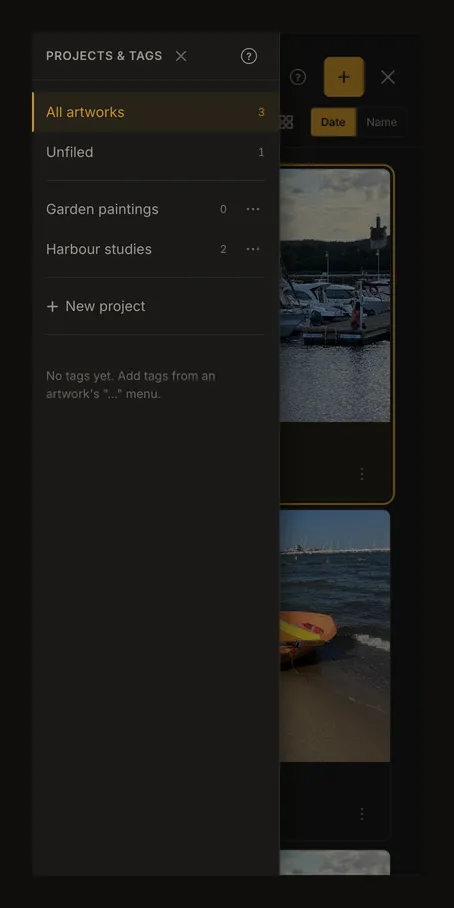
Open the gallery’s project-and-tags drawer to create, select, rename or delete a project. Selecting a project closes the drawer and shows its cards. Reopen the drawer to change projects; selecting tags keeps it open so you can choose several. The card actions menu still provides the move picker.
If a name, move or project list does not work
For a duplicate name, choose a distinct name rather than changing only its capitalisation. If a move reports that the artwork changed elsewhere, refresh and choose its destination again. If the destination no longer exists, choose another project or Unfiled. Network failures do not confirm a move or deletion; keep the gallery open and check the result after retrying.