Labels that work across projects
Tags let one saved artwork belong to several groups: subject, technique or painting stage. A harbour reference might carry both “Boats” and “Watercolour”. Sign in and save the artwork first; tags belong to your account. Tag changes do not crop the photo or create an image-history version.
Add tags to an artwork
- Open the tag editor
Open My Artworks, use the card’s ⋮ menu and choose Tags. You can organise a saved reference without loading it into the editor.
- Choose a suggestion or create a name
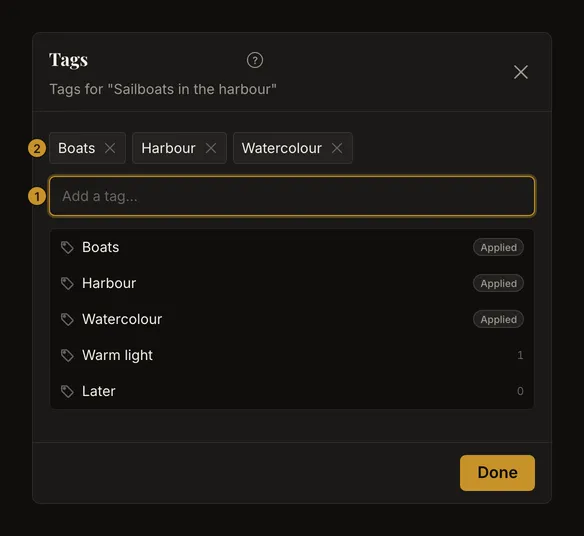
Click the field showing Add a tag…. Suggestions include existing tags, with tags already on this artwork marked Applied. Type to narrow the list, then choose a suggestion. For a new name, choose the Create row or press Enter. Names can contain spaces and have up to 40 characters; leading and trailing spaces are removed. A leading # is ordinary text, not required syntax.
- Wait for the tag to appear
Each addition or removal is saved straight away; the chip appears or disappears once it has been saved. Done closes the editor; it is not a second Save button. Adding the same name again, even with different capitalisation, reuses the existing tag rather than creating a duplicate.
Edit tags on the open artwork
For a saved artwork, use the tag button beside its name in the toolbar. It opens Artwork details, where you edit the same tags as in the gallery. Clicking a tag label in the artwork details opens the library filtered by that tag; its remove button only removes that artwork’s assignment. In the gallery’s tag-editing dialog, labels stay within the editing task.
Card rows may hide additional tags behind +N. Open it to see the complete list, select a tag filter or enter tag editing.
Add and remove tags with the keyboard
Use Up/Down to select a suggestion and Enter to apply it. Enter without a selected suggestion, or a typed comma, submits the current name. Type one name at a time: pasting comma-separated text does not split it into several tags. Tab moves focus without submitting unfinished text. With an empty field, Backspace removes the last tag. Escape first closes an open suggestions list, then closes the editor.
Use a chip’s × to remove it from this artwork. The tag remains available for other artworks, even when no artwork currently uses it.
Find references with one or several tags
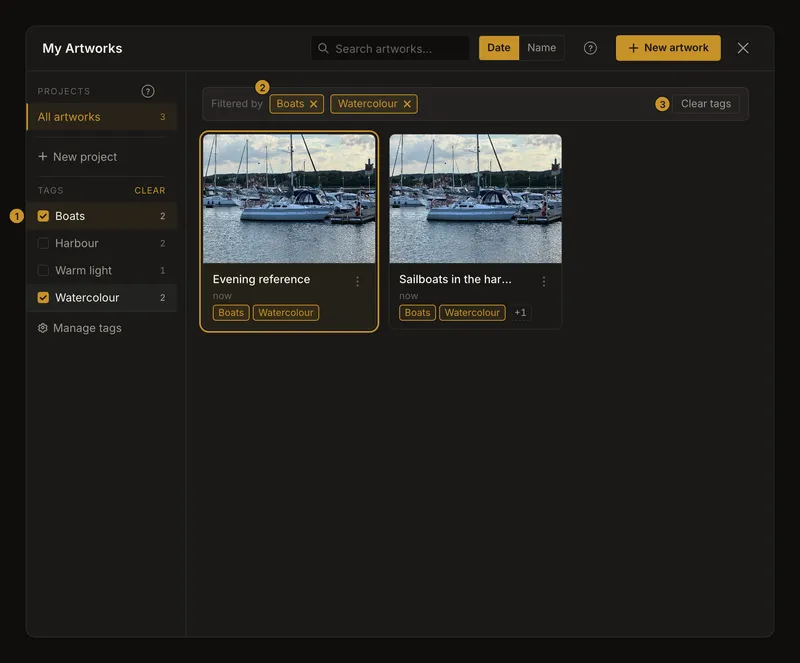
In the gallery’s Tags list, select “Boats” and “Watercolour” to show artworks with either tag, including artworks with both. A project selection and the artwork-name search apply as additional restrictions. The numbers beside tags count all artworks carrying each tag across your account, not just the current search results.
A gallery card’s tag chip replaces the tag selection with that single tag; it does not open the artwork. Remove one applied filter with its ×, or use Clear tags to clear the tag selection. Project and search settings remain separate. Closing and reopening the library resets its filters.
On a phone, open the Projects & tags drawer to reach the tag list. Selecting a tag keeps that drawer open so you can select several. Unused tags are absent from this filter list; manage them separately.
Manage the account’s tag library
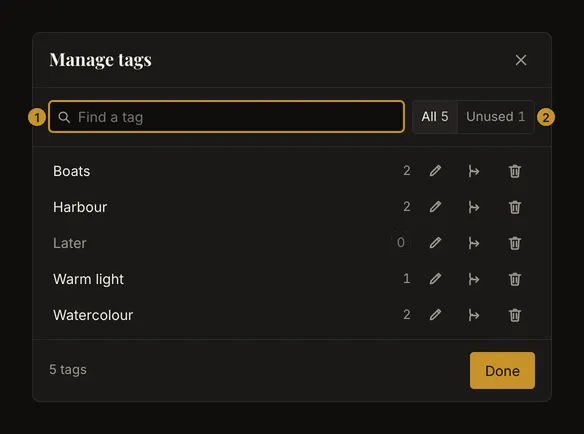
Choose Manage tags below the gallery’s tag list, including inside the mobile drawer. Search by any part of a name, without matching capitalisation. All includes used and unused tags; Unused shows tags assigned to no artworks and is unavailable when there are none. Create a tag by adding it to an artwork, not from this management dialog.
Rename a tag everywhere
Use the row’s rename control, enter a nonblank name of up to 40 characters and save it. Enter confirms; Escape cancels the inline edit. The new name appears on every artwork with that tag. Changing only capitalisation is allowed. If another tag already has that name, choose a different name or follow the offered merge action; renaming does not silently combine tags.
Combine duplicate ideas carefully
Choose a tag’s merge control, then select the tag to keep. The crossed-out source tag will be deleted. Merge the other way reverses which name survives and refreshes the preview.
Read the counts before confirming. If “Harbour” is on 2 artworks and “Boats” on 2, with 1 artwork carrying both, merging Harbour into Boats gives 1 additional artwork the Boats tag, collapses 1 overlapping assignment and leaves Boats on 3 artworks. No artwork is duplicated or deleted.
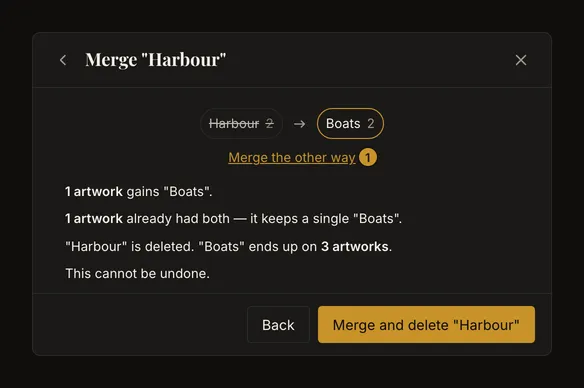
Merging cannot be undone. Confirm only when the source name should disappear. Back returns without merging. If the app reports changed tags, reread the refreshed counts before retrying. Deleting the source also removes it from the active filter; the destination is not automatically selected.
Delete a tag, keep the artworks
The delete control in Manage tags removes that tag from every artwork after confirmation. The artworks and their saved image versions remain. Removing an unused tag tidies the list. There is no undo for tag deletion; creating the same name later does not restore its previous assignments. To remove a tag from just one artwork, use that artwork’s chip × instead.
If a change or search does not work
Wait for the chip or updated row before assuming a change saved. On an error, check the connection and retry; reopen the editor if suggestions failed to load. Shorten an overlong name. If an artwork was deleted elsewhere, return to the library. Empty results can come from a project or search restriction as well as tags: clear each relevant filter. A rename changes the label everywhere, so look for its new name.
Frequently asked questions
Can tags put an artwork in more than one project?
No. An artwork has one project or none, but it can carry several tags that span projects.
Must an artwork have every selected tag?
No. Selected tags match any one of them. The project and name search narrow that combined result.
Can image history restore deleted tags?
No. Tags are account organisation data, separate from saved image versions. Review merge and deletion confirmations carefully.