Send a clear message about drawing-grid
Use feedback to describe what helps, report a problem or suggest an improvement. Log in first: messages belong to your account. You do not need to upload or save an artwork to write one.
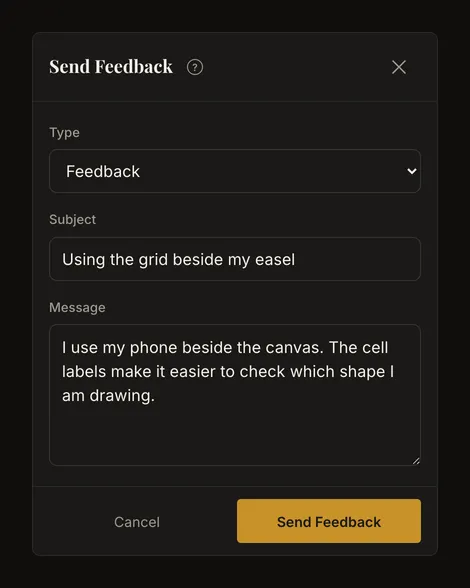
Open the form and send a message
- Open feedback from the account menu
In the tool, open the account menu and choose Send Feedback. On a phone, use the same entry in the account panel. When you are logged out, the entry shows a lock: choosing it opens the login page, and after you log in you return to the tool.
- Choose the purpose of your message
Type starts at Feedback. Choose Bug Report for something that behaves incorrectly, or Feature Request for a capability you would like to have.
- Give it a subject and useful details
Both Subject and Message are required. Keep the subject within 120 characters and the message between 10 and 5,000 characters. Spaces at the start and end are removed when sending; spaces alone do not count as a message.
- Send once and wait for confirmation
Choose Send Feedback. The fields and send button are disabled while sending. A successful submission closes the form and shows Thank you! Your feedback was sent.. That confirms receipt, not that the request has been completed.
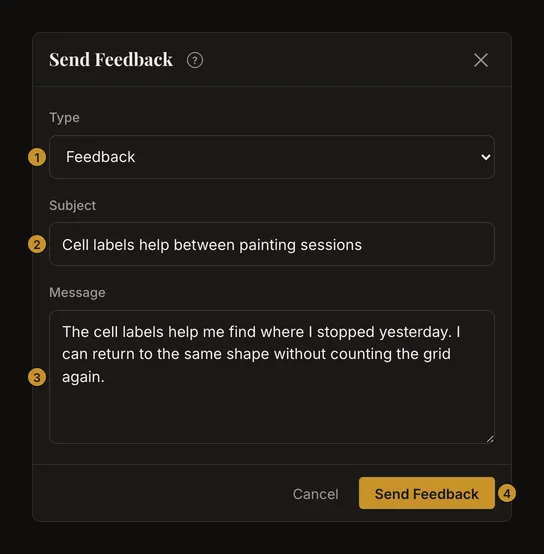
Explain what helps or gets in the way
For general feedback, name the task you were doing and the part that helped or slowed you down. “The cell labels help me resume a painting after a break” is more useful than “Good app”. Describe your experience in your own words; you do not need technical terminology.
Make a problem reproducible
Give the report a specific subject, such as “Grid disappears after returning to the tab”. In the message include:
- The steps, starting from opening the tool or loading the reference.
- What you expected and what actually happened, including any error text.
- Whether it happens every time, and the browser, device and operating system you used.
- Relevant details such as the file format or canvas dimensions, without private material.
The form does not automatically add your reference photo, a screenshot or browser/device details. Write the useful context yourself. The example below demonstrates report structure; it does not describe a confirmed product bug.
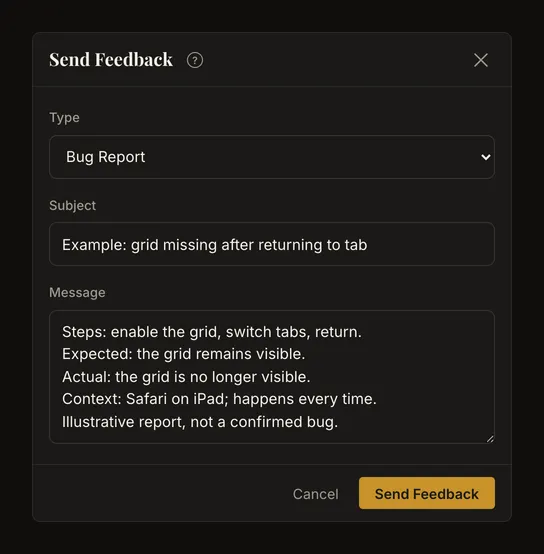
Describe the goal behind a feature request
Explain what you are trying to achieve, what you do now and how the proposed change would help. For example, describe how you report a display problem in words before proposing a way to attach a screenshot. One focused request is easier to understand than a list of unrelated ideas. Sending it does not guarantee implementation or a delivery date.
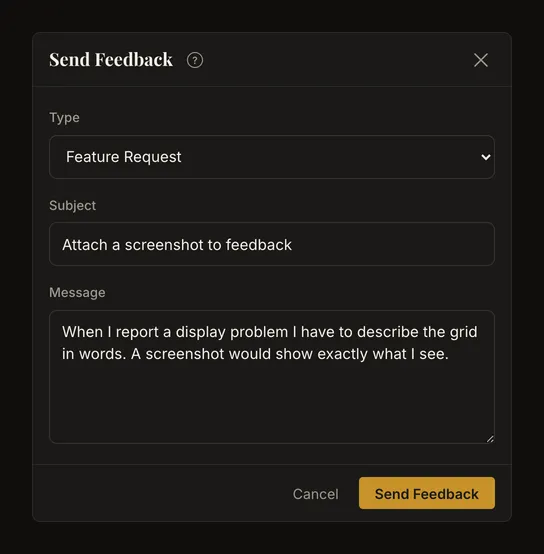
Include context without private information
The message is associated with the account you are logged in to and is available to the administrators. This is not an anonymous form. It has no attachment control: do not expect your current photo or artwork to accompany the text. Do not include passwords, login codes, access tokens or private sharing links. A brief description of the image is usually enough to explain the task.
Keep a copy before closing
The form does not save drafts. Cancel, the close button, Escape or clicking outside the dialog closes it; reopening starts a blank message with the default type. Copy a long draft somewhere safe before leaving. The guide's help link opens another tab, so you can read instructions while keeping the form open.
Correct a field or retry a failed send
Field errors appear below the subject or message. Supply a subject, expand a message shorter than 10 characters, or shorten one over 5,000. Correct the text and send again. A validation error does not send the report.
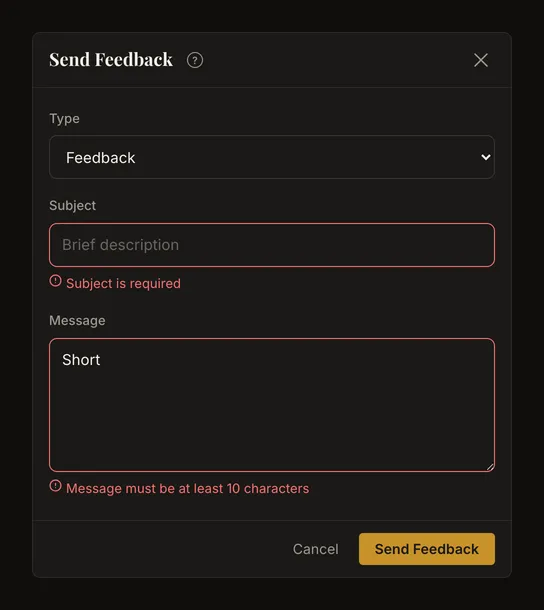
For a connection or server error, keep the form open, copy the message and check your connection. If your session has expired, keep the copy before logging in again. Wait for confirmation before assuming the report arrived; avoid repeatedly sending the same text.
If the feedback limit is reached
You can send up to five messages across all three types in a rolling 24-hour period. If you try to send another one, the form shows a warning and disables sending. It does not reset at midnight: wait until an earlier submission falls outside that period. The warning says to try again tomorrow; in practice you can send again 24 hours after the earliest of those five messages. Keep your draft, then reopen the form when you try again.
Use the form on a phone or with a keyboard
The phone form has the same fields and limits. Scroll inside the dialog if the message or buttons are out of view. With a keyboard, use Tab and Shift+Tab to move, the arrow keys in the type list, and Enter or Space on a button. Enter in the message adds a new line. Escape closes the draft, so copy it first if you want to keep it.
Frequently asked questions
Can I send feedback without an account?
The current form requires you to log in. Using the drawing tool itself does not require an account.
Can I attach a screenshot or reference photo?
There is no attachment field. Describe the relevant steps and details in the message; the current reference is not attached automatically.
Where can I see a reply or track my report?
There is no user-facing report inbox or status tracker, and the form does not promise a reply or confirmation email. The success notice confirms that the message was submitted.