Choose how to access your account
You can load a reference photo, adjust it, draw a grid and prepare a PDF without an account. Log in to save artworks to your account, use their history, projects and tags, manage account settings or send feedback. Logging in does not itself upload the photo currently open in the tool: make the first account save explicitly.
Create an account with your email
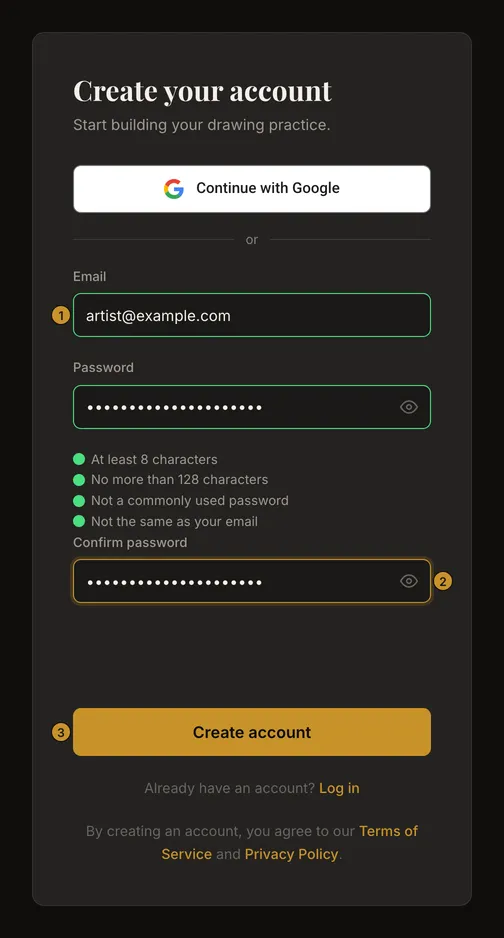
- Enter an email you can access
Open the registration page from Create account. Use a permanent email address: temporary email services are not accepted. Enter a password of 8–128 characters that is neither a common password nor your email, then repeat it in Confirm password. Complete the security check if it appears.
- Confirm using the email link
Choose Create account and check your inbox and spam folder. Open the confirmation link within 24 hours. Successful confirmation logs you in and takes you toward the tool. The check-email screen alone does not prove a new account was created: an existing address can receive the same response.
- Check the work shown in the tool
After logging in, inspect the photo and settings before continuing. If this browser still holds a photo you were working on, the tool opens it. Otherwise it opens your most recently saved artwork, or an empty tool if you have none. Browser recovery can fail or be cleared; keep your original photo and save important work deliberately.
Log in with email and password
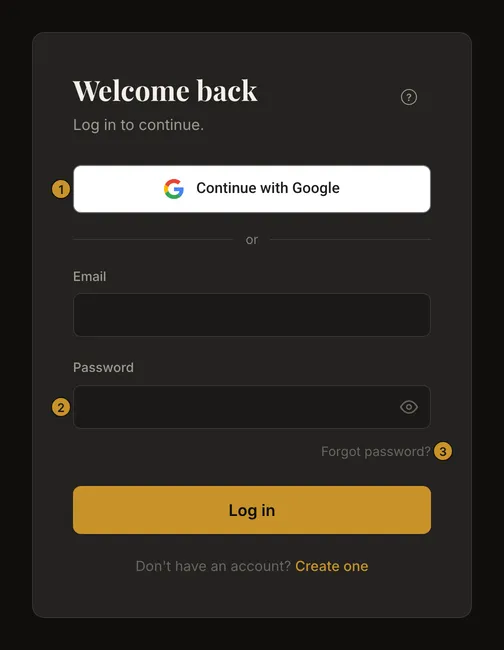
Open Log in, enter the same email and password, then choose Log in. A generic incorrect-credentials message does not tell you whether the address has an account. Check the spelling and your password manager; do not keep guessing. Use Forgot password? when you need a new password.
If the password is correct but the email is unconfirmed, the form explains this and offers Send me a new link. A resend notice is intentionally generic and does not guarantee delivery. Check spam, wait before trying again and use the newest email link.
Recover a missing or expired confirmation link
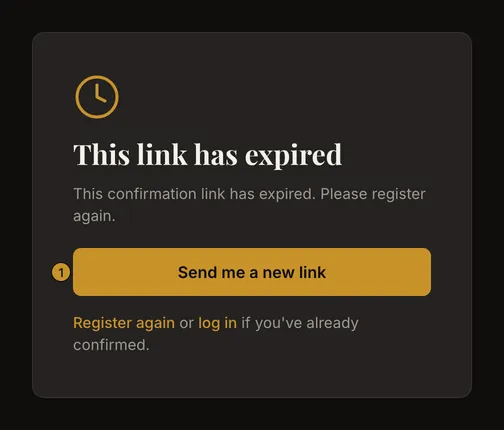
On the check-email page, the resend link returns to registration. Submitting an already registered, unconfirmed address can request another confirmation; it does not replace that account's password. An expired confirmation page also offers a new link. Requests are limited, so repeated clicks do not mean repeated emails. Newly issued links replace older ones.
For an incomplete, invalid or already used link, copy the entire link from the email or try logging in if you have already confirmed. Never post confirmation links publicly: they authorize access to your account.
Use Google and check your login methods
Continue with Google opens Google's sign-in flow. Choose the intended Google account and return to drawing-grid. A first connection needs a Google-verified email address; a matching existing email can link to the same drawing-grid account. You do not enter your Google password into the drawing-grid email form.
On the Account page, the Login methods section appears only when Google is connected, and it lists Google; an email-and-password login is not shown there. A Google-only account may have no drawing-grid password: Account then offers Set password without asking for a current password. If Google confirms a previously unconfirmed registration, its unproven password is discarded; set a new one in Account if you want email login too. The list is informational; it does not disconnect Google.
If you cancel Google, return to the login page and choose a method again. For a connection failure, read the displayed error and retry when the connection works. Google sign-in does not bypass an administrator block.
Reset a forgotten password
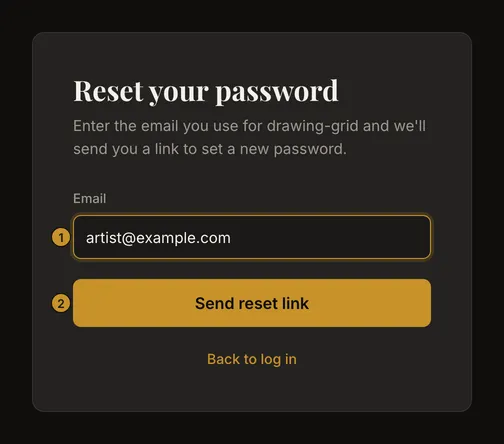
From Forgot password?, enter your account email and choose Send reset link. The check-email response is the same whether an eligible account exists or not. Check spelling and spam before requesting again. A reset link works once and expires after one hour; a newer link invalidates the old one.
Open the link, enter a new password and matching confirmation, then choose Reset password. A successful reset logs this browser in, invalidates other sessions and returns toward the tool. If the page instead asks you to log in, use the new password. An expired link offers a resend; an invalid or used link offers starting over. Never share the reset URL or include it in feedback.
Distinguish a login lock from an administrator block
Repeated wrong passwords can lock email login. Follow the unlock link sent by email, then return to Log in: unlocking alone does not log you in. If the link is invalid or used, another login attempt can request a fresh unlock email; at most one new unlock email is sent per hour. Do not repeatedly guess passwords.
You can still log in with Google to an account locked only by password attempts, but this does not clear that password lock. A successful password reset can clear this kind of lock and confirm an unconfirmed email. An administrator block is different: neither Google, an unlock link nor a password reset removes it. Follow the displayed explanation rather than repeating recovery requests.
Save important work before logging out
Choose Log out in the account menu. If the editor has unsaved changes, a dialog first offers Save and log out or Log out without saving; otherwise you are logged out at once and taken to the home page. Logging out attempts to clear the browser's current editor recovery data and sign this account out on all your devices; it does not delete saved account artworks. Save or download anything important first. Cleanup is not a guarantee that every local file or browser trace is erased, especially if browser storage is blocked. On a shared device, also close account tabs and check that the session has ended.
A network failure can leave the server session active. Reconnect and verify that you are logged out.
Keep access and your current work safe
Use a password manager and an email account you control. Keep originals outside the browser; browser recovery is not an account backup. After login, check which artwork opened before editing. Saved account language preferences can change the language you see after authentication. If a form reports an error, correct the marked field or follow the named recovery action; do not create repeated accounts to work around a block.
Frequently asked questions
Do I need an account to use the drawing tool?
No. The photo, grid and PDF workflow works without one. Account saves, their history and organisation, and feedback require logging in.
Does logging in save my open photo online?
No. Logging in and creating the first account save are separate actions. Browser recovery can preserve local work, but is not guaranteed and does not replace an explicit save.
Why does the page say to check email when nothing arrived?
Recovery responses deliberately avoid revealing whether an address has an eligible account. Check the address, spam folder and newest message; rate limits or account restrictions can prevent a new email.
Is my Google password also my drawing-grid password?
No. Use the Google button for Google authentication. Check Account for your available methods and set a separate drawing-grid password there if needed.