Read a colour from the displayed reference
The toolbar picker reads one pixel from the image as the tool currently draws it. It shows a colour swatch, a HEX code and red, green and blue values. You can copy either format without an account. It does not identify a paint, mix pigments or build a saved palette.
Sample a colour in four steps
- Prepare the view you want to sample
Load your reference photo. To sample the photo's colour rather than an overlay, turn off the grid, B&W, Value View and edge detection. Reset image adjustments if you want the unadjusted appearance. If a crop preview is open, apply it first: turning on the picker closes an unapplied crop preview unless Crop Canvas is on. Choose a point well inside the photo, away from its boundary.
- Turn on the picker
Choose the eyedropper button in the top toolbar (labelled Picker only on very wide screens). On compact screens, open the toolbar's more menu (···) and choose Color Picker. The entry appears after a photo is loaded.
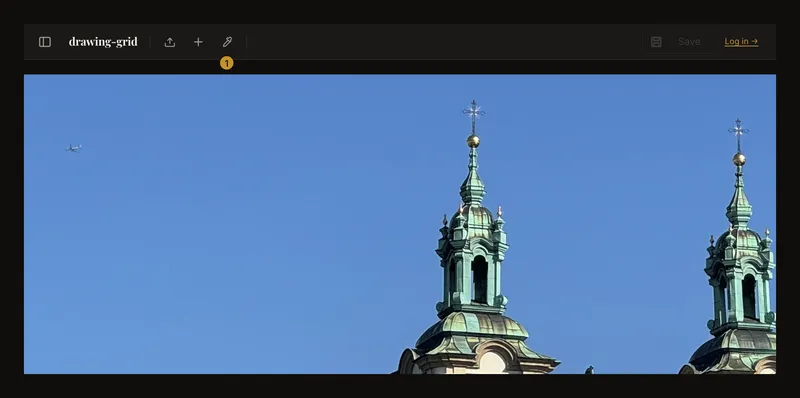
① Turn on Picker before selecting a point in the photograph. 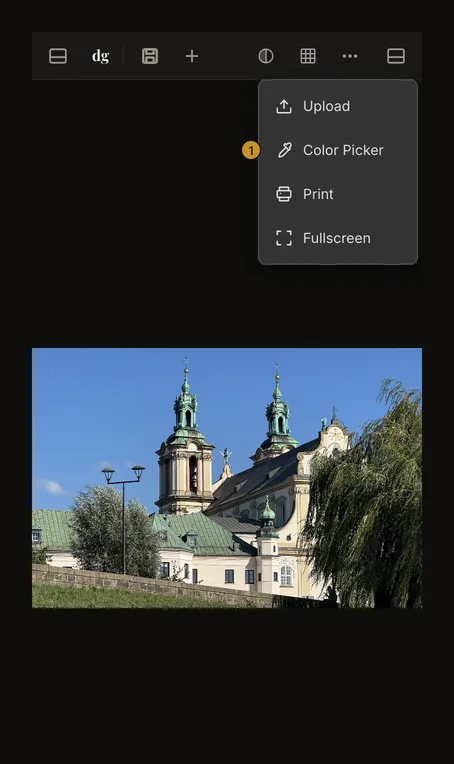
① On a narrow screen, the same tool is available in the more menu. - Preview, then click or tap
With a mouse, move over the photo to preview the colour beside the pointer. Click to keep that sample in a card. On a touch screen, tap the desired point; no hover is required. The picker stays active, so another click or tap replaces the card's sample.
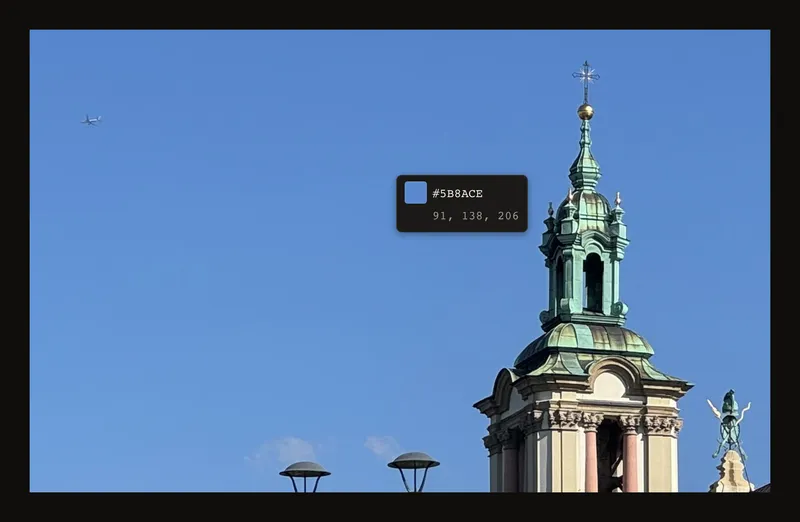
While the picker is on, this preview moves with your mouse. Click to keep a sample for copying. - Copy the format you need
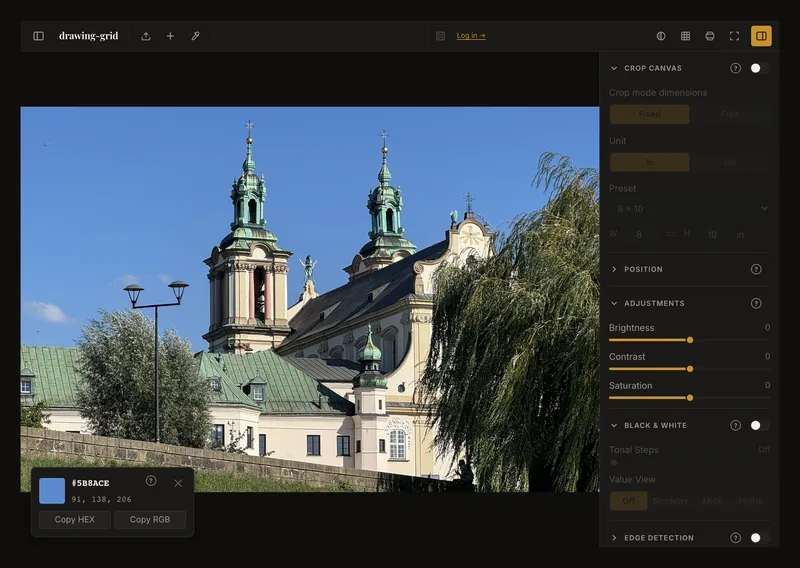
Choose Copy HEX for a code such as
#527FA8, or Copy RGB for a value such asrgb(82, 127, 168). These are format examples, not promised values for every blue patch. The card displays uppercase HEX and three decimal RGB numbers.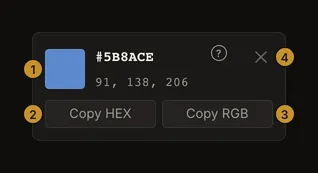
① colour readout. ② Copy HEX. ③ Copy RGB. ④ dismiss this sample. Copied! appears briefly after copying succeeds. If it does not appear, do not assume the clipboard changed: browser permissions or an insecure connection can prevent copying. You can still read and record the displayed values.
Rendered pixels, not hidden original colours
The picker samples the displayed canvas. A grid line can therefore produce the grid colour; B&W produces grayscale; tonal overlays and edge lines can also affect the reading. Brightness, contrast and saturation adjustments are included. The photo may also be scaled on screen, so a boundary can contain blended colours rather than one untouched source pixel.
For a useful comparison, sample several points within a broad area, not just one bright highlight or a sharp edge. Keep the display and processing settings consistent between samples. Do not sample the empty canvas margin as if it were part of the photograph.
Close the card or leave picker mode
The card's × button dismisses that sample; it does not turn off the picker. Press Escape, or choose the picker entry again, to leave picker mode. Leaving the mode does not remove the sample card. The card remains until dismissed or replaced, even if you load a different photo, so take a new sample before trusting it as a reading of the new image.
Entering the picker clears the focused grid cell. While picking, dragging does not pan the image and double-clicking does not zoom; each click simply takes a new sample. Leave the picker before repositioning the reference.
Keyboard controls and touch sampling
Use normal keyboard navigation to reach the picker and the card's copy or dismiss buttons, then activate them with Enter or Space. Escape leaves picker mode. Selecting the actual pixel uses the mouse or touch: there is no keyboard cursor for moving between image pixels. On a touch screen, move or zoom the image before turning on the picker if the desired point is difficult to reach.
Use the numbers as a reference, not a paint recipe
A screen's RGB colour is not a physical pigment formula. Lighting, camera processing, display settings and the surface you paint on all affect the comparison. Use the sample to guide your observation, then test your actual paint under the light where the work will be seen.
The sample card is temporary interface state, not a saved palette. Copy or note useful values yourself; do not rely on the card surviving a reload.