Transfer a portrait without losing its proportions
A grid gives your portrait a shared set of addresses: the same cell on the reference and on your paper or canvas. You still observe and draw the face yourself. The tool adds the reference grid and can show detected edges, but it does not draw your portrait for you.
This exercise uses a public-domain photograph of Abraham Lincoln by William Marsh, dated May 20, 1860, from The Metropolitan Museum of Art. Both eyes and the main contours are visible. The face turns slightly, so copying what you see matters more than making the two sides symmetrical. The outline illustrations below are teaching diagrams, not automatic app output.
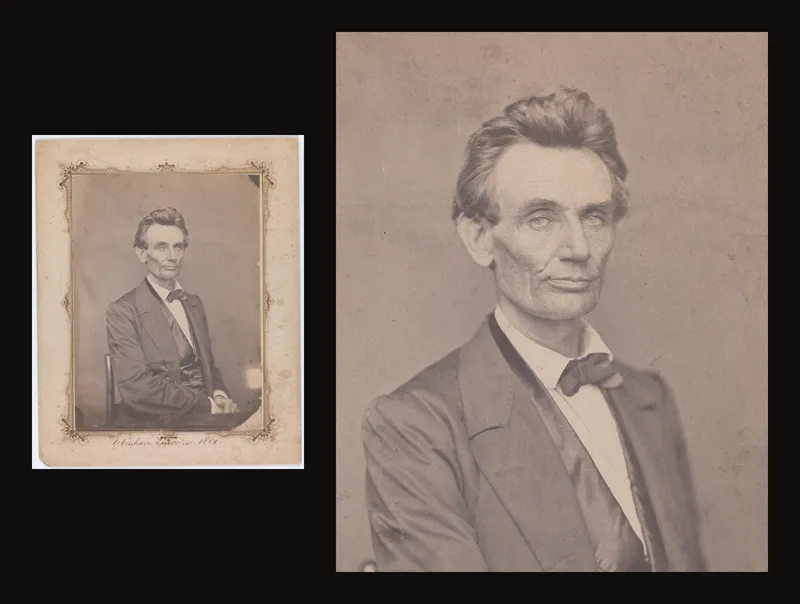
Transfer the portrait, step by step
- Choose a reference you can read and reuse
Use a photograph you own or have permission to use. For a first study, choose visible eye corners, a readable nose and mouth, and a simple background. Avoid a tiny face that becomes blurry when enlarged. Do not mistake a shadow boundary for the edge of the head.
Upload the photograph. You can work without an account; saving an artwork to your account requires signing in. See uploading a reference for file and phone options.
- Set the crop and the destination size
Decide how much hair, neck and shoulders to include. Leave deliberate space around the head. Our destination is a 24 × 30 cm rectangle, a 4:5 width-to-height ratio. Use Crop Canvas, choose centimetres and enter those dimensions, set the crop mode to Fixed, then resize and move its frame to your chosen composition. Apply the crop before transferring any features.
Cropping changes the working image; it does not preserve a permanently recoverable original. Keep the source photograph outside the app. Follow the crop procedure if you need help with the controls.
- Start with four columns and five rows
Enable Grid Overlay. For this 24 × 30 cm portrait, use four columns and five rows: every destination cell is 6 × 6 cm. If Square cells by is active, choose columns as the controlling axis and enter four; the matching height gives five complete rows. Alternatively, turn square cells off and set both counts explicitly.
Use thin, clearly visible lines. Under Labels, set Column labels to Letters (A, B, C...) and Row labels to Numbers (1, 2, 3...) to get A–D and 1–5. Keep the same labels on your drawing surface. Each label sits on a small background so it stays readable. If these patches cover hair or shoulders near the edge, lower Background opacity or turn off Label background. Begin with this coarse grid; add detail within a cell only where it helps. A dense grid can hide the face you are trying to observe.
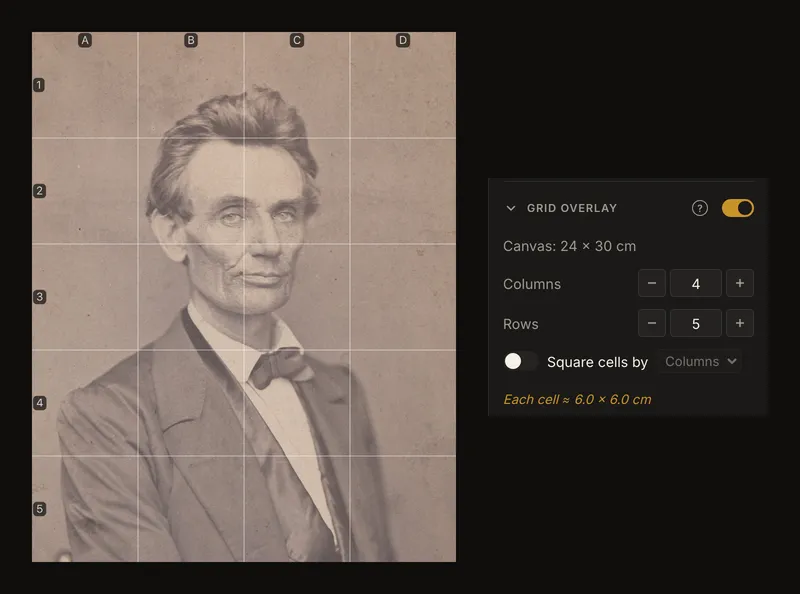
The 4:5 portrait and the 4 × 5 grid produce square cells. The drawing surface uses the same layout. See grid counts and square cells for the full control reference.
- Rule the same rectangle on your surface
Measure a 24 × 30 cm rectangle with a ruler. Mark every 6 cm along both opposite edges, then join corresponding marks lightly. Count four cells across and five down; do not count the boundary lines as cells. Check that the outside corners are square and that the last cell has the same width as the first.
Put A–D above the columns and 1–5 beside the rows, outside the drawing when possible. Keep the reference and the surface the same way up. Test your pencil and eraser on a spare piece or inconspicuous area first. Use lines light enough to reduce later without scoring the paper or ground.
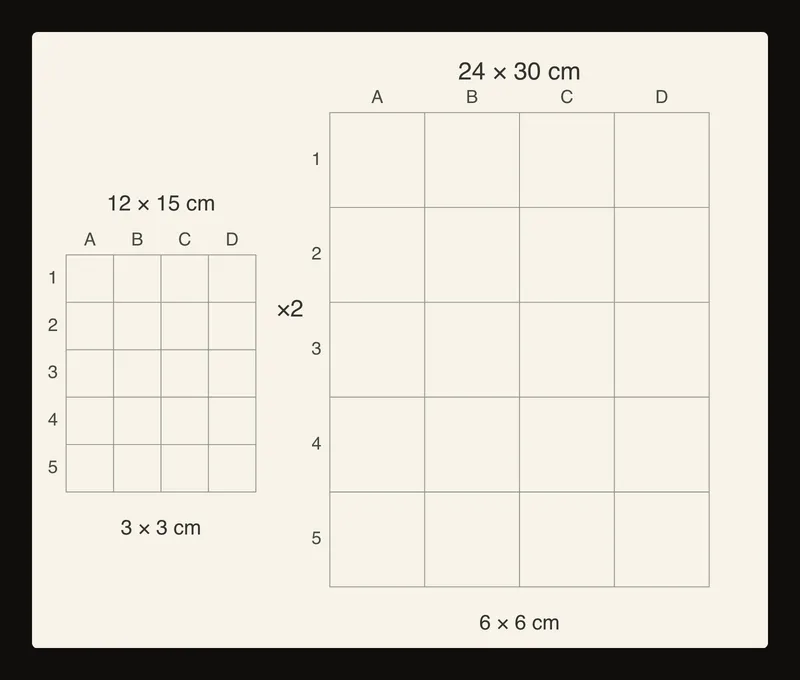
Teaching diagram: both dimensions double, while four columns and five rows stay the same. Dimensions describe the example, not the size of this screen image. - Place a few landmarks before drawing details
Find the cell containing each eye corner, the base of the nose, the mouth corners and the lowest point of the chin. Compare each point with the cell edges: is it halfway across, near a corner, or just below a horizontal line? Place a small, light mark at the same relative position in the corresponding destination cell.
Check the angle between the eyes and the distances from eyes to nose, nose to mouth and mouth to chin. Follow the photograph’s head tilt. Do not force the eyes onto a horizontal line or make the two sides equal when the reference shows otherwise.
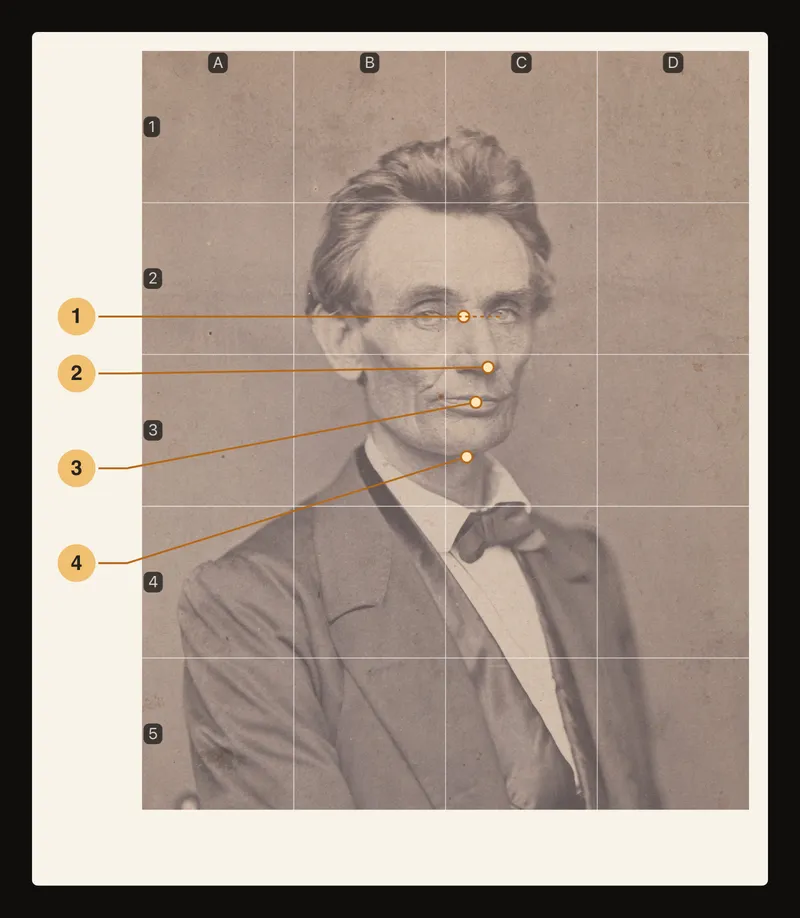
Teaching overlay: ① compare the eyes; ② locate the nose; ③ place the mouth; ④ check the chin. Numbered annotations are not app controls. - Join the landmarks one cell at a time
Begin with the broad outline of the hair, face, neck and shoulders. In each cell, note where a contour enters and leaves the boundary, then connect those points with its observed curve. Match the continuation in the next cell before strengthening the line.
Look at the empty shapes between the silhouette and the grid as well as the face itself. These negative spaces often reveal a misplaced cheek or an over-wide head. Use Diagonal lines briefly if the halfway points and diagonal crossings help; any extra guides on the paper must match the reference. Avoid treating a diagonal as part of the portrait.
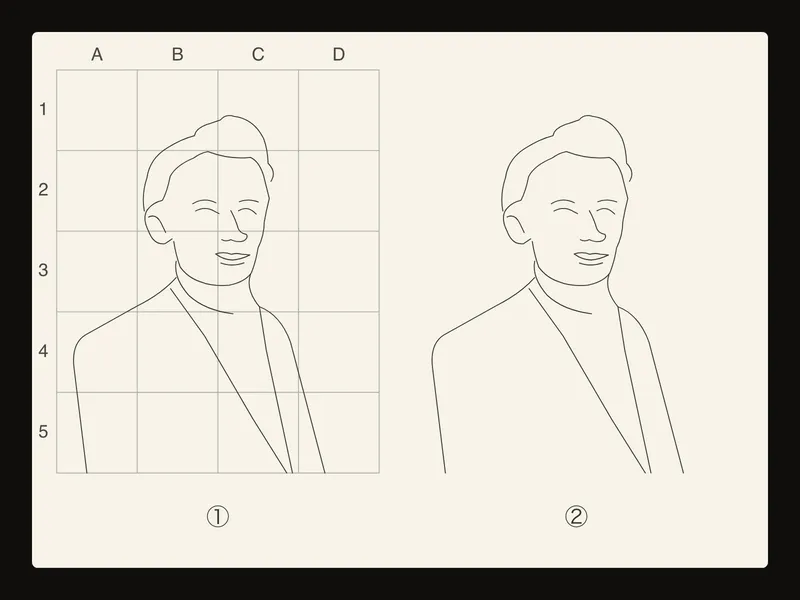
Teaching diagram: ① large contours placed cell by cell on the grid; ② the same outline once the guide lines are removed. Not a photographed drawing or app-generated outline.
Enlarge both directions by the same amount
A 12 × 15 cm printed reference and a 24 × 30 cm destination have the same 4:5 ratio. The enlargement is 24 ÷ 12 = 2 across and 30 ÷ 15 = 2 down. Four columns and five rows make 3 cm reference cells and 6 cm destination cells. A point one quarter of the way across a reference cell stays one quarter of the way across the matching destination cell.
A 24 × 36 cm destination would change the example: the horizontal scale would be 2, but the vertical scale would be 2.4. Copying into that stretched grid would lengthen the face. Choose a matching rectangle within the larger surface, or decide on a different crop before you start. Do not change the ratio halfway through the drawing.
Alternate a close view with the whole face
Focus mode can isolate one cell while you examine a contour. Click or tap a cell, then return to the whole face regularly. Two well-copied individual cells can still meet badly if you counted the wrong row or shifted the whole mouth.
Use the same cell labels to move between reference and paper. Clear the focused cell to compare the silhouette and feature spacing; use the Focus guide for pointer, keyboard and touch methods. On a phone, open the controls panel to change the grid, then close it to give the portrait more room. Zooming the reference changes your view, not the physical size you ruled on paper.
Check the structure before adding tone
Step back. Check head width against height, the head angle, the eye spacing, and the position of the mouth beneath the nose. Trace each contour across several cell boundaries with your eyes. Correct large placement errors before adding eyelashes, wrinkles or individual hairs.
Reduce the grid where your medium permits, then develop tone and detail. Gently lift pencil rather than rubbing aggressively. Watercolour paper, prepared canvas and other grounds respond differently: test first, and do not assume guide marks will disappear under paint. Keep a few useful light landmarks until the structure is secure.
Work from the screen or a correctly scaled print
For screen reference, rely on matching cells and relative distances. The photograph need not appear 12 × 15 cm on the display. Browser zoom, app zoom and a screenshot are not a physical ruler.
If you print the reference, choose its intended physical dimensions in the print controls. Apply a pending crop when prompted if you want that cropped composition in the PDF. Use the printer’s actual-size or 100% setting, then measure a known cell with a ruler. A fit-to-page option can change the scale. For a tiled output, check the assembled dimensions before using it for direct-size transfer. See printing the reference.
Frequently asked questions
Why does the face look wider than the reference?
Check the outside rectangle first, then count the cells. Unequal horizontal and vertical scaling, an extra column or a stretched cell can distort every feature. If the grid matches, compare the silhouette and negative spaces before redrawing small details.
Should I use more cells around the eyes?
Only if you need them. Start with a readable overall grid and use relative positions inside a cell. If you add subdivisions, reproduce them in the corresponding cells on the surface. Do not change the whole grid after you have already copied features unless you also update your surface consistently.
Does the app create the transferred drawing?
No. It helps prepare and inspect the gridded reference. You place the landmarks and draw the contours on your surface. The outline in this article is a teaching illustration; Edge Detection can show light-dark edges on the photo, but it does not choose or draw your portrait's lines.
How can I continue the study another day?
Keep the original photograph and note the crop ratio, destination dimensions and grid counts. Sign in and save the prepared artwork if you want to reopen it from your account. Before continuing, compare the reopened grid with the marks already on the paper; do not assume a different reference or crop will align.