Look after your account and saved work
Your account keeps saved artworks available across devices. The Account page brings together your email, storage usage, preferred language and password controls. You can use the drawing tool without signing in; account settings require a signed-in account.
Check your account
- Open Account
In the tool, open the left sidebar and choose Account. If you are signed out, sign in first. Check the displayed email so you know which account you are managing. It is read-only here: this page has no email-change field.
- Read your usage
Under Storage, compare your saved artwork count and storage used with the limits shown for your account. These are separate limits: you can run out of storage before reaching the artwork count.
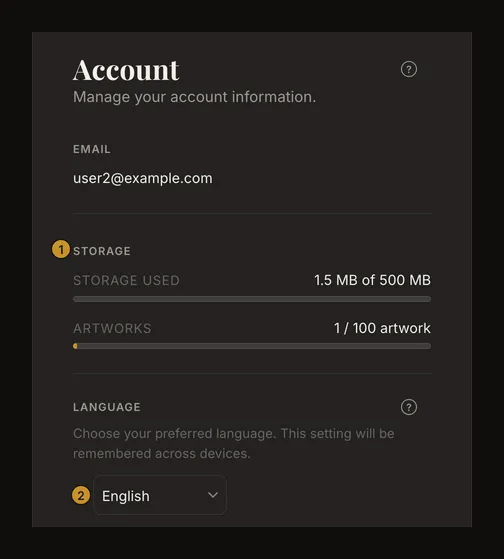
① Read the account’s usage. ② Choose your preferred language. - Choose your language
Use Language to change the interface language. The page changes language immediately; the preference is saved to your account for other devices. Allow it to sync while online. Use Back to tool to return to drawing.
Understand storage and limits
Use the limits displayed in your account, rather than a number in someone else’s screenshot. Limits can differ between accounts. Storage includes image data kept by saved version history; it is not simply the size of the photo currently visible in the editor. Versions sharing the same stored image do not each count another copy of that image.
To reduce your artwork count, open your saved artworks and delete studies you no longer need. To free image storage, consider which saved artworks and their histories you can safely remove. Deletion is permanent; keep the original photo and anything else you need elsewhere first. Renaming a work, moving it to a project or changing its tags does not reduce its image storage. Removing a shared copy may not free all the bytes you expect while another saved version still uses that image.
If the usage block is missing, reload while connected: the rest of the Account page can still work when the usage request fails. A local browser session is separate from account storage and is not a backup of your saved collection.
Check how you sign in
Login methods appears only when Google is connected and lists Google; an email-and-password login is not shown there. It has no connect or disconnect buttons. Use the password form below to see whether you can change an existing password or set your first one.
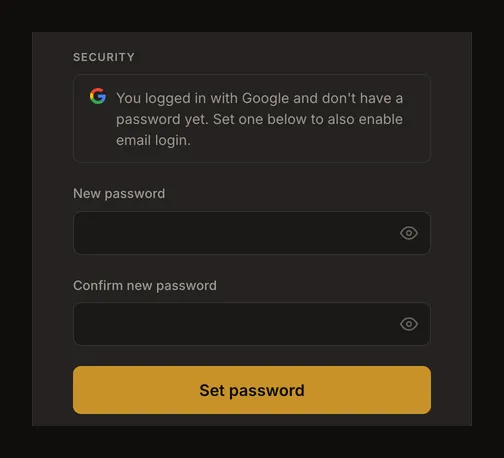
A Google-only account can add a password for email login without removing Google access. This changes your drawing-grid password, not your Google password. There is no email-editing or Google-disconnection control on this page.
Change or set a password
If you already have a password, enter Current password. Fill New password and repeat it in Confirm new password, then choose Update password. The new password must be 8–128 characters, must not be one of the rejected common passwords and must not equal your email. The two new-password entries must match.
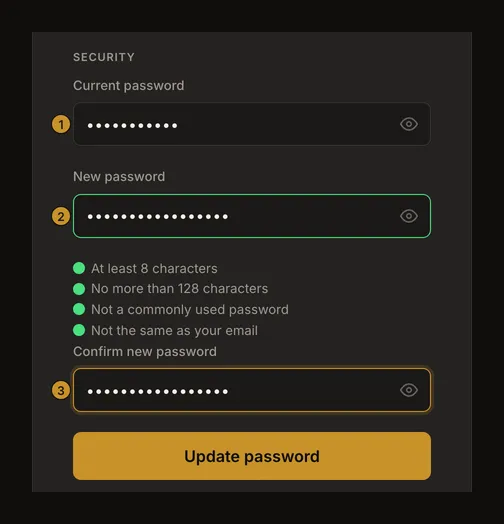
For a Google-only account with no password yet, the current-password field is absent. Enter and confirm a new password, then choose Set password.
Wait for Password updated. before leaving. A successful change keeps this browser signed in with a renewed session; other existing sessions must sign in again. If a field is rejected, correct it and retry. If you have forgotten an existing password, use password recovery from the sign-in page.
Delete an account deliberately
Before deleting, keep any original photos and useful exports outside the account. A printed or downloaded PDF is a drawing reference, not a restorable archive of your account and editing history. Account has no whole-account export button.
Choose Delete account to reveal the warning. Nothing is deleted by this first click. Choose Cancel to keep the account, or Confirm deletion only when you are ready to permanently remove it.
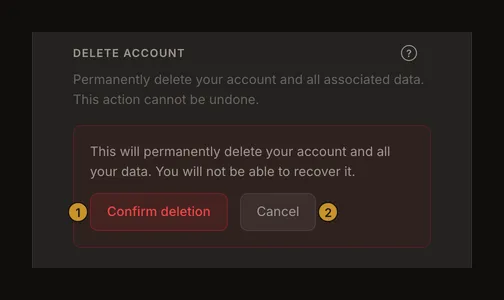
Confirmation removes the account and its saved artworks, histories, projects, tags and saved account settings such as favourite presets and screen calibrations. You are signed out and returned to the home page. There is no account-restore action. This does not delete original files or exports on your device. It does not clear this browser's local recovery copy; clear the site's data in your browser afterwards if that copy must go too. If deletion fails, read the error before trying again; deletion is refused for an administrator account with recorded admin actions, to preserve the audit record.
Frequently asked questions
Can I change my email or disconnect Google here?
No. Email is displayed for identification, and the provider list is informational. There are no email-change, connect or disconnect controls on Account.
Why is storage larger than my current photo?
Saved history can retain other image data. Usage covers the stored images used by your account’s saved versions, counting shared image data once. Compare the displayed usage and limit, not just one local file’s size.
Do I need to delete my account to remove one artwork?
No. Delete that artwork from your saved collection instead. Its history is deleted with it, so keep what you need first. Account deletion removes the entire account and all its saved artworks.
Will setting a password replace my Google login?
No. It adds a drawing-grid password for email login. Your Google password is unchanged and Google access is not disconnected by this action.