Know which copy you are working with
Opening a photo, recovering it in this browser and saving it to your account are different actions. Use this guide to decide where your work should live and what to clear on a shared device. It describes the application's controls; the site's Privacy Policy remains the place for its legal terms, data practices and contact details.
Choose how to keep your photo
- Open and edit on this device
Choose or paste a photo using the photo-opening guide. The editor decodes the file in your browser. Cropping, rotation, tonal adjustments, grid rendering and PDF creation run on the device. Choosing the file does not itself create a saved account artwork.
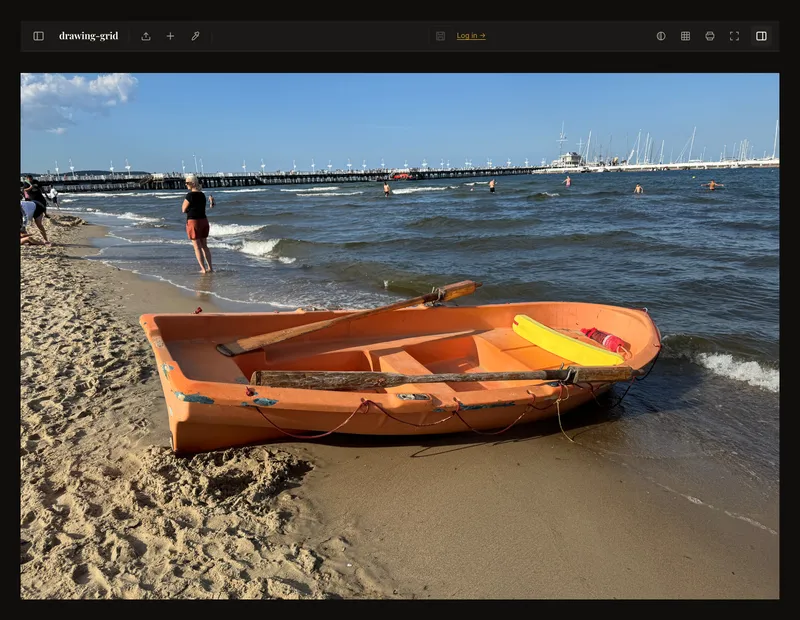
An open photo is an editing session, not confirmation of a saved account artwork. - Make an account copy deliberately
Log in and use Save to make the first account save. Confirm the save dialog; a name is optional. This sends image data, a preview when available and editor settings to the server. Later saves can send changed image data or updated settings and previews. Wait for successful completion before relying on the account copy.
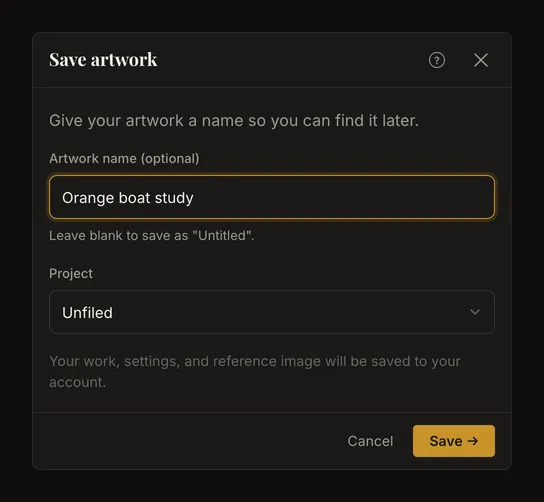
Opening this dialog is not the same as completing the first account save. - Check automatic account saving
In Settings, review Autosync. It is off by default. When enabled, it can save eligible changes to an existing saved artwork every 30 seconds while you edit its latest version. An unsaved new photo still needs its first manual save. Turning autosync off stops this automatic process; it does not remove copies already saved to the account.
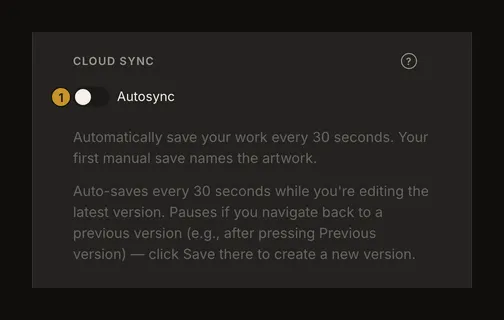
① Review this switch before assuming account saves are only manual.
Browser recovery is a separate local copy
The browser stores image data in IndexedDB and editor settings in local storage for recovery. This also happens while you are logged in; logging in does not turn local storage into cloud storage. Saved-artwork recovery may use local cached images or fetch the account version when needed.
Local recovery belongs to this browser profile and site. Clearing the site's browser data, storage eviction or a private session ending can remove it. It is not a permanent backup or a way to move work to another device. Keep the original photo separately, and save or export anything you need before clearing data.
Local image processing does not mean an offline website
The site still loads pages and scripts. Logging in, account preferences, artwork saves and gallery requests use network services. Downloading a saved account image also transfers it from the service to your device. A locally produced PDF is a separate file you choose where to store or share; deleting the account does not delete your downloads.
Do not read “processed on your device” as a promise of no network traffic, no logs or complete offline availability. It describes where the editor's image operations run.
Clear local data and delete account work separately
Clearing site data in your browser removes local recovery and preferences and can log you out. It does not delete artworks stored in your account. To remove an account artwork, delete it from the artwork gallery and confirm the action. That removes the artwork and its saved history from the account; it does not erase the original photo or downloaded PDFs elsewhere on your device.
For the whole account, open the account page and use its delete-account confirmation. This is separate from removing one artwork or clearing this browser. Deletion can fail; check the result rather than assuming a click completed it. Account deletion does not clear this browser's stored photo or settings; clear the site's data separately. Storage cleanup and server-side deletion are different operations, and this guide does not promise instant erasure of every physical copy.
Review analytics consent separately
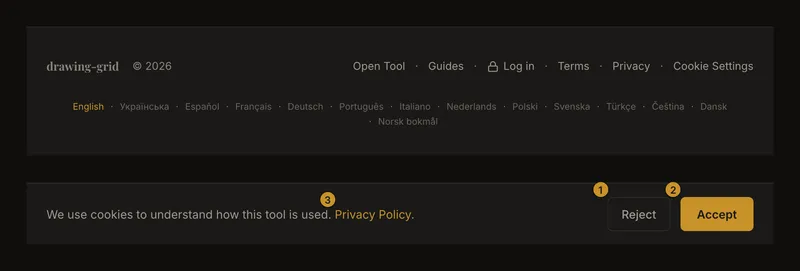
Use Cookie Settings at the bottom of the home page or any guide to reopen the consent banner. You can choose Reject or Accept for analytics cookies; the drawing tool remains usable either way. This choice is separate from the storage needed to keep you logged in and the browser's editor recovery.
When analytics is configured, rejecting cookies sets analytics storage to denied. Consent Mode can still send cookieless signals; rejecting is not a promise that no analytics request occurs. For the service's current policy and contact details, follow the Privacy Policy link in the banner or footer.
Frequently asked questions
Does choosing a photo automatically save it to my account?
No. Opening it creates a local editing session. The current account workflow needs a first manual save; enabled autosync can then update that saved artwork.
Will clearing browser data delete my account artworks?
No. It clears this browser's data. Delete account artworks in the gallery, or use account deletion for the whole account.
Does declining analytics cookies stop local recovery?
No. Analytics consent and the functional storage used by the editor are separate. Use browser site-data controls if you want to remove the local copy.
Can I rely on a private window to keep a backup?
No. Private browsing can remove local data when the session ends. Keep the original elsewhere and deliberately save or export work you need to retain.