Plan the light before the first wash
A small value study lets you test a painting's light and dark shapes before committing to colour. Here, an orange boat becomes a simple monochrome watercolour study: light foam and boat interior, a middle-value hull side and sand, darker water and a few connected darks. The aim is a readable arrangement, not a miniature copy of every ripple.
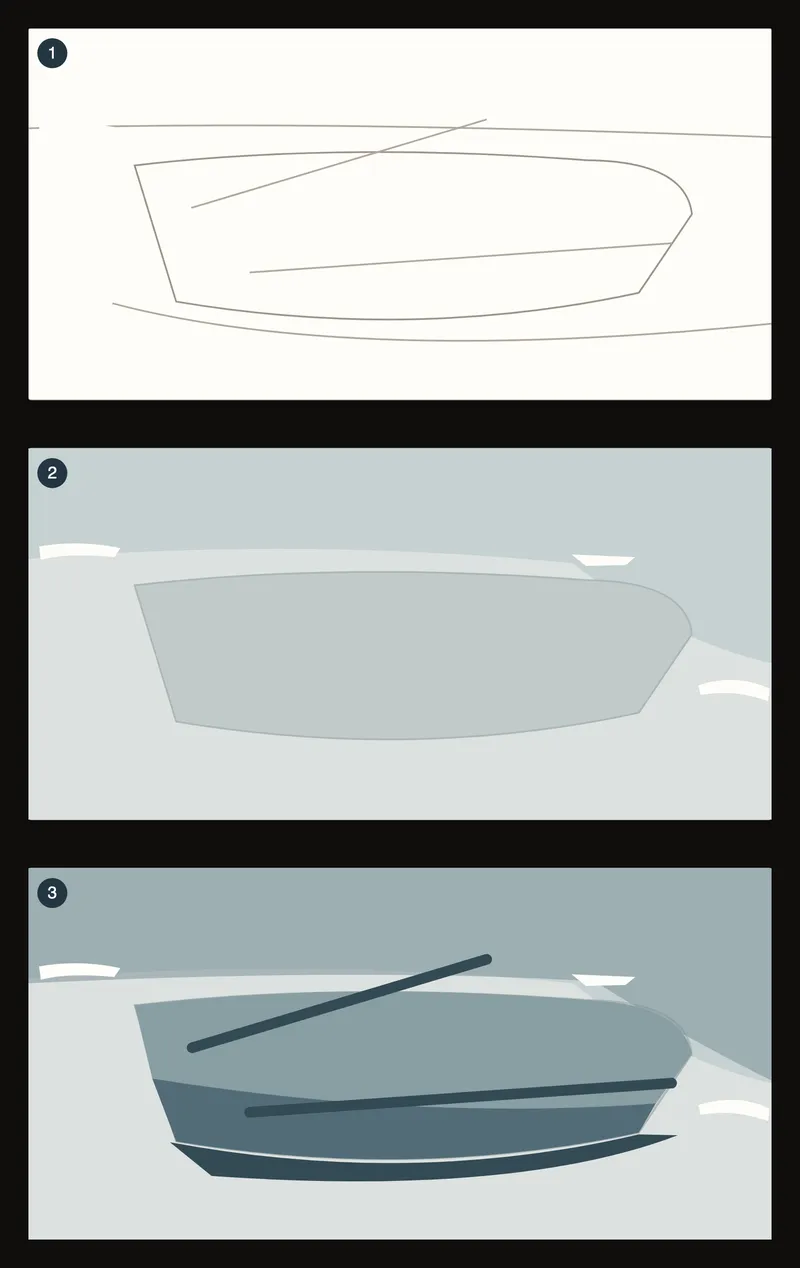
This is one transparent-wash approach. You can adapt it to your paper, pigment and way of painting. The paper-stage diagrams below are teaching illustrations, not photographs of a painted sample or images made by the drawing tool.
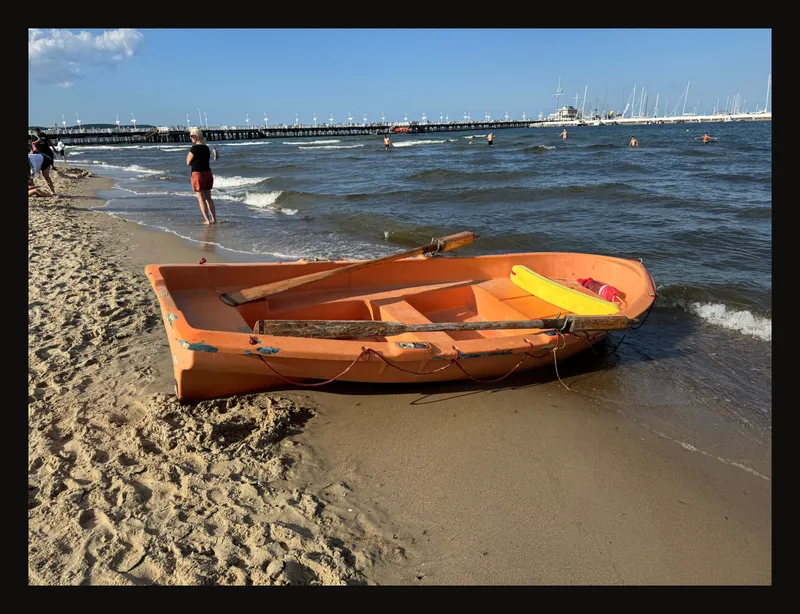
Build a three-value reference
- Keep the boat, simplify the surroundings
Open the photo and keep its original file separately. Try a wide composition with the boat across the middle, a band of water behind it and only a little sand in front. A 2:1 rectangle suits this example; a small study could be 15 × 7.5 cm. Switch on Crop Canvas, set the width and height, move the crop box over the part you want, then click Apply Crop. Follow the crop guide if you need the controls explained. Applying a crop changes the working image.
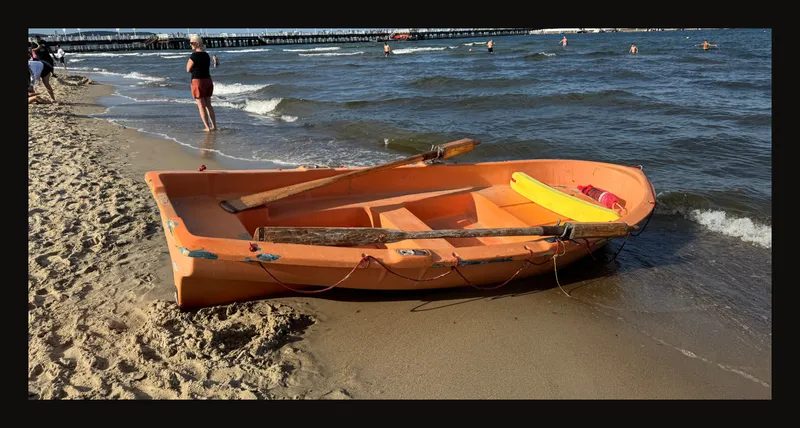
The crop reduces empty sky and foreground. Keep room around the hull rather than cutting through its silhouette. - Compare colour with smooth greyscale
Switch off Grid in the toolbar to see the large shapes. Turn on Black & White and leave Tonal Steps at Off at first. The black and white guide explains each control; the ? beside the panel title opens it too. Compare the hull with the water and sand: strong colour does not necessarily mean the lightest value. Keep the photograph's small contrasts in perspective; the dark contact beneath the boat matters more here than every speck of sand.
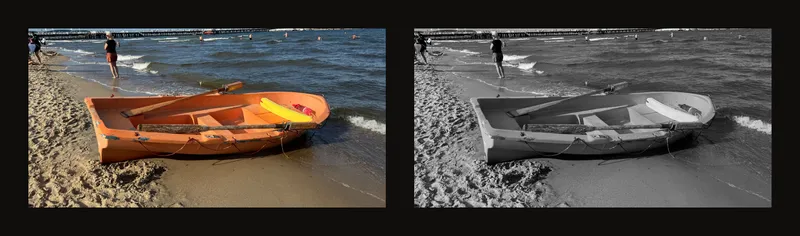
Left: colour. Right: smooth greyscale. - Use three steps as a starting point
Set Tonal Steps to 3. Look for a light family, a middle family and a dark family. The tool divides brightness into bands; it does not decide which shapes belong together in your painting. Join small fragments, omit distractions and keep a few useful edges. The boat must still read when you step back.
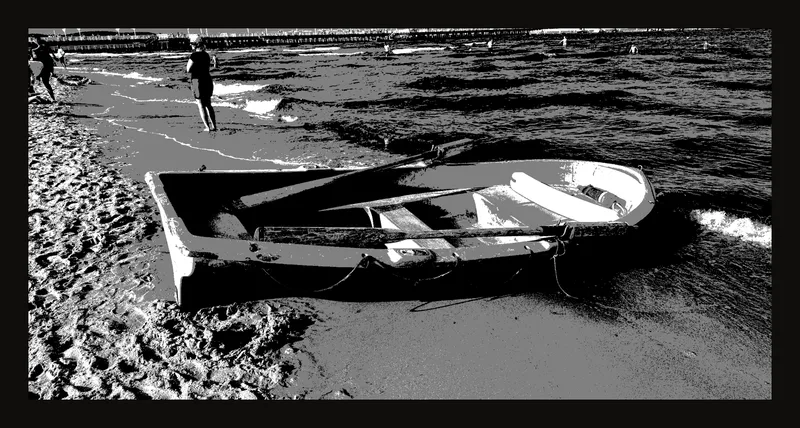
Automatic bands reveal a starting structure. A painter can simplify it further and choose different boundaries. - Check the dark mass, then remove the overlay
Set Value View to Shadows to locate the darker areas; the value view section explains the colours and boundary handles. The coloured emphasis is an analysis overlay, not a suggested pigment. Return it to Off before judging the whole reference or printing it. You can also turn tonal steps off to compare your plan with smooth greyscale again.
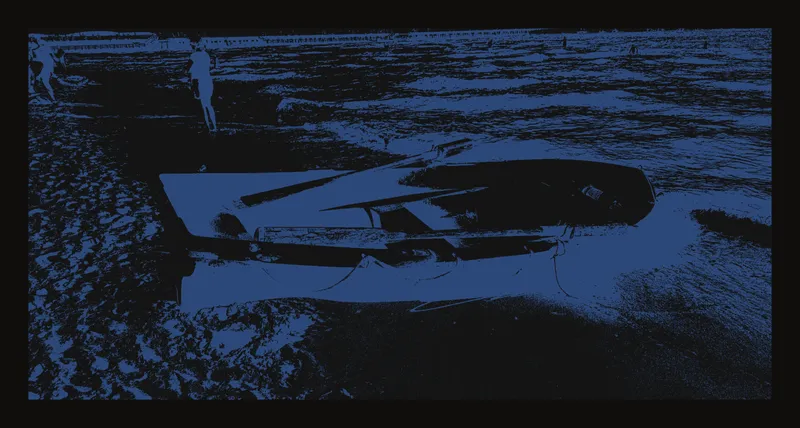
Use the highlighted band to find dark connections; do not copy its display colour into the study.
Choose which whites deserve untouched paper
Make a light outline on a small piece of watercolour paper. Mark only the hull, shoreline and main oars; omit the distant people, rigging and scattered sand texture for this study. Choose a few foam accents to leave unpainted. A pale area in the three-step reference does not automatically need to stay pure white.
Develop the study from light to dark
Use one pigment you know and test a pale, middle and dark mixture on scrap paper. Compare them after drying; the result depends on pigment, water and paper. You do not need to match the screen's three greys exactly.
- Reserve the light accents. Paint around the chosen foam shapes. Keep them few and connected to the composition rather than outlining every bright pixel.
- Lay a light wash. Establish a quiet base for sand, boat and water. In this approach, let it dry before adding separate shapes so their edges stay controlled.
- Add the middle shapes. Group the hull and water into readable areas. Vary edges selectively; a soft shoreline can sit beside a firmer boat edge.
- Place the darkest accents last. Connect the shadow under the hull and selected oar shapes. Stop before small details split the dark mass into noise.
Stand back and compare the relative lightness of neighbouring shapes. If the boat disappears, strengthen an important value difference rather than adding more tiny marks. A successful study can be much simpler than the photograph.
Protect the plan as you paint
If the lights disappear, do not assume another dark wash will restore untouched paper. For this transparent approach, preserve important whites from the start; lifting behaves differently with different pigments and papers. If everything becomes equally dark, return to the three large value families and leave some areas quieter.
Avoid tracing every tonal boundary or treating a vivid colour as automatically light. If you adjust brightness or contrast in the editor, compare with the untouched photo so you do not erase the shadow information you need. The display is a planning aid, not a physical paint-value standard.
Keep the reference beside the paper
Keep the original photo and your simplified plan available together. For an optional PDF, set Value View to Off, then open Print. If the crop box is not applied yet, the tool first asks Apply crop first?. Choose Apply Crop to apply it and open the print dialog, or Cancel to return to editing. In the dialog, choose whether to include Grid overlay and B&W conversion; B&W conversion also prints the current tonal steps. The print guide covers size and paper. Check the downloaded PDF before relying on the print; screen brightness and printer output can differ.
You can work locally without an account. If you want an account copy, save it deliberately and confirm success. Neither a browser session nor a saved version replaces keeping the original photo file.
Frequently asked questions
Must the finished study contain exactly three values?
No. Three values are a useful constraint for planning large shapes. Real washes have variation and soft transitions. Keep the light, middle and dark families distinct without forcing every edge into a hard outline.
Should every white area on screen stay unpainted?
No. The brightest band groups photo pixels. Choose the few highlights that need the white of the paper; other light areas can receive a pale wash.
Are the paper stages photographs of a finished painting?
No. They are simplified teaching diagrams made for this example. The photo treatments are captured from the real editor; the diagrams show a possible painting plan, not a guaranteed result.